Getting started
Migrate from Monarch
Bring your Monarch accounts, balances, transactions, and categories into Taiga Finance.
Your Monarch history comes over to Taiga Finance in full: your accounts, their balance history, your transactions, and the category on each one. Taiga Finance reads Monarch’s own export files for you, so most of the work below is reviewing and confirming. The one thing that makes it go smoothly is getting your accounts into Taiga Finance first, so your Monarch transactions attach to accounts you already have instead of creating duplicates. The steps below do that in the right order.
What comes over from Monarch?
Section titled “What comes over from Monarch?”Taiga Finance keeps account identity separate from the transactions that fill it, so a transaction always belongs to an account you can see, and importing transactions never creates accounts in the background. That is why order matters. When you import your Monarch transactions, Taiga Finance asks you to point each account in the file at one of your real accounts. If those accounts already exist, you map onto them. If they don’t, you create them during the import, which is where accidental duplicates come from.
How do I export my data from Monarch?
Section titled “How do I export my data from Monarch?”Monarch exports two files you need, both as CSV: your transactions, and your account balance history. Its export lives under its settings’ data-export options. Keep both files. You’ll bring them into Taiga Finance in the steps below.
In what order should I import?
Section titled “In what order should I import?”Three passes, accounts first. Each pass gives the next one real accounts to attach to:
1. Connect your live accounts first
Section titled “1. Connect your live accounts first”Connect the banks and cards you still use before you import anything. A live connection creates each account with a provider-attested last-4, which is the strongest signal Taiga Finance uses to match your Monarch data onto the right account. See Getting connected for how to link an institution. Anything you can’t connect live, like a closed account or one at an institution Taiga Finance doesn’t support, you’ll create from your balance file in the next step.
2. Import your Monarch balance history
Section titled “2. Import your Monarch balance history”-
On the Import page, open the Balance history tab and upload your Monarch balance file. Its Date, Account, and Balance columns are a shape Taiga Finance recognizes, so it maps them for you.
-
Under Account mapping, point each account in the file at a live account from step 1, or create it. This is where the accounts you couldn’t connect live get their record.
-
If some dates have no balance, Missing balances offers Skip or Fill forward. Skip imports only the values present. Fill forward repeats the last balance across the gap, and never invents one before your first reading.

-
Click Import N snapshots. Your net-worth chart backfills with the history, and the accounts you created here now exist for the transaction import.
3. Import your Monarch transactions last
Section titled “3. Import your Monarch transactions last”-
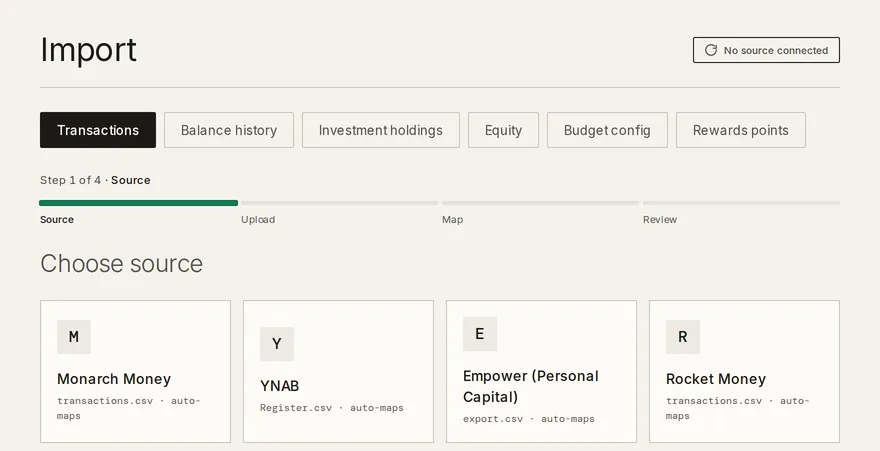
Open the Transactions tab and choose Monarch Money.
-
Upload your transactions file. A staged list headed Building your preview ticks from Reading your file to Matching accounts and settles on Ready to review. Taiga Finance recognizes Monarch’s columns, so it skips column mapping and opens the Map step.
-
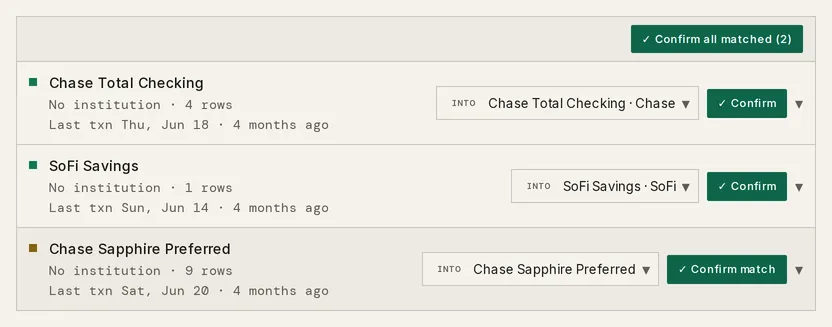
On the Map step, headed Map N accounts and categories, each account in the file is matched to one of your real accounts from steps 1 and 2 and tagged Best match. Click ✓ Confirm on each, or ✓ Confirm all matched at once. For one Taiga Finance couldn’t match, pick the account from the Map to account menu, or use + Create account only when it isn’t in Taiga Finance yet.
-
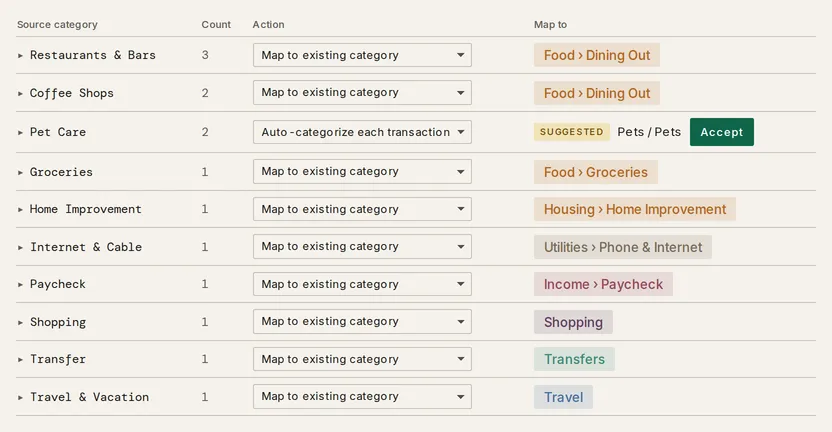
Under Category review on the same step, give each Monarch category a decision: Map to existing category, Create new, Auto-categorize each transaction, or Leave uncategorized. A category Taiga Finance guessed shows a Suggested tag beside the guess until you click Accept. Then click Continue to review →.
-
On the Review step, rows that match transactions you already have are marked Dup · ID or Dup · content and skipped. Click Import N transactions. Back to mapping returns to the Map step.
-
The finished card reads N transactions imported, with N skipped as duplicates below it when any were.
Why do transactions go last?
Section titled “Why do transactions go last?”Taiga Finance’s duplicate check runs at import and compares each incoming row against everything already in your ledger, including transactions from your live connections, by matching the amount to the cent, a date within three days, and a similar description. With your accounts connected and your balances already in, an overlapping Monarch row is recognized and skipped instead of landing a second time. The other order, transactions first and live sync after, is the direction the check doesn’t cover.
What if a duplicate account shows up?
Section titled “What if a duplicate account shows up?”Nothing double-counts. If a Monarch account and a live account both end up created, Taiga Finance never merges them on its own. It raises a possible duplicate banner on your Accounts page. Open it to review the pair in Possible duplicate accounts, then Merge… to combine them or Not duplicates to keep them apart. Mapping accounts during the import avoids this review. See Managing accounts.

What doesn’t come over from Monarch?
Section titled “What doesn’t come over from Monarch?”Taiga Finance reads six columns from a Monarch transactions file: date, merchant, category, account, original statement, and amount. The rest stays behind:
- Tags, notes, and the owner column aren’t read, so none of them import. To keep transactions organized the way you had them, set up category rules.
- Budgets and goals have no Monarch importer. Set your budget up in Plan. The only budget import is a YNAB Budget config file.
- Investment holdings don’t come from a Monarch export. Import positions separately under Investment holdings — see CSV & PDF importers.
Troubleshooting
Section titled “Troubleshooting”The Import button is disabled with “Pick an account for every mapped row, or skip it.”
Section titled “The Import button is disabled with “Pick an account for every mapped row, or skip it.””A row on the Map step is set to map but names no account. Click Back to mapping, then pick the account from Map to account or create it.
Rows show as “Dup · ID” or “Dup · content” and don’t import.
Section titled “Rows show as “Dup · ID” or “Dup · content” and don’t import.”They match transactions Taiga Finance already has, often from a live connection covering the same dates. This is the duplicate check working, not an error. The rows are skipped so the same charge isn’t stored twice.
A balance didn’t change after the import.
Section titled “A balance didn’t change after the import.”A balance from a file corrects only a filled-in or unknown value. It never overwrites a live-synced balance or a balance you pinned by hand.
Upload fails with “No rows found in this file.”
Section titled “Upload fails with “No rows found in this file.””The file parsed but held no transactions, usually an export of an empty date range or the wrong file. Export again from Monarch over a range with activity.
Do I have to connect my banks live, or can I import CSV files only?
Section titled “Do I have to connect my banks live, or can I import CSV files only?”You can import CSV files only. A live connection isn’t required. It just gives Taiga Finance the strongest signal for matching accounts, and keeps balances current.
Can I re-import the same file without creating duplicates?
Section titled “Can I re-import the same file without creating duplicates?”Yes. Taiga Finance checks every incoming row against your transactions and skips the ones you already have, so importing the same file twice adds nothing. An edited category or merchant on a row you already imported stays as you left it.
Will my Monarch categories come across?
Section titled “Will my Monarch categories come across?”Yes, through Category review. Each Monarch category gets a decision the first time it appears, and that decision is sticky: the next import from Monarch applies it without asking again.
Can I import my Monarch investment accounts?
Section titled “Can I import my Monarch investment accounts?”No, not from a Monarch export. Investment positions come in under Investment holdings from a Fidelity CSV, an OFX / QFX statement, or a crypto exchange file. See CSV & PDF importers.