Using Taiga Finance
Plan vs. actuals
Compare each line of your plan with what it has averaged, and test a different number without touching the plan.
Plan vs. actuals sets every line of your plan beside what that line averaged over your last 3, 6, or 12 completed months. Open Reports, then Plan vs. actuals. The Difference column shows where the plan and your history differ. Click a line to see it month by month. Type a what-if number to see what a different amount does to your savings. Nothing on this page changes the plan.
What does this report compare?
Section titled “What does this report compare?”Your plan holds a monthly amount for each line. Your transactions show what each line came to. A grocery line can sit at one amount in the plan while the last twelve months averaged well above it. This report puts the two side by side for income and every spending line, then totals them into Savings and a Savings rate.
How do I read the table?
Section titled “How do I read the table?”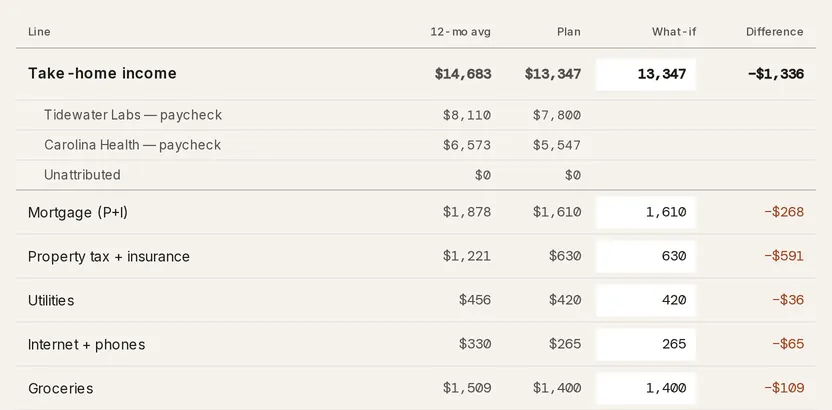
| Column | What it holds |
|---|---|
| Line | Take-home income and its paychecks, then every spending line in your plan, then the totals. |
| 12-mo avg | The line’s average over the completed months in the window. The current month never counts. The History control switches it to 3-mo avg or 6-mo avg. |
| Plan | The line’s monthly amount in your plan. |
| What-if | A number you can type over. It starts as the plan amount. |
| Difference | What-if minus the average. Until you type a what-if, that is plan minus average. |
A Difference turns coral only when the average runs against the line: a spending line averaging above its number, or income and savings averaging below theirs. The other direction carries no color.
The table closes with Total spending, Savings, and Savings rate. Savings-type plan lines are not listed as spending. The last spending row, Everything else unless your plan names its own catch-all line, gathers the spending your plan doesn’t name.
When your history is shorter than the window, the column head says how many months it found, as in 12-mo avg (5 mo).
How do I see one line month by month?
Section titled “How do I see one line month by month?”-
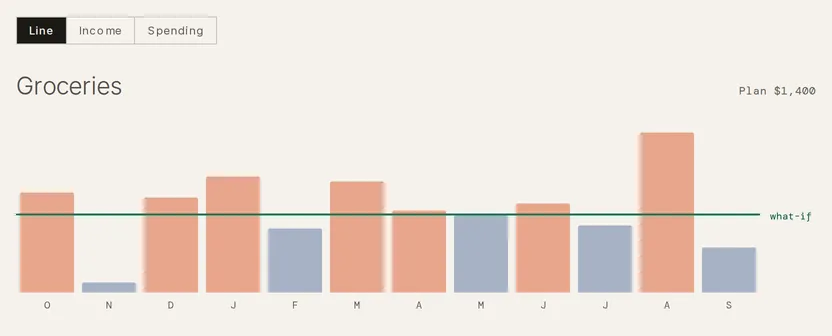
Click a spending line’s name in the table. The focus pane switches to its Line tab and shows that line.
-
Read the bars. There is one per completed month, up to twelve. Months inside the History window are slate, and months outside it are dimmed. A month inside the window is coral when it came in above the what-if number on a spending line, or below it on income. The solid line is the what-if number. A dashed line marks the plan once the two differ.
-
Click a bar to pick that month. The Transactions list under the bars shows the line’s transactions for it, up to eight. View in ledger → opens Transactions with the same line and month, and reads View all N in ledger → when there are more than eight. Click the bar again to return to the current month.
-
Click Take-home income or Total spending in the table to see the same bars for all income or all spending. The pane’s Income and Spending tabs do the same.
How do I try a different number?
Section titled “How do I try a different number?”-
Click the What-if field on a spending line, or on Take-home income. With a line’s name focused, pressing E jumps to its field.
-
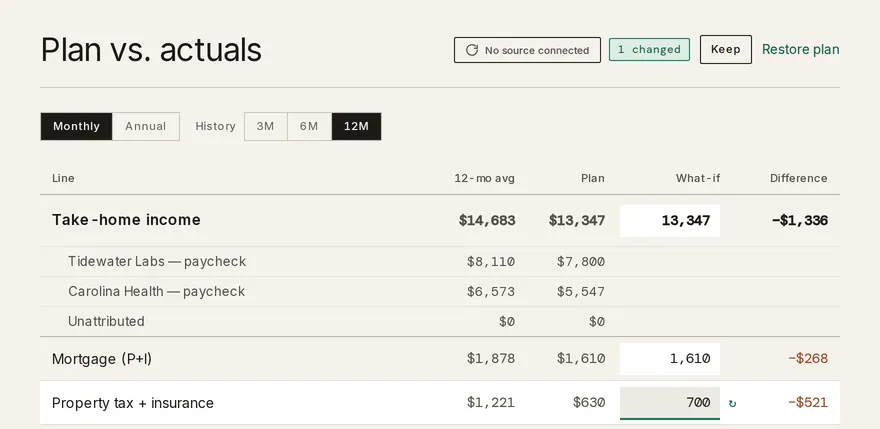
Type an amount and press Enter. A blank or negative entry puts the plan amount back.
-
Check the row. Its Difference recalculates, and so do the What-if figures for Total spending, Savings, and Savings rate. A chip beside the title counts your changes.
-
Click Keep to save your what-if numbers as a draft. Keep disappears until the numbers change again. The draft is yours alone and comes back the next time you open the report. Numbers you don’t keep are gone when you leave the page.
-
Click ↻ beside a field to put one line back to its plan amount, or Restore plan to put every line back.
To change the plan itself, open Plan.
What do the controls change?
Section titled “What do the controls change?”Monthly shows each figure as a month’s amount. Annual shows it times twelve. Under Annual, a what-if you type is an annual amount. History sets the averaging window to 3M, 6M, or 12M, and opens at 12M.
What does a partner’s private paycheck look like?
Section titled “What does a partner’s private paycheck look like?”A paycheck your partner keeps private appears as one row named for them, with a private tag. The row shows its planned amount and a dash for its average. Their deposits are absent from your Take-home income average. Their planned amount still counts in that row’s Plan. So the row’s Difference can turn coral even when every paycheck arrived as planned. A partner’s private spending lines are not listed. See Couples & household visibility.
Troubleshooting
Section titled “Troubleshooting”The averages read “—” and the pane says “No completed months yet.”
Section titled “The averages read “—” and the pane says “No completed months yet.””Taiga Finance has no completed month of transactions to average. The pane offers Import transactions and Connect an account. The Plan column still fills in from your plan.
The column head reads “12-mo avg (5 mo).”
Section titled “The column head reads “12-mo avg (5 mo).””Your history covers five completed months of the twelve requested. The average uses those five and never divides by twelve. Switch History to 3M for a window your history fills.
The list under the bars reads “No transactions this month.”
Section titled “The list under the bars reads “No transactions this month.””The line has nothing in the picked month, or nothing yet this month. Click another bar.
My what-if numbers were gone when I came back.
Section titled “My what-if numbers were gone when I came back.”What-if numbers last only until you leave the page unless you click Keep. Keep appears beside the title while your numbers differ from the saved draft.
A what-if number I kept is gone.
Section titled “A what-if number I kept is gone.”The line is no longer in your plan. Taiga Finance drops a kept number for a removed line the next time the report opens.
Does a what-if change my plan?
Section titled “Does a what-if change my plan?”No. What-if numbers live on this report only. Keep saves them as a draft beside your plan, and nothing here writes to the plan.
Which months count toward the average?
Section titled “Which months count toward the average?”Completed months only. The current month is left out, and so are pending transactions, transfers, and transactions hidden from budgets. The month your history starts in counts, even though it is partial.
Can my partner see my what-if numbers?
Section titled “Can my partner see my what-if numbers?”No. A kept draft belongs to the person who kept it.
Can I put this on Today?
Section titled “Can I put this on Today?”No. This report has no Today version. The other four built-in reports do.
Does the report reopen where I left it?
Section titled “Does the report reopen where I left it?”No. The window, the tab, the line, and the picked month reset to their defaults each time the report opens. Only a kept what-if draft comes back.