Getting started
Your first week
Walk through the start page on your first sign-in, then the first things to do once your accounts are in.
Your first sign-in to Taiga Finance opens on the start page: a few questions about you, one bank connection, and a first sync. When the first sync lands, Taiga Finance opens Today with a Getting started checklist that ticks itself off as data arrives. The rest of the first week is reading what came in, bringing over the history a bank can’t send, and setting up a plan, each with its own guide linked below.
What is the start page?
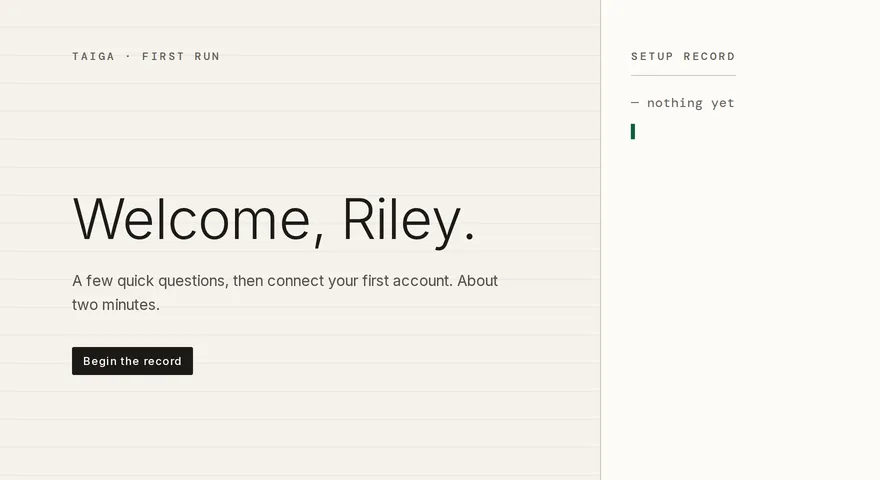
Section titled “What is the start page?”The start page is the one-time setup Taiga Finance shows a new account before any transaction exists. It has three steps, About you, Your old app and Connect, with a stepper across the top and the Setup record on the right, where every answer is written as a line. The answers decide which parts of the app appear in your sidebar, which migration guide waits on your dashboard, and which account syncs first. None of it is final: every module can be switched later in Settings, and Skip setup at the bottom of each step leaves for Today with nothing connected.
How do I get through the start page?
Section titled “How do I get through the start page?”-
On the welcome step, click Begin the record. The stepper appears, and the Setup record on the right starts empty.
-
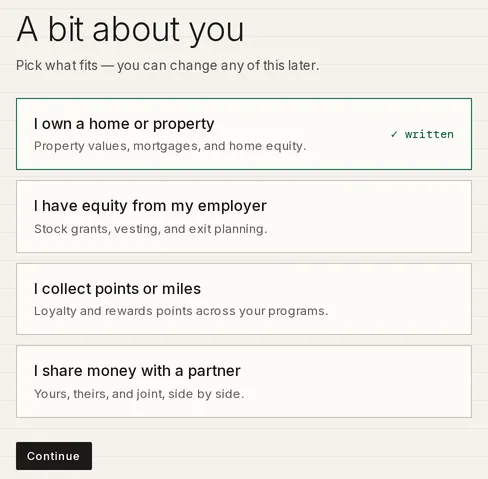
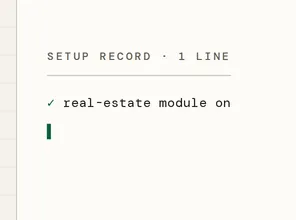
Under A bit about you, click each card that describes you: I own a home or property, I have equity from my employer, I collect points or miles. A selected card shows ✓ written, and the record gains a line. Each selected card turns on its module, Real Estate, Equity or Points, in your sidebar. Click a card again to clear it.
-
To share the household with one other person, click I share money with a partner. The card opens with an email field.
-
Type their address, click Invite, then Agree and invite in the dialog. The card reads Invited with their address, and the record adds
invite sent. Couples & household visibility covers what a partner sees. -
Click Continue.
-
Under Coming from another app?, click the app you are leaving, or Somewhere else or I’m new to this below the grid. Clicking again clears it. Continue saves the pick, and the record reads
coming from Monarchor the app you chose.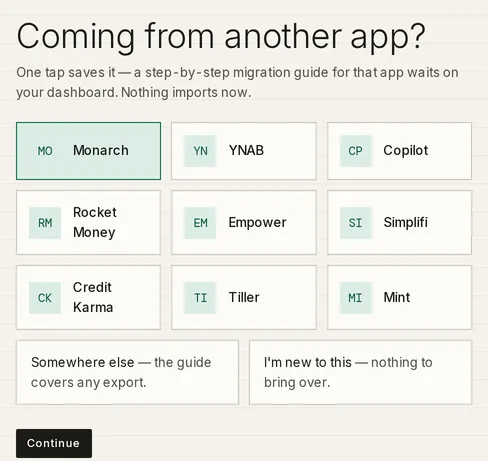
-
Click Continue.
-
If a Start trial step appears, pick a plan and click Continue to Stripe. Stripe confirms and returns you to the next step.
-
Under Your first account, click Connect via Plaid. Plaid’s window opens for your bank sign-in, and the record shows
first connection…meanwhile. Connect a bank covers Plaid in detail.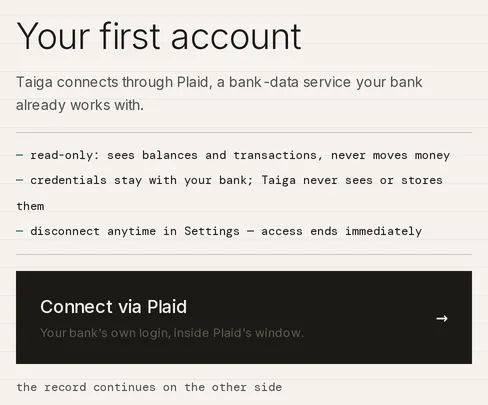
What happens during the first sync?
Section titled “What happens during the first sync?”The stepper and the record give way to First sync · in progress, which adds one line per step as it completes, from Fetching transactions through Categorizing to Building recurring commitments. A step still running shows a spinning mark. A bank that takes longer than 45 seconds adds the note Still working — some banks take a few minutes and a See your dashboard button; the sync keeps going after you leave.
When the sync finishes, the record turns into Setup record — page 1, dated today. It counts the accounts and transactions that arrived and the share Taiga Finance categorized. When a net worth can be computed from what synced, a Position figure counts up below. Click Open Taiga Finance. Today opens with that position in a bordered band marked as of first sync · just now.
If you connected through a bank that sent you to its own site, the start page resumes on the way back with Setup record · resuming, lists the lines written so far, adds bank confirmed the connection, and runs the same sync.
What is the Getting started checklist?
Section titled “What is the Getting started checklist?”Today carries a Getting started widget that continues the record. It counts the steps done out of the steps that apply to you, in four chapters:
- Connect: Connect a bank or brokerage, which checks after the first sync, and Add a second way to sign in where Google sign-in is offered. That row opens the Sign-in methods row in Settings, where Google sign-in is added beside email (Sign in & security).
- Import: Import your history, or Migrate from Monarch when you picked an app on the start page. The row opens that app’s migration guide. The row is absent when you picked I’m new to this.
- Your modules: Track your investments, Track your debts, and one row for each module you turned on: Add your property, Add your equity, Set up points. A module question you did not answer appears here as a question, Do you own your home?, with Yes and Not me.
- Learn the ropes: Create a categorization rule and Add a custom category.
Under the rows the widget reads Checks itself as data lands: a row ticks when the data exists and never by hand. Click a row to go where that step happens. Click its ×, marked Not relevant, to drop a row that does not apply. With every row ticked the widget reads You’re set up, with Remove widget below it.
What comes after the first sync?
Section titled “What comes after the first sync?”The first sync brings balances first and history over the next few minutes.
Read what came in
Section titled “Read what came in”Open Transactions. Every transaction that synced is there with a category Taiga Finance assigned, and anything it could not place is Uncategorized. A category changed on one transaction changes on every page that reads it, and the Suggested rule strip that appears offers to apply the change every time that merchant appears. Transactions & categories covers the ledger; Create a category rule covers the rules.
Bring over your history
Section titled “Bring over your history”Whatever a bank connection does not reach, and anything from an app you are leaving, comes in through Import. The in-app migration guide on Today names the order that avoids duplicates: live accounts first, balance history for anything you can’t connect, transactions last. Migrate from Monarch walks that order with Monarch’s files, and CSV & PDF importers lists every file Taiga Finance reads.
Add what a bank can’t send
Section titled “Add what a bank can’t send”A home, a mortgage held elsewhere, a stock grant, a loyalty balance, a loan tracked by hand: each has a page of its own, and each counts in the same net worth as a synced account. Manual accounts, Real estate, Equity compensation, Track points and miles and Debts are the guides.
Set up a plan
Section titled “Set up a plan”Plan opens on Pick a starting point. Three of the four starting points draft a plan from the spending already in your ledger; Custom starts blank. Every line stays editable afterwards. Plan (budget) covers the page.
Troubleshooting
Section titled “Troubleshooting”The Connect step says “Connecting is paused until your household’s subscription is active.”
Section titled “The Connect step says “Connecting is paused until your household’s subscription is active.””Your household’s admin has not activated its subscription, and billing is managed by the admin. The step opens once the subscription is active.
The first sync says “Some accounts couldn’t sync — reconnect anytime from Settings.”
Section titled “The first sync says “Some accounts couldn’t sync — reconnect anytime from Settings.””One of the accounts you linked failed its first pull while the rest came through. Open Settings and reconnect that bank. Troubleshooting sync covers each connection state.
The Invite button is disabled with “A valid email address is required.”
Section titled “The Invite button is disabled with “A valid email address is required.””The field needs a full address with an @ before Invite enables.
A toast says “Checkout canceled — nothing changed.”
Section titled “A toast says “Checkout canceled — nothing changed.””You came back from Stripe without finishing. The Start trial step shows again, and nothing was charged.
Today has no Getting started widget.
Section titled “Today has no Getting started widget.”Either it was removed with Remove widget, you are in a demo, or your account was set up before the checklist existed. Open Customize on Today and click Restart setup under Getting started.
Can I go back to the start page?
Section titled “Can I go back to the start page?”No. Once you connect an account or click Skip setup, Today is home and the start page does not return. The same questions continue in the Getting started checklist on Today.
Can I change the modules I picked?
Section titled “Can I change the modules I picked?”Yes. Settings has a Modules card under Preferences with a switch for Real Estate, Equity and Points. Turning a module off removes it from the sidebar and keeps its data.
Does picking my old app import anything?
Section titled “Does picking my old app import anything?”No. The pick saves a migration guide on Today and nothing else. The import itself happens on the Import page, when you are ready, with a review step before anything is saved.
What does my partner get from the invite?
Section titled “What does my partner get from the invite?”A sign-in of their own to this household, limited to what you share. Every account you own carries a Sharing setting, so they see each account as Separate, Balance only or Joint. A household holds two people at most.
Does my partner’s bank count for “Connect a bank or brokerage”?
Section titled “Does my partner’s bank count for “Connect a bank or brokerage”?”Only when it is an account you can see. The checklist reads the household’s accounts through your own visibility, so a connection on an account your partner keeps Separate does not tick your row.