Your account & settings
Report a problem or request a feature
How to reach support from inside Taiga Finance with a problem, a feature request or a question, and the optional read-only access that helps a fix.
When something in Taiga Finance breaks, or you want something it doesn’t do, you can write to support in place. Open the Help menu at the bottom of the left rail (on a phone, More, then Help), choose Contact support, pick a Type, write your message, and send it. A problem report carries some technical detail on its own, and every reply comes to your account email with a reference number. The same menu links the help center and, on most pages, the help article for the page you are on.
What is a support message?
Section titled “What is a support message?”A support message is a short note you send from inside Taiga Finance. It comes in three types: a Problem when something does not work, a Feature request when Taiga Finance falls short of what you are trying to do, and a Question about how something works or about your account. You describe it in a sentence or two, and a problem can carry a screenshot. Taiga Finance adds a little technical detail to a problem report on its own, the screen you were on and the app version, so a maintainer can find the failure. Messages are private to you: in a household, the other member never sees yours.
How do I report a problem?
Section titled “How do I report a problem?”-
Open the Help menu, the row above your name at the bottom of the left rail, or More then Help on a phone, and choose Contact support. On an error screen, choose Report this instead. It opens the same drawer headed Report a problem, locked to that type, with the crash already referenced.
-
Under Type, keep Problem.
-
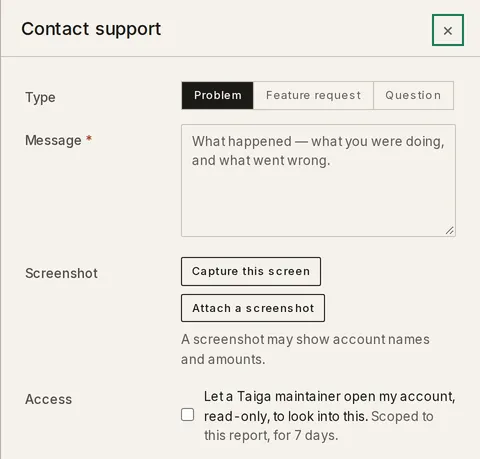
In Message, describe what you were doing and what went wrong. The field is required: leave it empty and the drawer says A description is required. and Send report stays off.
-
Optionally, add a picture under Screenshot. Capture this screen takes one of the page behind the drawer; Attach a screenshot picks a file, and you can also drop an image onto the drawer. Remove takes it off again. A screenshot may show account names and amounts.
-
Click Send report, or press Ctrl+Enter (⌘+Enter on a Mac). The drawer confirms: Filed as report #1234. Any reply comes by email. Click Done to close it.
Can Taiga Finance look at my account to fix it?
Section titled “Can Taiga Finance look at my account to fix it?”Only if you let it, and only read-only. The drawer’s Access row has a checkbox: Let a Taiga Finance maintainer open my account, read-only, to look into this. Under it: Scoped to this report, for 7 days. It is never required to file. The access can only read your data, never change it, and in a household it covers only your own data, never the other member’s. Every window it opens is listed afterwards under Settings › Security › Support access, with the reason and the dates. Leave the box off and the message still sends.
What happens after I file?
Section titled “What happens after I file?”You get a reference number, Filed as report #1234, as soon as you send. Any reply comes by email to your account address; there is no in-app inbox. A screenshot you attached is kept while the report is open and removed after it closes. If you delete your account, your messages and their screenshots go with it.
How do I request a feature or ask a question?
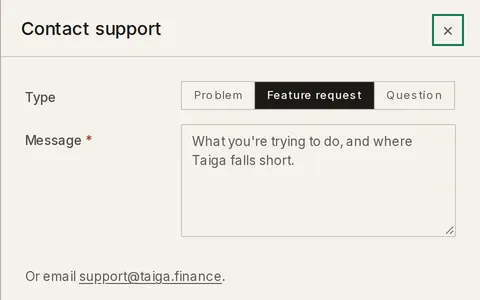
Section titled “How do I request a feature or ask a question?”From the same drawer, pick Feature request or Question under Type. The Message field stays where it is; only its prompt changes. A feature request asks What you’re trying to do, and where Taiga Finance falls short. and sends with Send request. A question asks What you’d like to know — about how something works, or your account. and sends with Send question. Neither type has a Screenshot row or an Access row, since there is nothing to debug. Under the field, Or email support@taiga.finance. offers the plain-mail route. The confirmation reads Filed as request #1234 or Filed as question #1234, and replies come by email the same way.
Troubleshooting
Section titled “Troubleshooting”The Help menu’s Contact support row opens my mail app instead of the drawer.
Section titled “The Help menu’s Contact support row opens my mail app instead of the drawer.”The drawer files only from a real account. In a demo session, Contact support opens your mail app addressed to support@taiga.finance instead. Sign in to a real account to file from inside the app.
Send report stays off.
Section titled “Send report stays off.”Send report waits on the required field. Write the problem in Message, and the button turns on.
The Type row is missing.
Section titled “The Type row is missing.”You arrived from an error screen’s Report this, which locks the drawer to Problem so the crash stays referenced. Close it and open Help › Contact support to send a feature request or a question.
Is my message private from the other person in my household?
Section titled “Is my message private from the other person in my household?”Yes. Messages are per person. The other member never sees yours, and a problem you both hit is two separate reports if you both file. Read-only access you grant reaches only your own data, never the other member’s.
What does Taiga Finance attach to my report?
Section titled “What does Taiga Finance attach to my report?”Technical detail only: the screen you were on, the app version, and the error reference when you came from an error screen. None of it is a balance or a transaction. A screenshot is added only if you capture or attach one yourself, and only a Problem carries one.
Where does any reply go?
Section titled “Where does any reply go?”To your account email. There is no in-app inbox. Every reply comes by email to the address on your account, tagged with the message’s reference number.
Can I see when support looked at my account?
Section titled “Can I see when support looked at my account?”Yes. Settings › Security › Support access lists every window you opened, with its reason and when it was open, and reads Never opened until you grant one.
What happens to my messages if I delete my account?
Section titled “What happens to my messages if I delete my account?”They go with the account. A delete removes your reports, requests and questions and any screenshots you attached, along with the rest of your data. Deleting your data covers what a delete clears.