Using Taiga Finance
Portfolios
Create, edit and delete the named groups of holdings that appear as pills above the Investments ledger.
A portfolio lets you read part of your investments on its own, such as everything meant for retirement, and give that part a target mix. On Investments, click + Portfolio, check the holdings to include, click Group into portfolio, and name it. The portfolio appears as a pill above the ledger, and its strip carries Edit holdings and Delete portfolio.
What is a portfolio?
Section titled “What is a portfolio?”A portfolio is a named group of holdings. A household might group its retirement accounts in Retirement and its two 529s in Kids’ college, each with its own target. A holding belongs to one portfolio at a time, and holdings in none sit under a dashed Unassigned pill. Clicking a pill narrows the ledger to that portfolio, and clicking it again returns to every holding.
How do I create a portfolio?
Section titled “How do I create a portfolio?”-
On Investments, click + Portfolio at the right end of the portfolio pills. A Creating new portfolio banner reads Check holdings to group, and every ledger row gains a checkbox.
-
Check the holdings to include. The banner counts them and their value. A checked holding that already sits in another portfolio adds the warning ⚠ 1 will move from another portfolio.
-
Click Group into portfolio. The Create portfolio dialog opens with the selection’s count and value.
-
Type a Portfolio name.
-
Pick a Kind, or leave it on Custom (no kind). The kinds are Retirement, Taxable, Education, Crypto, Cash Reserves and Equity Comp. With a kind picked, the dialog notes New Retirement accounts auto-route here. Existing accounts stay put.
-
Click Create. The new pill is selected and its strip opens above the ledger.
Target mix covers the target a new portfolio starts with and how to change it.
What is the starter-portfolios banner?
Section titled “What is the starter-portfolios banner?”When Taiga Finance can sort your accounts by kind, a Set up starter portfolios banner offers the groups. It reads Pre-checked from your accounts — confirm, edit, or skip. Each account row has a checkbox and a menu that moves it to another portfolio. The confirm button names the count, as in Confirm 2 accounts, and reads No accounts selected when nothing is checked.
Skip for now hides the offer, with the toast Starter suggestions hidden. A band then reads 2 hidden starter suggestions, and its Restore button brings the offer back.
How do I change a portfolio’s holdings?
Section titled “How do I change a portfolio’s holdings?”-
On Investments, click the portfolio’s pill.
-
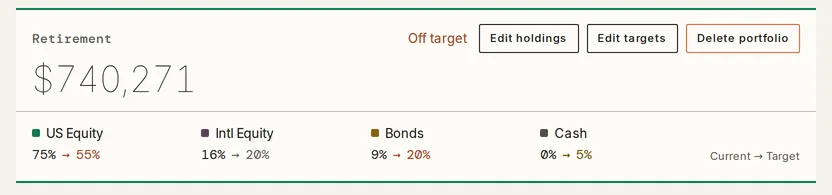
Click Edit holdings on its strip. The strip reads Editing holdings, the ledger shows every holding, and each row gains a checkbox.
-
Check holdings to add them and clear holdings to remove them. The footer counts what is selected and what changed, or reads no changes.
-
Click Save changes to followed by the portfolio’s name. The button stays disabled until something changes.
A holding you clear here is held out of every portfolio, even if its account belongs to one. The Portfolio section in Edit a holding puts it back.
Saving with nothing checked deletes the portfolio, with the same confirmation and toast as Delete portfolio.
How do I delete a portfolio?
Section titled “How do I delete a portfolio?”-
On Investments, click the portfolio’s pill.
-
Click Delete portfolio on its strip.
-
On a portfolio with a Kind, a dialog asks Delete Retirement? and explains that the kind is marked as opted out. Click Delete. A portfolio with no kind skips this step.
-
A toast reads Deleted Retirement with an Undo button. Once the toast goes, the portfolio and its target are removed, and its holdings move to Unassigned.
Troubleshooting
Section titled “Troubleshooting”Group into portfolio stays greyed out.
Section titled “Group into portfolio stays greyed out.”No holding is checked yet. Check at least one row, and the button turns on.
Create is greyed out and the dialog says “A name is required.”
Section titled “Create is greyed out and the dialog says “A name is required.””The Portfolio name field is empty. Type a name, and Create turns on.
The Kind menu doesn’t list a kind.
Section titled “The Kind menu doesn’t list a kind.”A household has one portfolio per kind, and the menu leaves out every kind a portfolio already holds. Pick Custom (no kind), or delete the portfolio that holds the kind first.
The banner reads “excludes 1 position with no reported value”.
Section titled “The banner reads “excludes 1 position with no reported value”.”A checked holding has no value from its source, so the banner’s total leaves it out. The holding is still checked. Crypto covers why an imported coin can arrive with no value.
Can I undo deleting a portfolio?
Section titled “Can I undo deleting a portfolio?”Yes, while the toast is on screen. Click Undo on the Deleted toast, and the portfolio comes back with its target and holdings.
Can I rename a portfolio?
Section titled “Can I rename a portfolio?”No. A portfolio keeps the name it was created with. A new name means a new portfolio with the same holdings, then deleting the old one.
Can one holding sit in two portfolios?
Section titled “Can one holding sit in two portfolios?”No. Checking a holding for a second portfolio moves it there, and the banner warns before it does.
What happens to a new account of a portfolio’s kind?
Section titled “What happens to a new account of a portfolio’s kind?”It joins that portfolio on its own. Accounts you already had stay where they are. Deleting a portfolio with a kind marks that kind as opted out, so new accounts stop joining until you create a portfolio of that kind again.