Accounts & connections
Managing accounts
Rename a connected account, read its status, hide or archive it, or delete it — and what each does to your history and totals.
Open an account from Accounts to reach its drawer. There you rename it inline and read its connection status. The Manage band hides it, archives it, or converts it to a closed manual account, and the footer holds Delete account…. Hiding and archiving are reversible and keep your history. Deleting erases the account and its balance history for good.
What is the account drawer?
Section titled “What is the account drawer?”Every account you connect or add by hand has a drawer, opened by clicking its row on Accounts. The drawer is where one account lives: its balance, its details, its recent activity, and the Manage band that hides, archives, or closes it. You reach for it when an account changes — you close a card, leave a bank, or want an idle account out of your totals without losing its past.
How do I check an account’s connection status?
Section titled “How do I check an account’s connection status?”Each account carries a small colored dot on Accounts and in its drawer header. Hover the dot to read the exact state:
- A green dot reads Received and the day the bank last reported — the connection is updating.
- A red dot reads the same day with the cause after it, such as no longer shared at the bank or the reason the bank gave for breaking the link — nothing is updating.
- A hollow grey ring reads Sync off, and an archived account reads Archived, each with the last day received.
- An account you keep by hand shows a Manual tag instead of a dot.
A red dot means something behind the account needs fixing, and the banner at the top of the drawer says what. See Troubleshooting sync to reconnect it.
How do I rename an account?
Section titled “How do I rename an account?”-
On Accounts, open the account and click its name at the top of the drawer. The name turns into an editable field; its tooltip reads Rename.
-
Type a new name and press Enter. The name updates everywhere in Taiga Finance.
-
The institution’s own name stays below the field as Originally: the bank’s name. Click reset there to drop the rename and use the bank’s name again.
A rename sets a display name only. Your transactions, the connection, and the balance are untouched.
How do I change an account’s type?
Section titled “How do I change an account’s type?”-
On Accounts, open the account and find the Type row in its details. It shows the type Taiga Finance is using now, such as Checking.
-
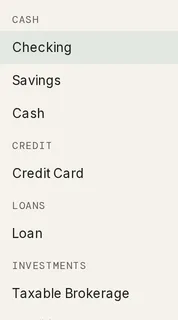
Click the row. The picker groups every type under the six account groups — Cash, Credit, Loans, Investments, Real Estate and Other — in that order. The list scrolls.
-
Pick the type that fits. It saves on the spot.
The group is not a separate setting. It follows from the type, so choosing Roth IRA files the account under Investments and choosing Credit Card files it under Credit. The group decides how the account is totalled on Accounts, and which surfaces offer it — a fund account picker on Savings offers only Cash and Investments accounts. See which accounts can hold a fund.
Your choice sits on top of whatever the bank reported. A later sync will not overwrite it, and Taiga Finance’s own automatic re-typing skips an account you have typed yourself.
What does “Received” on a card’s details mean?
Section titled “What does “Received” on a card’s details mean?”A connected card or loan shows the figures the bank reports, such as Last statement, Last payment and Payment due, and the first of them carries Received and the day Plaid delivered them. A figure is never cleared once received. Where the bank’s APR or minimum payment differs from what the account holds, the row offers Confirm with the bank’s figure and the day it arrived. A card that shows no such figures sits on a connection that is not sharing liability data yet. Connection statuses says how to turn that on.
What’s the difference between hiding, archiving, and deleting?
Section titled “What’s the difference between hiding, archiving, and deleting?”Three of these keep the account. Only delete removes it. What separates them is whether the account keeps syncing, whether it counts toward your totals, and how much of its past stays.
| Action | Still syncs? | In lists, net worth, budgets? | Net-worth history | Reversible? |
|---|---|---|---|---|
| Hide | Yes | No | Kept on every date | Yes — Unhide |
| Archive | No | Out from the closed-on day; before it stays | Kept up to that day | Yes — Restore |
| Convert to closed | No | Stays, frozen at its final balance | Kept | Yes |
| Delete | — | Removed | Erased | No |
Hide keeps an account synced but out of the way. Archive stops an account syncing and keeps its earlier balances on the net-worth chart. Convert to closed holds a paid-off or closed account at its final balance, still counted. Delete removes the account and its history, with no way back.
How do I hide or archive an account?
Section titled “How do I hide or archive an account?”-
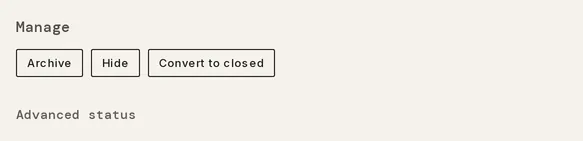
On Accounts, open the account and scroll to the Manage band.
-
Click Hide to keep the account syncing but out of your lists, net worth, and budgets. Click Archive to stop it syncing and drop it from your totals from today, the date on your own clock. Its history up to then stays on the net-worth chart.
-
A toast confirms the change with a 5-second Undo. The drawer then tags the account Hidden, or Archived with the date, and the Manage band offers Unhide or Restore.
-
On an archived account, Edit date opens the Closed on field. Set it back to the day the account closed and click Save. Net-worth history ends on that day instead of the day you archived.
Only the account’s owner sees Archive. On an account your partner connected, the band reads Only the owner can archive, restore, delete, or merge this account., and Hide, which changes only your own view, is still offered.
How do I bring back a hidden or archived account?
Section titled “How do I bring back a hidden or archived account?”-
On Accounts, open the More actions (⋯) menu and, under Not in your main view, choose Archived accounts or Hidden accounts.
-
On Archived & hidden accounts, find the account and click Restore for an archived one, or Unhide for a hidden one.
-
The account returns to your lists, net worth, and budgets. A restored account also resumes syncing. ← Active accounts takes you back.
How do I delete an account?
Section titled “How do I delete an account?”-
On Accounts, open the account and click Delete account… in the drawer footer.
-
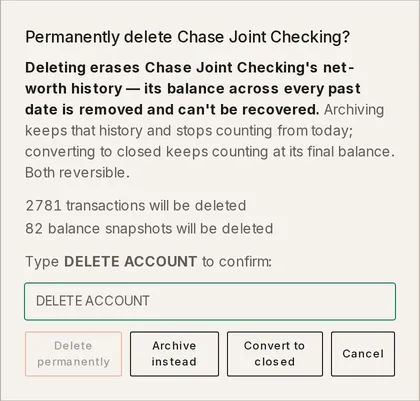
Read what will be removed. Permanently delete names the account and lists the transactions, balance snapshots and holdings that go with it. A card or loan that a debt is tracked on adds Debt and the debt’s name will be deleted with it. Deleting can’t be undone. The dialog offers Archive instead and, on a synced account with history, Convert to closed.
-
Type DELETE ACCOUNT in the field, then click Delete permanently. The button stays greyed out until the words match and the impact preview above has loaded.
Troubleshooting
Section titled “Troubleshooting”Delete permanently stays greyed out
Section titled “Delete permanently stays greyed out”The dialog holds the button until two things are true: the field reads DELETE ACCOUNT exactly, and the impact preview above it has finished loading. Type the words in full, and wait a moment if the preview is still counting.
There is no “Delete account…” in the drawer
Section titled “There is no “Delete account…” in the drawer”Delete is hidden on an archived account, on an account your partner owns, and on accounts Taiga Finance derives from something else — an equity grant or a property. Restore the archived account first, ask the owner, or manage a derived one from the page it belongs to.
Convert to closed says the account has no balance yet
Section titled “Convert to closed says the account has no balance yet”The message reads “has no balance from the bank yet, so it can’t be closed with a final balance. Wait for a sync, or set a balance manually first.” Closing pins the last balance the bank reported. Without one, sync the account or set a balance in the drawer, then convert.
“A closed-on date can’t be in the future.”
Section titled ““A closed-on date can’t be in the future.””An archived account’s Closed on date is the day it stops counting toward net worth, so it can’t be later than today. Pick today or an earlier date.
The connection dot is red
Section titled “The connection dot is red”The account’s connection is not updating it. The banner at the top of the drawer says why: the bank link is broken, the bank stopped sharing the account, or your partner paused the connection that fed it. Troubleshooting sync walks through each.
Can I undo hiding or archiving?
Section titled “Can I undo hiding or archiving?”Yes. A 5-second Undo appears in the toast right after the change. Later, reopen the account through Not in your main view and click Unhide or Restore. The account returns to your lists, net worth, and budgets, and a restored account resumes syncing.
Does a hidden or archived account still sync?
Section titled “Does a hidden or archived account still sync?”Only a hidden one. A hidden account keeps syncing but stays out of your lists, net worth, and budgets. An archived account stops syncing from its closed-on day, and shows its last-known balance until you restore it.
Can I get a deleted account back?
Section titled “Can I get a deleted account back?”No. Delete removes the account, its transactions, and its balance on every past date, permanently. That is why the dialog asks you to type DELETE ACCOUNT and offers Archive instead, which keeps the history and stops the account counting from today.
Does renaming change my transactions or the bank’s name?
Section titled “Does renaming change my transactions or the bank’s name?”No. A rename sets a display name and nothing else — your transactions, the connection, and the institution’s own name stay as they are. The original shows as Originally: the bank’s name, and reset puts it back.
What happens to a debt tracked on this account?
Section titled “What happens to a debt tracked on this account?”It goes with the account. Every debt on the Debt page sits on an account, synced or manual, and the delete preview names it: Debt and its name will be deleted with it. A card a debt is tracked on also counts once in net worth, as its tracked debt, whichever way Include in net worth and budgets is set. Debt covers the debt side.