Using Taiga Finance
Tag spending to a fund
Mark a purchase as paid from a savings fund, and match that spending to the real transfer out of the fund's account.
When a purchase is paid with money you set aside, tagging it to the fund lowers the fund’s balance so the fund shows what is really left. Open the transaction, click Funded by, and pick the fund. The ledger marks the row with ⤳ and the fund’s initials, and the fund’s drawer counts the amount as Outstanding. Once the real transfer leaves the fund’s account, Settle a transfer matches it to those purchases. Nothing counts against a fund until it is tagged.
What is funded-by spending?
Section titled “What is funded-by spending?”A fund is a claim on part of an account’s balance. The spending it pays for often goes on a different account. Family travel sinking holds $1,500 on a savings account, but the flight for the trip goes on the joint checking account. Tagging the flight with Funded by takes its amount off the fund’s balance, whatever its category or account. The tag moves no money.
How do I tag a transaction to a fund?
Section titled “How do I tag a transaction to a fund?”-
On Transactions, click the transaction. Its drawer opens.
-
In the details, click the Funded by button. It reads Not set on an untagged transaction.
-
In the Attribute to fund list, click the fund. The Funded by button shows its name, and the ledger row carries ⤳ and the fund’s initials next to its amount.
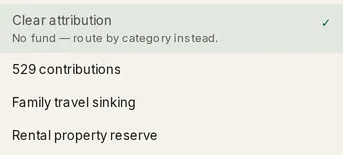
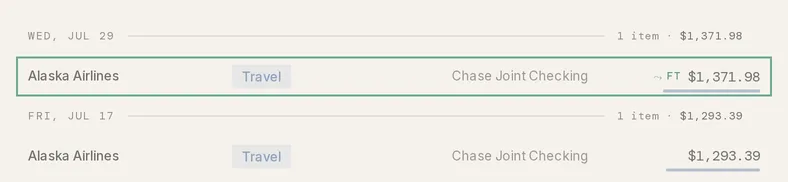
Click the ⤳ marker in the ledger to change the fund or clear it without opening the drawer.
How do I tag several transactions at once?
Section titled “How do I tag several transactions at once?”-
On Transactions, click Bulk edit and tick the rows.
-
Click Attribute to fund in the bar.
-
Pick the fund. The bar reads Attributed N transactions to and the fund’s name.
The parts of a split transaction can’t be ticked. The other bulk actions are on the Transactions page.
How do I tag every matching transaction automatically?
Section titled “How do I tag every matching transaction automatically?”A rule’s Attribute to fund action tags each matching transaction as it arrives, unless it already has a fund. Tagging a transaction by hand also opens a Suggested rule strip that offers to save the tag as a rule with a Fund from action. Turning on Apply to existing transactions tags past matches too, and replaces a fund set by hand. See Create a category rule.
How does tagged spending change a fund’s balance?
Section titled “How does tagged spending change a fund’s balance?”The fund’s drawer shows the arithmetic in its Balance band. On a Fixed fund it reads Allocated − Outstanding − Settled = Balance.
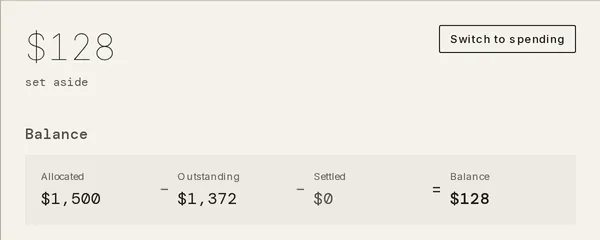
Outstanding is tagged spending not yet matched to a transfer. Settled is tagged spending already matched to one. A Percentage or Whole account fund shows its share of the account minus Outstanding, with no Settled term. A fund in spending mode reads Budget at start − Spent = Remaining instead: see Switch a fund to spending.
Only outflows count, from the moment they are tagged, pending included. A cancelled transaction or one hidden from budgets drops out of both Outstanding and Settled.
How do I settle a transfer?
Section titled “How do I settle a transfer?”A tagged purchase lowers the fund at once, but the cash still sits in the fund’s account until you move it out. Settling records which transfer paid for which purchases. It is bookkeeping and never takes money from the fund a second time.
-
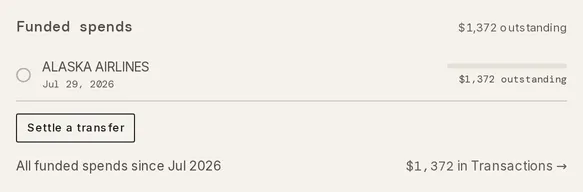
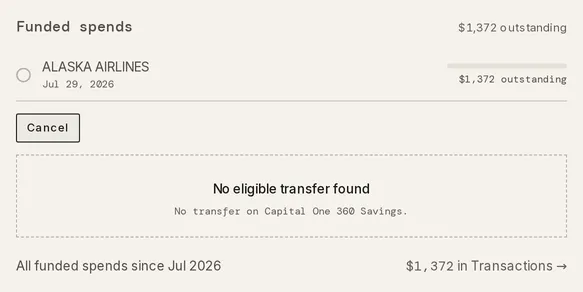
Open the fund on Savings. The Funded spends band lists each outstanding purchase with its date and the amount outstanding.
-
Click Settle a transfer. A list of transfers on the fund’s account opens.
-
Click the transfer that moved the money. A preview applies it to the outstanding purchases, oldest first, and marks each one settled, part-settled or still outstanding.
-
Click Record settlement. The purchases move from Outstanding to Settled. If the transfer can’t be used, the reason shows below the buttons, like This transfer is already fully applied.
The transfer doesn’t need to match the purchases’ total. A smaller one leaves the rest outstanding, and a larger one settles everything. Each settlement is listed in the band with an Undo, which returns its purchases to Outstanding.
The All funded spends row totals every purchase tagged to the fund, whatever its category. It equals Outstanding plus Settled, and its in Transactions → link opens those purchases on Transactions.
Troubleshooting
Section titled “Troubleshooting”Settle a transfer shows “No eligible transfer found”.
Section titled “Settle a transfer shows “No eligible transfer found”.”The list shows only transactions on the fund’s own account that are categorized as Transfers and not tagged to a fund. The transfer is on a different account, still carries a spending category, or doesn’t exist yet. Give the real transfer on the fund’s account the Transfers category, then click Settle a transfer again.
A fund’s balance is negative and its row shows Cover →.
Section titled “A fund’s balance is negative and its row shows Cover →.”Tagged spending has passed the fund’s allocation. Cover → opens the drawer of the account the fund sits on. Raise the fund’s amount there, or click Cover from → on the fund’s row to move the shortfall from another fund. Cover from → appears only on a Fixed fund.
A tagged transaction doesn’t appear under Funded spends.
Section titled “A tagged transaction doesn’t appear under Funded spends.”It is money coming in, it was cancelled, or it is hidden from budgets. The tag stays on the transaction, and the ledger still shows its ⤳ marker.
A split transaction shows no ⤳ marker.
Section titled “A split transaction shows no ⤳ marker.”The ledger shows a split as its parts, and the tag belongs to the whole transaction. Click any part to open the transaction, and its Funded by button shows the fund.
The transaction drawer has no Funded by button.
Section titled “The transaction drawer has no Funded by button.”The household has no active fund you can see. Create one on Savings with + New fund: see how to create a fund.
How do I remove the fund from a transaction?
Section titled “How do I remove the fund from a transaction?”Click Clear attribution. It sits at the top of the Attribute to fund list, whether you open it from the drawer, the ⤳ marker or Bulk edit. The amount leaves the fund’s totals. If it was already settled, the settlement keeps its transfer until you click Undo on it.
Can I tag one part of a split?
Section titled “Can I tag one part of a split?”No. The fund belongs to the whole transaction, and the whole amount counts against it.
Does settling change the fund’s balance?
Section titled “Does settling change the fund’s balance?”No, on a Fixed fund. The purchases move from Outstanding to Settled, and the balance stays the same. On a Percentage or Whole account fund, the transfer already lowered the account balance the fund follows. Settling takes the purchases out of Outstanding so they aren’t counted twice.
Does a deposit tagged to a fund add to it?
Section titled “Does a deposit tagged to a fund add to it?”No. Only outflows count against a fund, and nothing counts toward one. A fund grows when its allocation grows: see how a fund gets its money.