Using Taiga Finance
Recurring
The bills, subscriptions, and paychecks Taiga Finance tracks as recurring, grouped by how often they land.
Recurring collects the money that repeats — the mortgage, the streaming subscriptions, the paychecks — into one page, grouped by how often each one lands. Taiga Finance detects these commitments from your transactions as they sync, and you confirm, correct, or add to them here. Open any commitment to change its type, amount, cadence, or name, add one by hand with + Commitment, or mark one Not recurring when it stops. The summary rail on the right totals what you commit each month and lists what is due next.
What is a commitment?
Section titled “What is a commitment?”A commitment is one repeating stream of money: Netflix every month, a paycheck every two weeks, an insurance bill every quarter. Taiga Finance groups the individual charges that belong to it into a single row, so five monthly Netflix charges read as one subscription rather than five separate transactions. Each commitment carries a cadence (how often it repeats), the amount it expects, and the date the next one is expected.
How is the page laid out?
Section titled “How is the page laid out?”The main column is the ledger — every active commitment, grouped into section bands by cadence, shortest period first: Weekly, then Monthly, up to Annual, with Irregular last. Each band header counts its rows and totals them per month, income and outflows separately: a band that holds both reads +$6,160 · −$1,240/mo. Within a band, rows sort by amount, heaviest first. Each row shows the merchant, its spending category, the next expected date, and the estimated amount rounded to the dollar — income in teal with a leading +, outflows plain. The ledger shows no column headings.
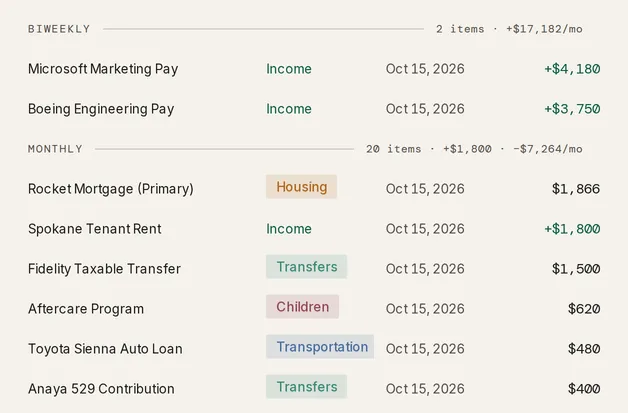
A row without a scheduled date shows needs date in coral — Taiga Finance sees the charges but can’t yet pin them to a cadence. Hover any row for its recent charges and next date.
The summary rail on the right reads the same set back. The Of take-home gauge shows your monthly recurring outflow as a share of take-home; hover it for the income breakdown behind the figure.
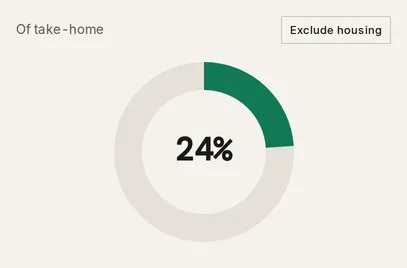
Below it are a by-category bar, a typical-month curve, and a Next 30 days list of what’s coming up.
How do I filter and search?
Section titled “How do I filter and search?”Above the ledger, type in Search recurring to narrow by name as you type. The Filters button opens facets for Type (subscription, bill, income, and the rest), Cadence, and Spending category; each facet counts how many rows it would leave. Housing has its own switch — Exclude housing in the summary rail — which drops the largest fixed outflow from the gauge and the ledger and shows as an Excluding housing chip you can remove. Clear all resets every filter and the search at once.
How do I edit a commitment?
Section titled “How do I edit a commitment?”-
On Recurring, click the commitment’s row. It opens in a side panel with the amount and cadence at the top and a confidence tag beside the name.
-
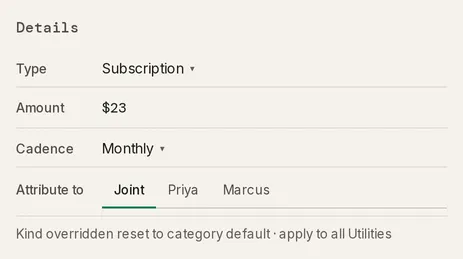
In the Details band, change the Type, Amount, or Cadence. Changing the type re-signs the amount for you — switching a row from Income to Bill makes it an outflow without retyping the number.
-
In a shared household, set Attribute to — Joint, or one partner — to route the stream to that person’s side of the cash-flow split. A solo account doesn’t show this row.
-
Click Save to keep the changes.
To stop tracking a stream, open it and click Not recurring at the bottom-left. It moves to the dismissed list and stays there through later scans until you restore it.
When a commitment’s type differs from its category’s default, the Details band shows two links. Reset to category default undoes the one-off change. Apply to all the category makes every commitment in it inherit the new type.
How do I add a commitment by hand?
Section titled “How do I add a commitment by hand?”Add a commitment Taiga Finance can’t see yet — a cash rent, a new subscription that hasn’t charged, an expected paycheck.
-
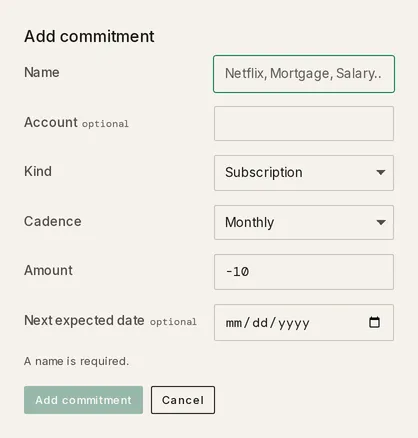
On Recurring, click + Commitment. The Add commitment panel opens.
-
Give it a Name. That is the only required field; Save stays disabled with A name is required until you do.
-
Set the Kind, Cadence, and Amount. Type a negative amount for an outflow (a bill), a positive one for income. Account and Next expected date are optional.
-
Click Add commitment. It appears in the ledger, already confirmed.
How do I review what Taiga Finance detects?
Section titled “How do I review what Taiga Finance detects?”New charges that look repeating arrive as candidates. When any are waiting, a Confirm recurring strip sits at the top of the page — one card per candidate, each with its amount, cadence, and a confidence tag (likely, possible, or predicted). Click Confirm to keep it or Not recurring to reject it; either can be undone from the toast that follows. Bulk review turns the ledger into a checklist so you can act on many at once.
A candidate Taiga Finance can’t yet time shows an Irregular card instead. It offers the detector’s best guess — Yes, monthly on the 1st — or Not quite to set the cadence and anchor day yourself before confirming.
What do the heads-up alerts mean?
Section titled “What do the heads-up alerts mean?”Above the ledger, Taiga Finance surfaces one row for each item that may need attention. Each can be dismissed, and most can be snoozed:
- A card’s annual fee is due. The row names the card, the fee when the card has posted one or you have stated it, and when it lands: today, tomorrow, or in N days.
- A price changed. A subscription’s last charge differs from the one before; the row shows the old and new amounts and the change.
- A charge hasn’t landed. An expected charge or paycheck is past due. Answer Still active to keep waiting, or Cancelled to drop it from forecasts.
- A possible duplicate recurring charge. Two commitments look like the same merchant. Opening it compares the pair so you can Merge into one (keeping the survivor’s history) or mark them Not duplicates.
- New recurring detected. A fresh candidate is waiting in the confirm strip.
How do card annual fees appear?
Section titled “How do card annual fees appear?”A credit card that carries an annual fee is a commitment of its own, type Fee, in the Annual band of the ledger. Taiga Finance recognizes the card from its fee table, so the row can exist before the card has ever charged the fee; until a fee posts or you state the date, the row’s next-date column reads —, a plain fact rather than something to fix.
Open the row to its drawer. Its Annual fee band holds the Fee date as a month and day with no year, since the next one is the anniversary rolled forward; click it to set or change the date, or Add date when there is none. Basis says where the date comes from: set by you, observed when the detector saw the charge, or no date. List price shows the fee the card’s profile expects. The date you save here feeds the heads-up alert above the ledger and the Card annual fees chart in the Points rail.
Troubleshooting
Section titled “Troubleshooting”A row shows “needs date” instead of a next date.
Section titled “A row shows “needs date” instead of a next date.”Taiga Finance has matched the charges but can’t fix a cadence, so it can’t schedule the next one. Open the row and set a Cadence in the Details band, or confirm the detector’s guess on its Irregular card.
A single charge shouldn’t count, but the rest of the series should.
Section titled “A single charge shouldn’t count, but the rest of the series should.”Open that transaction. In its Why recurring? section, unmark just the one charge; the commitment keeps every other charge. See How do I unmark one charge?
The take-home gauge is faded with no figure.
Section titled “The take-home gauge is faded with no figure.”The gauge divides recurring spend by the income commitments on this page and finds none. Confirm your paychecks in the Confirm recurring strip, or add one with + Commitment as income, and the gauge fills from the next render.
Can I undo marking something not recurring?
Section titled “Can I undo marking something not recurring?”Yes. When you reject a candidate or dismiss a commitment, an Undo appears in the toast for a few seconds. After that, open the ⋯ menu, choose Dismissed commitments, open the row, and click Confirm recurring to restore it.
Does Taiga Finance find recurring charges automatically?
Section titled “Does Taiga Finance find recurring charges automatically?”Yes. Taiga Finance detects commitments from your transactions as they sync — you don’t have to enter them. The confirm strip is where you accept or correct what it found; + Commitment is only for streams it can’t see, like a cash payment.
Does it track income as well as spending?
Section titled “Does it track income as well as spending?”Yes. Paychecks and other repeating deposits are commitments too, shown in teal with a +. Income also feeds the take-home figure the gauge divides by.
Where else do these commitments show up?
Section titled “Where else do these commitments show up?”A recurring transaction carries a REC badge in the ledger that links back here, and the summary rail’s Next 30 days list mirrors what’s coming. A report you build yourself can group spending by recurrence, or filter to recurring transactions alone.
Can I export my commitments?
Section titled “Can I export my commitments?”Yes. The ⋯ menu’s Export commitments downloads your active commitments as a CSV. Dismissed ones aren’t included. See CSV exports & Google Sheets.