Using Taiga Finance
Reports
What the Reports page holds, which transactions and balances its reports read, and where each report is explained.
Reports charts your transactions and balances over time. The page opens on five built-in reports. Reports you build yourself sit in a second group below them. Nothing you do on a report changes a transaction, a balance, or your plan.
What is a report?
Section titled “What is a report?”A report is one question asked of your data, drawn as a chart with the numbers behind it. Income against spending by month is one question, and where a month’s paycheck went is another. Each built-in report is a full page with its own controls, and a report you build is a saved set of choices you can reopen. Every report recalculates from your current data each time you open it, so a transaction you move to another category shows up in its new place.
Which reports come built in?
Section titled “Which reports come built in?”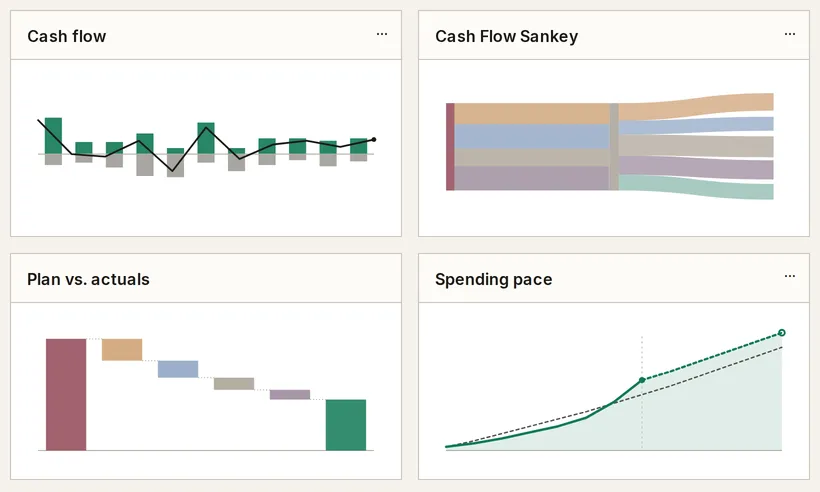
- Cash flow shows income, spending, and the net between them for every month, quarter, or year, with one period broken down by category, group, or merchant.
- Cash Flow Sankey draws one period as a flow, from income on the left to spending groups and savings on the right.
- Plan vs. actuals sets each line of your plan beside what you averaged over recent months, and lets you try a different number without changing the plan.
- Spending pace tracks this month’s spending day by day against an earlier month or your recent average.
- Net worth by class stacks your assets above zero and your debts below it, month by month.
How do I open a report?
Section titled “How do I open a report?”Click Reports in the sidebar, then click a tile. On a desktop, hovering Reports in the sidebar also lists the five built-in reports and your saved ones.
Can I build my own?
Section titled “Can I build my own?”Yes. Under Your charts, + New report opens a builder where you choose a topic, how to group it, a time window, and a chart form. A saved report gets its own tile in that group. See Build your own report.
What do reports count?
Section titled “What do reports count?”Cash flow, Cash Flow Sankey, Plan vs. actuals, and Spending pace read the same settled transactions, under the same rules:
- A pending transaction is left out until it posts.
- A transfer between your own accounts is neither income nor spending. A credit card payment is a transfer.
- A transaction you have hidden from budgets is left out.
- A refund lowers spending in its category. It is not income.
Net worth by class reads the balance history behind your net worth instead.
How do I put a report on Today?
Section titled “How do I put a report on Today?”Open the … menu on a report’s tile, or the ⋯ menu beside the report’s title, and choose Show on Today. A small version of the report appears on Today and links back to the full one. The same menu then reads Remove from Today. Plan vs. actuals has no Today version, so its menu has no Show on Today. The choice doesn’t change what anyone else in your household sees on their Today page.
What does someone else in my household see?
Section titled “What does someone else in my household see?”Each person’s reports run on the transactions that person can see. A transaction your partner keeps private is absent from your charts and totals. A transaction you keep private is absent from theirs. Spending pace and the report builder say so under the chart when rows are hidden from you. Net worth by class is the exception. It shows one household total, the same for both of you, and never lists individual accounts. See Couples & household visibility.
Troubleshooting
Section titled “Troubleshooting”A report reads “No cash flow yet” or “No spending yet.”
Section titled “A report reads “No cash flow yet” or “No spending yet.””Taiga Finance has no settled transactions to draw. The page offers Import transactions and Connect an account. The report fills in once transactions arrive.
A transaction I can see in the ledger is missing from a report.
Section titled “A transaction I can see in the ledger is missing from a report.”It is pending, it sits under Transfers, or it is hidden from budgets. Reports skip all three. A pending transaction joins the report when it posts.
Do reports change my data?
Section titled “Do reports change my data?”No. Reports read transactions and balances and write neither. The what-if numbers on Plan vs. actuals stay on the report and never edit your plan.
Can I bookmark a report’s view?
Section titled “Can I bookmark a report’s view?”Yes, on four of the five. Cash flow, Cash Flow Sankey, Spending pace, and Net worth by class keep their filters and view choices in the page address. A bookmark reopens the same view. Plan vs. actuals always opens at its defaults.
Can my partner see a report I save?
Section titled “Can my partner see a report I save?”No. A report you save from the builder is yours alone. Your partner builds and saves their own.
How far back do reports go?
Section titled “How far back do reports go?”As far as your history does. Cash flow offers ranges up to All, and Net worth by class starts at your first balance reading. Importing older transactions or balances extends both. See CSV & PDF importers.
Do split transactions count in each category?
Section titled “Do split transactions count in each category?”Yes. Each part of a split counts under its own category in every report. See Split a transaction.