Your account & settings
CSV exports & Google Sheets
Which export controls Taiga Finance offers, what each one produces, and the limits they all share.
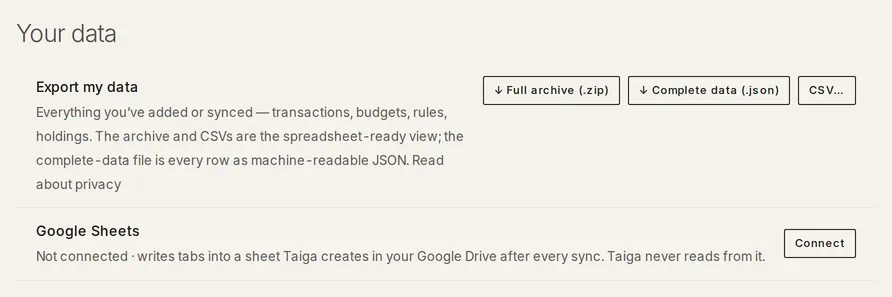
Taiga Finance writes your data out on demand, from five places. Settings › Your data › Export my data is where the whole set lives: ↓ Full archive (.zip) downloads every dataset at once as CSV, ↓ Complete data (.json) downloads every underlying row, and CSV… opens the eleven datasets as separate files. Every path shares one budget of ten exports per rolling 24 hours, and every download control is web-only.
What is an export?
Section titled “What is an export?”An export is a copy of what Taiga Finance holds for you right now, as CSV files a spreadsheet opens. It is how last year’s transactions reach whoever does your taxes, and how a household keeps its own numbers somewhere other than Taiga Finance. The rows come from the same code that draws the view on screen, so the balance-history CSV and the net-worth chart show the same numbers.
Where are the export controls?
Section titled “Where are the export controls?”| Surface | Where | What you get |
|---|---|---|
| Full archive | Settings › Your data › Export my data, and the ↓ Download my data first button in the delete dialog | One ZIP holding every CSV below |
| Individual CSVs | The same row, behind CSV… | Eleven files, one download glyph each |
| In-page exports | The ⋯ menu on Transactions, Net worth, Investments, Equity, and Recurring | The same CSVs, scoped to the page you’re on |
| Google Sheets | Settings › Your data › Google Sheets | Four datasets written into a spreadsheet Taiga Finance creates in your Google Drive, after every sync |
| Complete data | The same row, ↓ Complete data (.json) | Every underlying row you own as one JSON file, rather than the aggregated views |
What is in the full archive?
Section titled “What is in the full archive?”↓ Full archive (.zip) builds all eleven CSVs and packs them into one ZIP. It also adds a budget-income CSV that no single download produces: one row holding your monthly net and gross income, pretax deductions, and the categories you’ve hidden from budgets.
The transactions file inside the archive is the one place cancelled transactions appear. The ledger hides them, and every other transactions export follows it.
Which CSVs can I download individually?
Section titled “Which CSVs can I download individually?”CSV… opens the list.
| Dataset | Holds |
|---|---|
| Transactions | Every transaction, with categories, splits, and flags |
| Balance history | Monthly account balances across every connected account |
| Net-worth history | Monthly net-worth totals with the same bucket breakdown as the dashboard |
| Holdings | Current investment holdings with cost basis |
| Equity grants | One row per grant, with vested, unvested, and exercised counts |
| Equity vesting | The full vesting schedule, one row per tranche |
| Properties | Real-estate properties and their current values |
| Property valuations | Every property valuation snapshot |
| Budget actuals | One row per month and budget line, historical and current |
| Budget configuration | Your budget lines, with names, targets, categories, and goals |
| Recurring commitments | Detected subscriptions, bills, income, and your overrides |
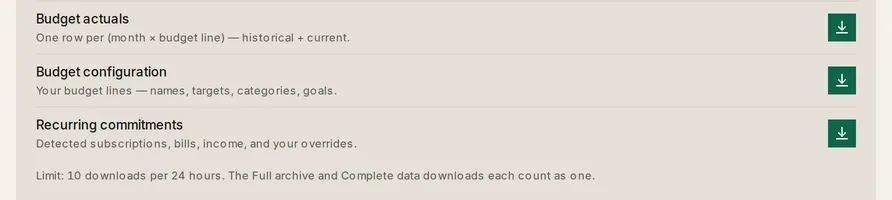
A few of these carry more than the row says. Transactions downloaded from here covers every transaction on the account, unfiltered, and writes one row per split leg rather than one per parent, each leg carrying its own category, amount, and note. Balance history and Net-worth history are monthly here, keeping the last snapshot in each calendar month. Budget actuals computes the current month live, so the month in progress is always in the file. Budget configuration includes archived lines and marks them. Recurring commitments covers active commitments, not dismissed ones.
What do the in-page exports do differently?
Section titled “What do the in-page exports do differently?”- Transactions › Export transactions mirrors what you’re looking at. Your search, tab, date range, accounts, categories, and amount range all carry into the file. Cancelled transactions stay out, as they are on the page.
- Net worth › Export monthly balances and Export daily balances are the monthly and daily versions of the balance-history CSV. The Settings download gives you the monthly one.
- Investments › Export holdings, Equity › Export grants, Equity › Export vesting, and Recurring › Export commitments are the same files as their Settings rows.
How does the Google Sheets push work?
Section titled “How does the Google Sheets push work?”Taiga Finance creates one spreadsheet in your Google Drive, named Taiga Finance export, and writes your data into it. Google grants access to that file alone. Taiga Finance can’t open anything else in your Drive, and it never reads from the sheet. Once connected, every successful sync pushes the sheet, the nightly one included. Push now pushes sooner. A push replaces the data on each managed tab rather than merging into it.
-
On Settings › Your data, next to Google Sheets, click Connect. The row reads Not connected · writes tabs into a sheet Taiga Finance creates in your Google Drive after every sync. Taiga Finance never reads from it.

-
Click Connect Google Sheets. The line above it says what Google will ask: Google asks to let Taiga Finance reach the files it creates. Nothing else in your Drive is visible to it. Google’s consent screen opens. There is nothing to paste or pick.
-
Approve the request. Taiga Finance returns you to Settings, and the toast reads Google Sheets connected. A new spreadsheet is in your Google Drive; the next push fills it.
-
Under Tabs, keep the ones you want: Transactions, Balances, Holdings, Equity Grants. Each has a switch, and the word beside it reads Pushing or Off. A new connection starts with all four on. The last one still on reads Required, and its switch is locked.
-
Click Push now for the first fill, or wait for the next sync. Each chosen dataset lands on its own tab. The toast reports the rows and tabs written. The row’s summary shows the sheet’s name, after every sync, and the time of the last push. Open in Google Sheets ↗ opens it.
Row 1 of every managed tab holds the column headers, and the data starts on row 2. Taiga Finance marks each managed tab as protected, so Google warns before an edit. The next push overwrites any edit made there anyway. Tabs you add to the spreadsheet yourself are never touched. Renaming or moving the file in Drive doesn’t stop the pushes. The Settings row keeps the name it read when you connected.
Disconnect stops the pushing and leaves the spreadsheet in your Drive, unchanged. Connecting again creates a new spreadsheet rather than reusing the old one.
The row shows the state of the connection. Synced follows a good push. Last push failed means Google was unreachable, and the next sync tries again. Needs attention means Google rejected the stored authorization or the spreadsheet can’t be reached. Automatic pushes then pause until you reconnect.
How do I get every underlying row?
Section titled “How do I get every underlying row?”The CSVs and the Sheets tabs are the aggregated views. ↓ Complete data (.json) downloads what sits behind them: every row you own, as one JSON file, table by table. It holds only your own rows, so a household member’s private rows are never in it. Stored bank credentials and notification addresses are redacted from it by name, never by guesswork. It counts as one of the ten daily exports, and it downloads in your browser, never by email.
A takeout is also what a full erasure request is built on. Deleting your data covers what a delete removes, what it leaves, and how an erasure is asked for.
What limits apply to every export?
Section titled “What limits apply to every export?”Ten exports per rolling day
Section titled “Ten exports per rolling day”Ten exports per user per rolling 24 hours, counting downloads and Push now together. The window rolls, so the eleventh becomes available 24 hours after the first, not at midnight. The archive ZIP and a multi-tab Sheets push each count as one. The automatic Sheets push after a sync is not counted, so a synced sheet never uses up your downloads.
Household visibility
Section titled “Household visibility”An export mirrors what you can see, not what your household adds up to.
- A partner’s hidden accounts are dropped from your transactions, balance history, holdings, and properties files. Their balances still count toward the household totals on screen.
- A partner’s balance-only accounts appear in balance history and nowhere else, matching the Balance only sharing setting on the account.
- Transactions marked private on a joint account are dropped for everyone but the person who marked them.
- Budget configuration leaves out envelopes your partner owns and includes the shared ones.
Couples & household visibility covers the rules the whole app follows.
Troubleshooting
Section titled “Troubleshooting”“Daily export limit reached (10 in 24h). Try again later.”
Section titled ““Daily export limit reached (10 in 24h). Try again later.””You’ve used the ten exports the rolling 24-hour window allows, counting Push now (whose own toast reads Daily export limit reached. Try again later.). Nothing is queued or retried. Wait until the oldest of the ten falls out of the window. ↓ Full archive (.zip) holds all eleven files and counts as one.
“Sync already in progress — try again in a few seconds.”
Section titled ““Sync already in progress — try again in a few seconds.””A Google Sheets push for your account is still running, and Taiga Finance refuses a second one on top of it. Wait a few seconds and click Push now again. The push in flight finishes normally.
Google Sheets shows a “Needs attention” status
Section titled “Google Sheets shows a “Needs attention” status”Google stopped honoring the stored authorization, or the spreadsheet was deleted. The first usually means access was removed in your Google account. Automatic pushes are paused. The row says which it was. Click Reconnect on the row and approve Google’s request again. When Google still lets Taiga Finance open the spreadsheet, pushes resume into it. For a deleted file or a different Google account, Taiga Finance creates a new Taiga Finance export, and the toast says so. Your chosen datasets survive the reconnect, and the next sync pushes again.
“Google Sheets connection failed”
Section titled ““Google Sheets connection failed””The toast ends with the reason. Nothing was connected, and an existing connection carries on as it was. scope not granted means the box for access to the files Taiga Finance creates was cleared on Google’s consent screen. sheet create failed means Google approved the request but returned an error when Taiga Finance went to create or open the spreadsheet. Click Connect or Reconnect again and approve with that box ticked.
A tab’s switch is locked and reads “Required”
Section titled “A tab’s switch is locked and reads “Required””A connected sheet has to push something, so the last enabled tab can’t be turned off. Turn a second tab on first, then turn off the one you’re removing. Disconnect is the way to stop pushing altogether.
Can Taiga Finance export on a schedule?
Section titled “Can Taiga Finance export on a schedule?”Google Sheets, yes. A connected sheet is pushed after every sync, including the nightly one, with no click. The CSV downloads are always a click: there is no nightly download, no emailed file, and no webhook.
Can I export just one date range?
Section titled “Can I export just one date range?”Yes, from the page. Transactions › Export transactions writes exactly what the ledger is showing, so the date range you’ve set carries into the file. The Transactions download in Settings is always the whole account, unfiltered.
Can I import an export back into Taiga Finance?
Section titled “Can I import an export back into Taiga Finance?”Partly. The balance-history CSV imports as is under Balance history, and a transactions CSV goes through Bank CSV, which reads columns by their values. See CSV & PDF importers.
Can I export from the demo?
Section titled “Can I export from the demo?”Not from Settings. A demo session can’t open Settings at all; the page reads Settings belong to a real account. The archive, the CSV list, the complete-data file and Google Sheets all need a real account.
Does exporting change anything in my account?
Section titled “Does exporting change anything in my account?”No. An export only reads. The one thing it writes is a log entry recording the kind and the row count, which is what the daily limit counts.