Using Taiga Finance
Create a category rule
Make a rule that renames a merchant, sets a category, or splits a transaction the same way every time a matching transaction arrives.
A rule renames a merchant, sets a category, applies a tag, or splits a transaction, every time a matching transaction arrives. Create one straight from a transaction: change its category or merchant, then open the Suggested rule strip below the category and choose Save rule. Your rules live in the Rules section of Organize, where you open one to change its match or actions, or delete it.
Where do my rules live?
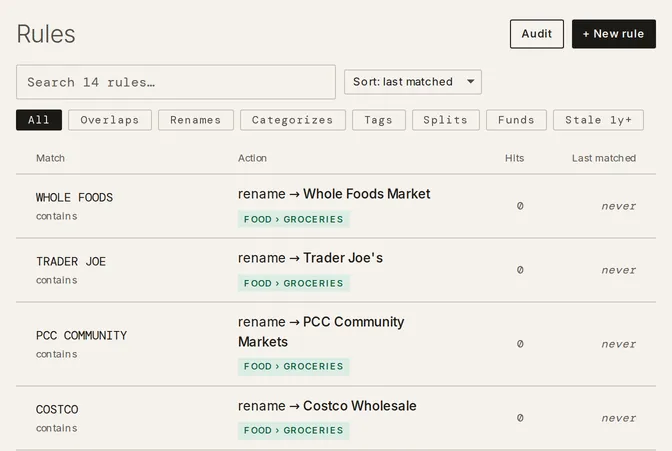
Section titled “Where do my rules live?”Open Organize and go to the Rules section. Each row shows the Match on the left — the pattern, and whether it fires when a description contains the pattern or is exact — the Action in the middle as chips (the rename, category, tag, split, or fund), and Hits and Last matched on the right. Search the list, sort it by last matched, most matched, or pattern, and filter it to Renames, Categorizes, Tags, Splits, or Funds.
When does a rule fire?
Section titled “When does a rule fire?”A contains rule fires when the transaction’s description includes the pattern as whole words, so a rule for WHOLE FOODS matches “WHOLE FOODS MARKET” but never letters buried inside another word. An exact rule fires only when the description is exactly the pattern. Either way a rule applies to new transactions as they arrive. To apply it to transactions already in your ledger, turn on Apply to existing transactions when you save it.
How do I create a rule from a transaction?
Section titled “How do I create a rule from a transaction?”-
On Transactions, click a transaction whose merchant or category you want to fix. The transaction opens in the side panel.
-
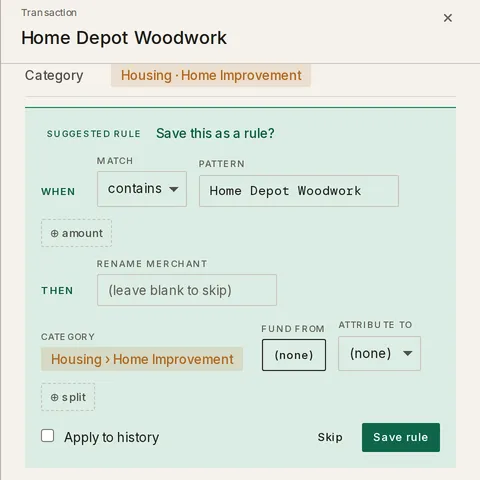
Change its Category, or type a new name in Rename merchant. The Suggested rule strip appears below the category, asking Save this as a rule?
-
Check the WHEN row — the match type and the pattern Taiga Finance filled in from the merchant — and the THEN row — the rename, category, or tag it will apply. Edit either if you want.
-
Turn on Apply to history to run the rule over past transactions too. Leave it off to change only transactions that arrive from now on.
-
Click Save rule. Save rule stays greyed out while there is no pattern or no action to take.
How do I split every matching transaction?
Section titled “How do I split every matching transaction?”A rule can split each matching transaction into parts, the way a warehouse-store charge is part groceries and part household. Add a split action when you build the rule — with ⊕ split in the Suggested rule strip, or with + Add split action in the rule editor in Organize.
-
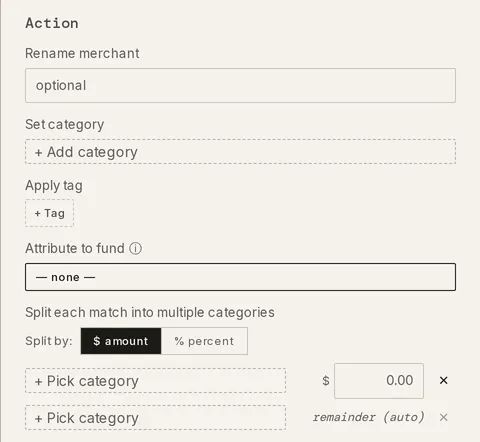
In the rule, click + Add split action (or ⊕ split in the Suggested rule strip). The split editor opens.
-
Under Split by, choose whether each part is a fixed $ amount or a % percent. Pick a category for each part and type its share.
-
The last leg is the remainder — it absorbs whatever is left over, so the legs always add up to the whole. Click Save rule (or Save changes when editing), and every matching transaction arrives already split.
How do I edit or delete a rule?
Section titled “How do I edit or delete a rule?”-
In the Rules section of Organize, click the rule you want to change. It opens in a panel titled Edit rule.
-
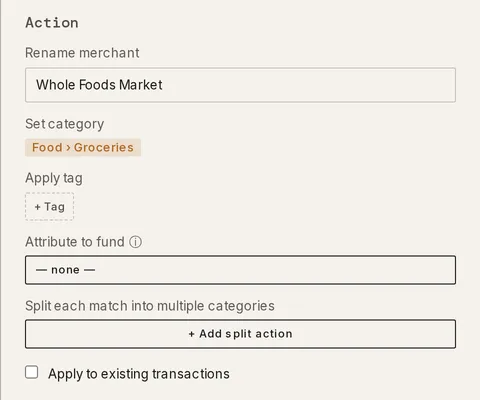
Change the Match condition, the Rename merchant text, the Set category, or the tag. The Matching transactions preview at the bottom updates as you type, so you see what the rule will catch.
-
Turn on Apply to existing transactions to re-run the changed rule over past transactions. Leave it off to change only what the rule does from now on.
-
Click Save changes, or Delete rule to remove it. Deleting a rule leaves past transactions with the categories and names it already gave them.
Whose rule wins on a shared account?
Section titled “Whose rule wins on a shared account?”On a joint account your rules and your partner’s rules work on the same transactions together. When two rules could both match one transaction, the rule that was created first wins, so the result is the same no matter which of you is looking or when the account last synced. A transaction a rule categorized shows “a shared rule” rather than naming one of you.
To change the result on one transaction, edit its category on the transaction itself — that takes priority over a rule for that transaction. To change it everywhere, edit or remove the earlier rule in the Rules section of Organize.
Troubleshooting
Section titled “Troubleshooting”Save rule is greyed out in the Suggested rule strip.
Section titled “Save rule is greyed out in the Suggested rule strip.”The rule has no pattern, or no action to take. Type a pattern in the WHEN row, and set a category, a rename, or a tag in the THEN row.
The Suggested rule strip never appears.
Section titled “The Suggested rule strip never appears.”The strip shows only after you change a transaction’s category or merchant. Make the change first, and the strip appears below the category.
A rule renamed a merchant I didn’t mean to change.
Section titled “A rule renamed a merchant I didn’t mean to change.”A contains rule fires on every description that includes its pattern. Open the rule in Organize, read the Matching transactions preview, and narrow the pattern or switch the match to exact.
My new rule didn’t touch past transactions.
Section titled “My new rule didn’t touch past transactions.”A rule applies going forward unless you ask it to reach back. Open the rule, turn on Apply to existing transactions, and save.
Does a rule change transactions I already categorized by hand?
Section titled “Does a rule change transactions I already categorized by hand?”Only if you tell it to. Apply to existing transactions has a second option, Also replace your manual edits (categories and merchant names). Leave that off and your hand edits stay. Turn it on and the rule overwrites them too.
What happens to my old transactions if I delete a rule?
Section titled “What happens to my old transactions if I delete a rule?”Nothing changes. Deleting a rule stops it from firing on new transactions. The categories, names, and splits it already applied stay on the transactions that have them.
Can one rule do more than one thing?
Section titled “Can one rule do more than one thing?”Yes. A single rule can rename the merchant, set a category, apply a tag, and split the transaction at once. Fill in each action you want in the THEN row or the rule editor.
How do I see everything a rule has done?
Section titled “How do I see everything a rule has done?”Open the rule in Organize. The Matching transactions preview lists what it catches now, and the row’s Hits count and Last matched date show how often it has fired.
Where do rules run in the categorization order?
Section titled “Where do rules run in the categorization order?”Your rules run ahead of Taiga Finance’s automatic categorization, so a rule always wins over the category Taiga Finance would have guessed. A later hand edit on a single transaction still overrides the rule for that one transaction.