Using Taiga Finance
Debts
Where everything you owe lives in Taiga Finance, and how the payoff readout projects it forward.
Everything you owe lives on Debt — a card balance, a car loan, a student loan, a HELOC, the mortgage. Each debt shows its balance, its APR and the monthly payment you plan for it, and the ones you are paying down sit in a payoff plan the page projects forward: a Payoff readout with the month you are debt-free and the interest left to pay, read three ways — As planned, Avalanche or Snowball. A debt can pull its balance live from a connected account or sit on a manual account whose balance you keep. Debt never moves money. It records what you owe and what it takes to clear it.
What is a debt in Taiga Finance?
Section titled “What is a debt in Taiga Finance?”A debt is one balance you owe, tracked on Debt. It can pull its balance live from a connected credit card, loan or HELOC, or hold a balance you enter by hand — a family loan, a medical bill, a buy-now-pay-later plan. Each debt carries an APR, a minimum payment, the monthly payment you plan for it, and whether it belongs to your payoff plan. A card you clear in full every month carries a Paid monthly mark and stays out of the plan, still counted in what you owe.
Mortgages are the exception. A mortgage is tracked with your property on Real estate and shows here as a secured debt whose terms are edited on its account, not on this page.
Which accounts count as a debt?
Section titled “Which accounts count as a debt?”Every debt sits on an account. The Type picker on Accounts sorts every account into six groups; three of them are what you owe.
| Group | Types | On the Debt page |
|---|---|---|
| Credit | Credit Card | Yes |
| Loans | Loan (auto, student, personal) | Yes |
| Real Estate | HELOC | Yes, as a debt |
| Real Estate | Mortgage | Yes, as a secured debt from Real estate |
| Real Estate | Property | No — it is an asset |
| Cash · Investments · Other | — | No |
A connected liability account you have not tracked yet appears on its own as a Not tracked row, with a Start tracking action and a read-only balance. Its tooltip reads Auto-detected from this account’s type — open the account to change its type. A mortgage account never auto-surfaces this way; it comes through Real estate.
A debt you add by hand gets a manual account of its own, whose balance you keep. Taiga Finance sorts every debt by Type into one of nine kinds:
| Type | Balance behaves like |
|---|---|
| Credit Card, HELOC, Buy-Now-Pay-Later | Revolving — the balance rises and falls as you spend and pay |
| Student Loan, Auto Loan, Personal Loan | Installment — a fixed balance that amortizes down |
| Medical, Family Loan, Other | Whatever you record by hand |
What does the debt page show?
Section titled “What does the debt page show?”The page opens on Total debt, every debt summed, beside a chart of the In payoff plan balance over the trailing twelve months. Below it the ledger is two bands. In payoff plan holds the debts you are actively clearing. Not in payoff plan holds the rest — a card you pay in full, a loan you have parked. Every row carries the same fields: the debt’s name with its projected payoff month beside it, its balance at its APR, and the monthly payment you plan for it, written /mo.
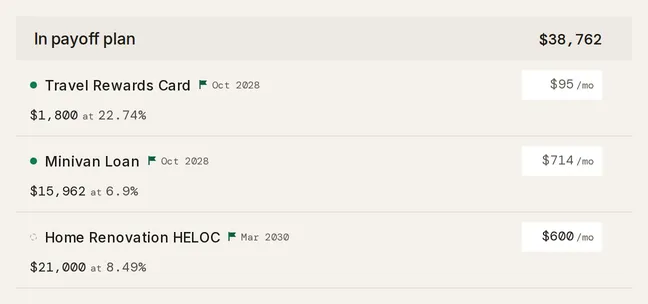
The payoff month beside the name is the one the picked view projects, like Mar 2029; a debt the view never clears shows none. An APR you have not entered reads Add APR rather than 0%. Until you add one, the payoff plan pays that debt its minimum each month and projects no payoff month or interest for it; the row still shows its balance. When a bank reports a rate, the row offers it as a one-tap Confirm 21.99% instead of writing it silently. A row outside the plan carries one mark: Paid monthly for a card you clear each statement, otherwise its kind. A mortgage in either band carries a Mortgage mark.
The /mo figure is the debt’s own planned payment. Blank, it reads the minimum in a muted face, and the plan pays the minimum. Type an amount above the minimum and the plan pays that; type one below it and the row’s tooltip says so — Planned $50 is below the $95 minimum — the payoff plan pays $95. A debt whose payment is budgeted on a Plan line shows a PLAN · (line) chip beside its name, a link to that line.
The Summary rail totals the ledger. Monthly payments and Minimum monthly payment sum what the plan pays and what it must. Interest this month and Weighted rate describe the cost. The scope toggle switches every total between Payoff plan and All debts; By type splits the balances by kind, and Monthly interest by type splits the cost.
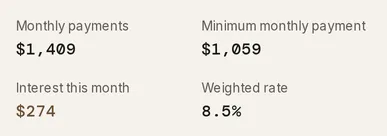
When a credit card account carries a known credit limit, a Credit lines block adds Available credit and Utilization across those cards.
How do I add a debt?
Section titled “How do I add a debt?”-
On Debt, click + Add debt. The Track a debt drawer opens.
-
Give it a Name and pick a Type. The name is required — while it is empty the button reports A name is required.
-
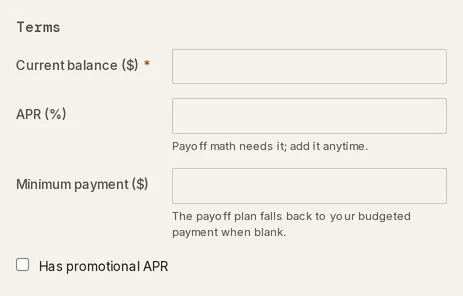
Enter a Current balance ($), or link an account to pull it live. A linked balance needs no figure.
-
Add an APR (%) and a Minimum payment ($) if you know them. The hint under the rate reads Payoff math needs it; add it anytime. An APR below 0% is refused with Must be 0% or more. Tick Has promotional APR to record a Promo APR (%) and the month it ends under Promo ends.
-
Under Source, choose a Linked account to pull the balance live from a connected account, or leave it on Track the balance manually. The manual choice gives the debt an account of its own, with the balance you typed as its first reading.
-
Click Add debt. The debt joins the ledger, in the payoff plan.
A HELOC adds one field, Secured property, which starts at Unlinked; pick a home to tie the line to it. See Home equity & HELOC.
How do I set a debt’s terms?
Section titled “How do I set a debt’s terms?”Open any debt on Debt to edit its terms in the drawer’s Details section.
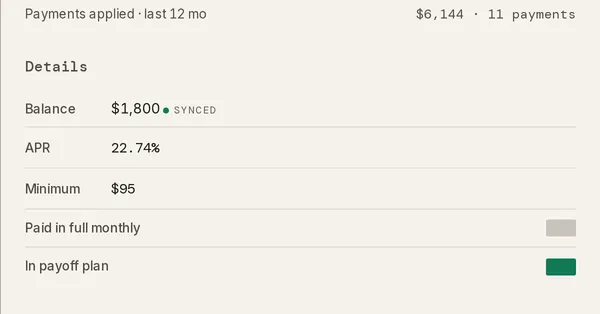
APR and Minimum take the numbers the payoff math runs on. An APR left blank reads APR not set in the drawer’s summary line, and the payoff plan holds the debt at its minimum until you add one. A Promo row records an intro rate and the month it ends. The Paid in full monthly toggle, on a revolving debt, marks a card you clear every statement — it drops out of the payoff plan and shows the Paid monthly mark. The In payoff plan toggle moves the debt between the two bands.
A live-linked debt shows its balance read-only, with a synced mark. The balance follows the account. A rate a bank reported but you have not accepted shows as a Confirm suggestion rather than a set value. A loan with a known rate and a balance history closes the section with an Interest · (window) row, the interest paid over that window, its month-by-month working one click off the figure.
The drawer’s Payoff section lists the debt’s Payoff schedule — the interest each month until it clears, the month it ends, and Interest left to pay at the end. A debt whose payment never gets ahead of its interest reads Balance grows there instead, with the month’s interest against the payment. A debt in the plan with no rate has no schedule, so the section is absent.
The Goal section takes a target balance and, optionally, a target month, and draws a meter of the progress toward it. It never says whether you are ahead of or behind the date.
How does a debt relate to my Plan?
Section titled “How does a debt relate to my Plan?”The payment you plan for a debt lives on the debt itself: the /mo figure on its row. Your Plan budgets the money separately, on a spending line, and the two need not match.
A debt can name the Plan line its payment is budgeted in. In the drawer’s Linked section, the Plan line picker lists your active plan lines, with None to clear it, and Open on Plan → opens the one you picked. The row then shows a PLAN · (line) chip beside the debt’s name. The pointer is a link only: it moves no number, and the payoff plan, the planned payment and your Plan’s budgets read the same with or without it.
Deleting a debt leaves the rest in place: The underlying account and its transactions stay in place.
How does the payoff readout work?
Section titled “How does the payoff readout work?”The Payoff section below the ledger projects every debt in the plan forward together. It is a report, not a calculator: nothing in it is a lever, and nothing saves. A view control reads the same projection three ways — As planned, Avalanche or Snowball — and the row payoff months, the stacked chart and the four figures (Debt-free, Interest left to pay, Total paid, Monthly) all follow the view you pick. Model a what-if → hands the view to the Debt payoff calculator under Scenarios.
What each view does with your payments, how to read the chart and the figures, and what happens to a debt with no rate is on Payoff strategies.
How do debts show up in reports and net worth?
Section titled “How do debts show up in reports and net worth?”Debts are the liability side of your net worth. The net-worth series sorts them into five bands: Mortgage, Home Equity (where a HELOC lands), Credit Cards, Loans and Other Debts. Reports carries a Debt balance measure — the total you owe over time, sliced by date or account class. Your Today dashboard’s Debt snapshot widget shows the total, the weighted rate and the payoff trajectory drawn from the same plan.
There is no separate report of interest paid or balances cleared over time. Interest and the debt mix live on the Debt page’s Summary rail, and a loan’s interest paid in its drawer.
Troubleshooting
Section titled “Troubleshooting”Linking a debt reads “that account is already linked to another debt or mortgage”.
Section titled “Linking a debt reads “that account is already linked to another debt or mortgage”.”The account you picked as a debt’s Linked account already backs a different debt or a mortgage. An account backs one liability at a time. Delete the other debt or pick a different account.
The planned payment I typed shows the minimum in its tooltip.
Section titled “The planned payment I typed shows the minimum in its tooltip.”The amount is below the debt’s required minimum, so the payoff plan pays the minimum instead; the tooltip reads Planned $X is below the $Y minimum — the payoff plan pays $Y. Raise the /mo amount, or lower the minimum in the drawer if the bank’s figure has changed.
A “Not tracked” row won’t let me edit its balance or APR.
Section titled “A “Not tracked” row won’t let me edit its balance or APR.”The row is a connected liability account Taiga Finance surfaced automatically, not yet a debt of its own. Click Start tracking to turn it into an editable debt; until then its balance and rate stay read-only.
What happens when I delete a debt?
Section titled “What happens when I delete a debt?”The debt is removed; nothing else is. The account behind it and its transactions stay, a synced account included. A debt you tracked by hand leaves its manual account on Accounts, where you can delete it too.
Does Taiga Finance fill in a rate for me?
Section titled “Does Taiga Finance fill in a rate for me?”Only as a suggestion. When a bank reports a rate through a live connection, the debt offers it as a one-tap Confirm — Taiga Finance never writes a rate to a debt on its own. Everything else you enter by hand. An unknown rate stays Add APR on the row, and the payoff plan never sends that debt extra dollars or gives it a payoff month until you add one.
Does the payoff plan move money or make payments?
Section titled “Does the payoff plan move money or make payments?”No. The readout and the calculator are projections; the payment itself is whatever you pay your lender, recorded as a transaction like any other. More on Payoff strategies.
What happens to a live-linked debt when the bank balance changes?
Section titled “What happens to a live-linked debt when the bank balance changes?”The balance follows the account. A synced debt takes its balance from the connected account, so a payment or a new charge moves it on the next sync. Your APR, minimum and planned payment stay as you set them, and a rate the bank newly reports arrives as a Confirm suggestion rather than overwriting yours.
Does my partner see my debts?
Section titled “Does my partner see my debts?”Only the shared ones. A debt marked private is visible to its owner alone. A partner sees a row reading N private debts · hidden from this view, with no name and no balance. See Couples & household visibility.