Using Taiga Finance
Plan
Start a plan from a template, read the take-home band and the four sections, and change a line without touching the months already closed.
Plan is the page where your monthly take-home is split into income, investments, savings, and spending lines, each with a planned amount and the month’s actual beside it. Open Plan in the sidebar. The first visit asks you to pick a starting point. After that the page opens on the current month: a take-home figure at the top, a band showing how much of it the plan allocates, four sections of lines, and a rail that reads the month’s pace. Every line is edited in place, and a closed month keeps the plan it had.
What is a plan?
Section titled “What is a plan?”A plan is a set of lines. A paycheck line expects an amount and counts the deposits that match it. A spending line claims categories and counts what those categories spent. An investment or savings line points at an account or a fund and counts what landed there. A household with two paychecks, a mortgage, two 529 accounts, and a travel fund has one plan that names each of them, and the page shows how the month is running against it. Nothing on Plan moves money.
How do I start a plan?
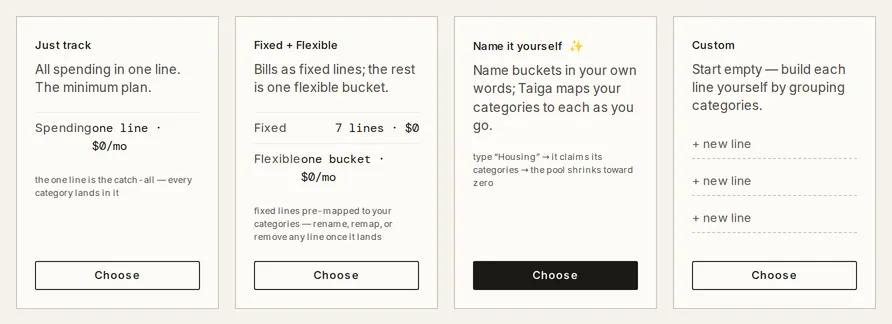
Section titled “How do I start a plan?”With no lines yet, Plan opens on Pick a starting point. Three cards draft a plan from your recent spending, and each previews the real lines it will create, with amounts.
-
Read the four cards and click Choose on one. Just track makes one spending line that every category lands in. Fixed + Flexible makes a fixed line per bill, mapped to your categories, and one flexible bucket for the rest. Name it yourself opens a walkthrough where you type bucket names in your own words. Custom starts empty.
-
For Name it yourself, type a name such as Housing under Your lines. With AI on, Taiga Finance maps your categories to it. With AI off, tap categories under Still unmapped to fill it. Sweep the rest into Everything else closes the walkthrough, and Review & save saves it once nothing is unmapped.
-
Read the footer. No template creates an income line. Income comes from your paychecks, and the Income section’s ghost row offers one once the page opens.
Every line a template creates stays editable. If the seed fails, the page reads Couldn’t start your plan — try again.
How do I read the page?
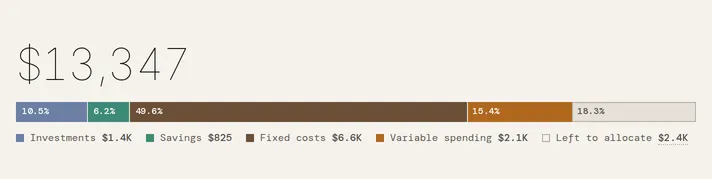
Section titled “How do I read the page?”The take-home figure heads the page. Hover it for its working: Total income, Before take-home (the pre-tax deductions), Take-home, and Received so far. Beside it, a band shows the plan over take-home as Investments, Savings, and Spending (or Fixed costs and Variable spending once any line is fixed). Each part of the band carries its share, and the legend names the parts with their amounts. The legend ends with Left to allocate, the take-home minus everything planned. It reads Over when the plan exceeds take-home, and the figure opens its equation.
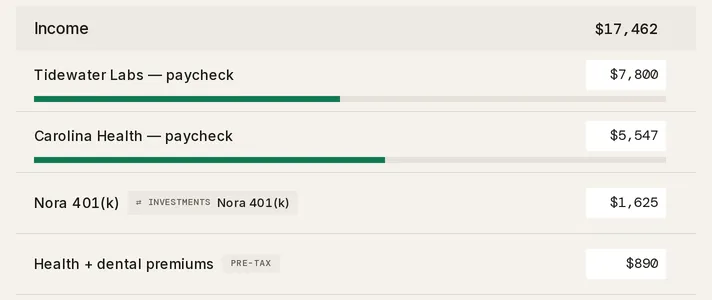
Four sections follow, each head carrying its planned total: Income, Investments, Savings, and Spending. A paycheck row shows its name, a meter, and its expected amount; a deduction row shows its name and one chip.
A section head is a toggle. Click it and the section folds to a one-line summary. A line over plan never folds away.
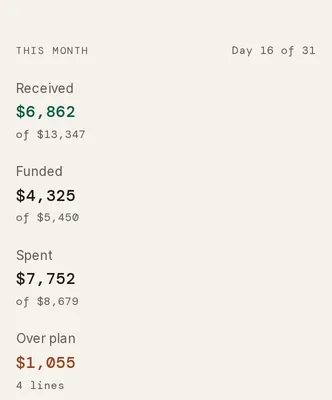
The rail on the right is headed This month with Day N of M. Its figures are Received of take-home, Funded of the planned contributions, and Spent of the planned spending. Over plan appears with a line count when any spending line is over. Unbudgeted appears with a transaction count when spending hit no line. In a two-person household, Take-home by member shows each person’s share, and a closing line counts any private lines, included in totals.
How do I add or change a line?
Section titled “How do I add or change a line?”-
Click a section’s faint + add … line row. A named line appears at $0 with its name ready to edit.
-
Click the amount on a row and type. Enter commits it, and the Escape key reverts. The amount applies to this month and every month after it, never to a month already closed.
-
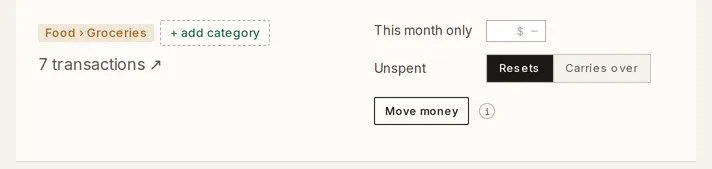
Click a spending row to expand it. The left side holds the category chips the line claims, each reading its group and category. Click a chip for its menu, or click the dashed + add category chip to claim another. A chip two lines both claim carries a dot; open it to pick which line keeps the pair.
-
Set the two fields on the right. This month only overrides the planned amount for this month alone; its ✕ clears it. Unspent is Resets or Carries over. A carrying line shows its carried amount, and Set… writes a new one.
-
Click Move money to shift part of this month’s plan to another line. The month’s total stays the same.
-
Hover a row and click ✕ to remove it. The toast reads Removed “<name>” with an undo for a few seconds. There is no confirm window.
Drag a spending row to reorder it, across the fixed and variable bands too. The order is the household’s and applies to every month. The expanded panel ends in N transactions ↗, which opens Transactions on exactly the rows the line counted this month.
How do income lines work?
Section titled “How do income lines work?”A paycheck line reads Received against the amount you expect, on a meter that fills as deposits land. Click the row to expand it. Its panel holds the Tracks chips: a category, a source, and an account. A set term is a chip; an unset one is a dashed ghost chip. Deposits that match every set term count as received. A paycheck with no term yet wears a + track chip and no meter.
A tracked paycheck with no source term lists its received amount by source in the panel. Each source has Add as line, which splits it into its own line, and ↗ to the rows it counted.
Make pre-tax turns the line into a deduction that leaves the paycheck before tax. A deduction is one chip on its row. The chip names the section it counts toward and the account it lands in, or reads pre-tax when it counts toward neither. Its menu holds Counts toward, with Investments, Savings, or Neither, the account it lands in, and Make it a paycheck. A deduction that counts toward a section gets a derived row there, which carries the deduction’s amount and cannot be edited on its own.
Deposits that match no paycheck show in an Unattributed band under the section, with Add an “Other income” line. That line tracks the bare Income category and counts everything else. A second line tracking only Income is refused.
When no paycheck row exists yet, the ghost row reads + add income line · $X · from N months, the household mean of recent deposits, and one click creates the line at that amount.
How do investment and savings lines work?
Section titled “How do investment and savings lines work?”An investment line carries an account chip, account · <name>, or a dashed + link an account chip that opens the picker. Its figure is what landed in that account this month. Click the row to expand it: Unfunded is Resets or Carries over, and Move to Savings counts the line under Savings instead.
A savings line carries a fund chip, fund · <name>, or + link a fund. Its figure is the fund’s balance against its goal, and the row never expands. The fund owns its balance, goal, and history on Savings. A savings line always carries; Resets is not offered and the hint reads Savings always carry.
A debt or mortgage can name the spending line its payment is budgeted in. That is set on the loan’s drawer on Debt, in the Plan line field.
What does a closed month show?
Section titled “What does a closed month show?”The resting page shows no month controls. Click History in the page head to open the closed months. A strip of recent months shows each month’s spending verdict, and the stepper moves between them. A closed month shows the plan it had at the time, with its take-home, To funds, and Spending figures, the frozen line list with any This month only override or move it carried, and the edit log. Actuals stay live, so a transaction you re-date moves between months. Back to <Month> returns to the current month.
A month is closed once it ends. Every edit records the plan it replaced, so an earlier month keeps the plan it had.
What does my partner see?
Section titled “What does my partner see?”A spending or investment line is the household’s. It has no owner and no privacy setting, and its figure counts every member’s accounts in its categories. The transactions behind a partner’s separate account stay out of the drill-in; the expanded panel shows them as one Private activity row with a count and an amount. Each section shows one rollup row per partner for lines whose detail is private, marked PRIVATE, and the rail counts them. The only owned line is a savings line backed by a fund, which carries its fund’s owner. A paycheck your partner tracks to an account they keep private shows as one net line named for them. See Couples & household visibility.
How do I start over?
Section titled “How do I start over?”-
Scroll to the foot of the ledger and click Start over.
-
Read the window, Start this plan over?. It archives every plan line in your household, the other member’s included, and removes your income lines. The other member’s income is kept, and closed months keep their history.
-
Click Start over. The page returns to Pick a starting point.
Troubleshooting
Section titled “Troubleshooting”A new paycheck line reads ““<name>” already tracks this income.”
Section titled “A new paycheck line reads ““<name>” already tracks this income.””Two paycheck lines cannot track the same terms. Change one term, such as the source or the account, on the new line’s chips.
The category picker reads “Every category is already on a line.”
Section titled “The category picker reads “Every category is already on a line.””Each category can belong to one spending line. Open the line that holds it and use the chip’s menu to move it.
The row reads “This line isn’t writable yet — try again.”
Section titled “The row reads “This line isn’t writable yet — try again.””The line was created a moment ago and its write has not settled. Wait a second and repeat the edit.
“Unbudgeted” appears in the rail.
Section titled ““Unbudgeted” appears in the rail.”Spending hit no line and no catch-all. The Spending section shows an Unbudgeted band with Add an Everything else line. That line absorbs every category no other line claims.
The section head reads a total I didn’t plan.
Section titled “The section head reads a total I didn’t plan.”The Investments and Savings heads include pre-tax deductions that count toward them. Each deduction’s chip names the section it counts toward.
Can I undo a removed line?
Section titled “Can I undo a removed line?”Yes, for a few seconds. The toast carries an undo. After it closes, the line is archived, and a closed month that had it keeps it.
Does changing an amount rewrite past months?
Section titled “Does changing an amount rewrite past months?”No. A closed month keeps the plan it had. An amount change applies from this month forward; This month only applies to this month alone.
Where else does the plan show up?
Section titled “Where else does the plan show up?”On Reports. Plan vs. actuals sets each line beside its recent average and lets you try a number without changing the plan. A debt’s drawer names the line its payment is budgeted in.
Can I plan income as well as spending?
Section titled “Can I plan income as well as spending?”Yes. A paycheck line expects an amount and counts deposits against it. A deduction line counts toward investments or savings before take-home.
What happens when a category moves to another line?
Section titled “What happens when a category moves to another line?”The spend moves with it, from this month on. The category’s transactions count on the new line, and closed months keep the mapping they had.