Using Taiga Finance
Mortgage
Add a mortgage to a property, keep its terms current, and fill in its payment history from your servicer's statements.
A mortgage is the loan record behind a home you track in Taiga Finance. Its balance is subtracted from the home’s value to give your equity. You add one from its property on Real estate, with the original principal, the rate, the term and the monthly principal and interest (P&I). Pick the account your servicer syncs and the balance follows it; choose Track manually and the loan gets an account of its own, valued by its amortization schedule. Either way the loan’s terms are edited later on that account’s drawer, in its Loan terms band, and past payments come in there from a Rocket Mortgage CSV or an OFX loan export. The same loan shows on Debt as a secured debt, and its payoff is projected on the property page under Mortgage payoff.
What is a mortgage in Taiga Finance?
Section titled “What is a mortgage in Taiga Finance?”A mortgage is a loan attached to one property. It holds what you borrowed, the rate, the term and the scheduled payment, and Taiga Finance builds the loan’s amortization schedule from them. The common case is a 30-year fixed loan on the account the servicer syncs. The servicer supplies the balance, and the terms supply what a balance alone can’t: the payoff month, and the split of each payment between principal and interest.
How do I add a mortgage?
Section titled “How do I add a mortgage?”A property with no mortgage shows a Financing block on its page, ending in + Add a mortgage. On a property that already has one, the same button sits in Property settings, under the Loan band. A synced mortgage account no loan claims yet is offered first, under Track a synced mortgage account; picking it opens the same form with the account filled in.
-
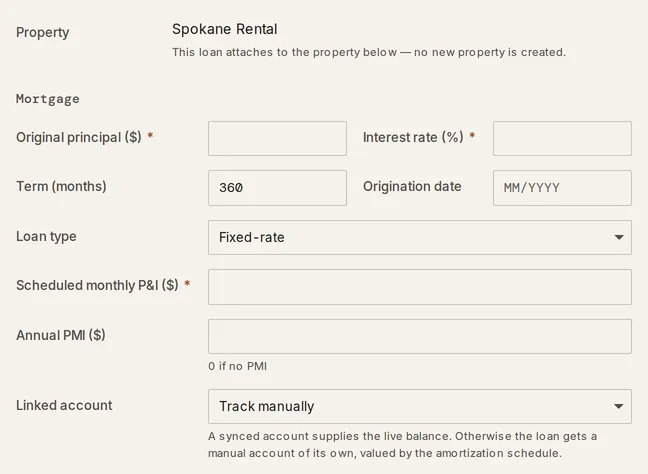
On Real estate, open the property and select + Add a mortgage. The Add a loan form opens, with the property named in its read-only Property field.
-
Enter the Original principal ($) and the Interest rate (%). Both are required, and a rate below zero reads Must be 0% or more.
-
Set the Term (months) and the Origination date. The term starts at 360.
-
Pick a Loan type: Fixed-rate, a 10/1 ARM, 7/1 ARM or 5/1 ARM, or Other ARM… for a different fixed period.
-
Check Scheduled monthly P&I ($). Taiga Finance fills it in from the principal, rate and term. A figure you type over it stays, and Recompute from inputs puts the calculated one back.
-
Enter the Annual PMI ($) if the loan carries mortgage insurance, or leave it at 0.
-
Under Linked account, pick the synced account your servicer reports, or leave it on Track manually. The hint reads A synced account supplies the live balance. Otherwise the loan gets a manual account of its own, valued by the amortization schedule.
-
Select Add loan. Taiga Finance saves the mortgage and returns to the property.
The form has no name field. A mortgage takes its property’s name everywhere it appears.
The Linked account choice decides where the balance comes from. A loan on a synced account takes its balance from the account on every sync. A loan you track manually has no feed: its balance walks down the amortization schedule month by month, and any balance you record or import pins the curve on that date. Both kinds have an account on Accounts, and that account’s drawer holds the loan’s terms and its balance history.
How do I change a mortgage’s terms?
Section titled “How do I change a mortgage’s terms?”A mortgage’s terms live on its account. On the property page, select the loan’s name — the hero reads Open loan account — or open the account from Accounts. The account drawer opens with a Loan terms band.
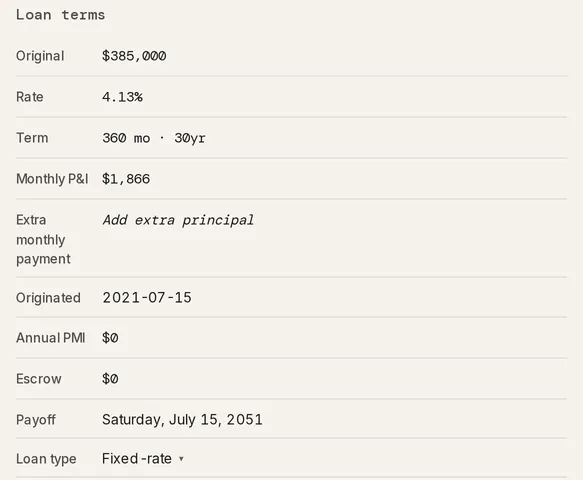
Click a value to edit it. Pressing Enter or clicking away saves it, and Escape cancels. The rows are Original, Rate, Term, Monthly P&I, Extra monthly payment, Originated, Annual PMI, Escrow, Payoff and Loan type. Payoff is read-only: the date the schedule ends, recalculated from the other rows. Loan type switches between Fixed-rate and Adjustable (ARM).
Clearing Rate marks it unknown rather than 0%, and the loan’s row on Debt then shows a ghost + add terms in place of a rate. When the servicer reports a rate on a synced account and the loan’s own rate is unknown, the Rate row offers it as a one-tap Confirm 6.88%, with the servicer’s name and the day it was received on hover. The same offer appears when the stored rate differs from one the servicer calls fixed. Taiga Finance never adopts the servicer’s rate on its own.
Extra monthly payment is a standing extra principal you pay every month on top of P&I. The loan’s schedule, its Payoff date and the planner’s baseline all count it, and the loan’s /mo figure on Debt reads the total — P&I plus the extra.
How do I move a mortgage to a new servicer’s account?
Section titled “How do I move a mortgage to a new servicer’s account?”A loan’s account is set when the loan is created, and there is no loan-level relink. When your loan is sold or you connect the servicer’s account afresh, merge the old account into the new one: open the old account’s drawer, and in its Manage band, under Advanced status, choose Merge into another account…. The merge carries the loan’s claim and its recorded balances onto the new account, so the loan counts once, today and in history. Until then both accounts show on Accounts and both count. The loan drawer’s Linked band states the rule: Merging this account into a new servicer’s account moves the loan and its history there.
What is the escrow estimate?
Section titled “What is the escrow estimate?”Escrow is the monthly amount your servicer collects on top of P&I for property taxes and insurance. It reads $0 until you enter a figure in Loan terms. Once set, it shows beside P&I in the loan’s summary on the property. The figure matters in two places. A servicer’s billed payment, as a connection reports it, is the whole bill, so Taiga Finance takes the recorded escrow out of it to read the P&I. And when it rebuilds a loan’s past balances from its payment transactions, it takes the escrow share out of each payment first, so a full monthly payment isn’t mistaken for extra principal. Servicers reset escrow after each annual escrow analysis, and the estimate stays at the figure you last entered.
How does Taiga Finance handle an adjustable-rate mortgage?
Section titled “How does Taiga Finance handle an adjustable-rate mortgage?”An adjustable-rate mortgage (ARM) keeps one rate for a fixed period, then resets. On the Add a loan form, an ARM Loan type renames the rate and payment fields Initial rate (%) and Initial monthly P&I ($), and adds Rate after reset (%), optional, and Lifetime rate cap (%). Other ARM… also adds Fixed period (months).
After saving, Loan terms carries the ARM’s own rows:
- Initial rate and Initial P&I — the rate and payment for the fixed period.
- Fixed period — the months at the initial rate.
- Resets on — the first reset date, read-only.
- Rate after reset — your figure for the rate after the reset; the row reads Set to see payment shock while it is empty. Taiga Finance never guesses one. Once the reset has passed, the row is Rate since reset, and a rate the servicer reports arrives as a one-tap Confirm.
- Stress — +1%, +2% or +3% sets the rate after reset that far above the current rate.
- Lifetime cap — the ceiling on the rate.
The property page shows an Adjustable rate card below the loan. Before the reset it reads Your payment could change on the reset date, with the months away. With a rate after reset set, P&I after reset (assumed) shows the current payment, an arrow, and the payment after the reset. Without one, it offers Set an assumed post-reset rate to see your payment shock →. Once the rate has reset, the card reads Your rate has adjusted, with the reset date.
How do I import a servicer statement?
Section titled “How do I import a servicer statement?”A statement import fills in the loan’s per-payment history: the principal, interest and escrow of each past payment. Taiga Finance walks back from the account’s current balance, adding back each payment’s principal, and pins the loan’s balance on every payment date. The balance chart and your net-worth history then use these balances for those months.
-
Open the loan’s account drawer, and under Balance history select Import statement….
-
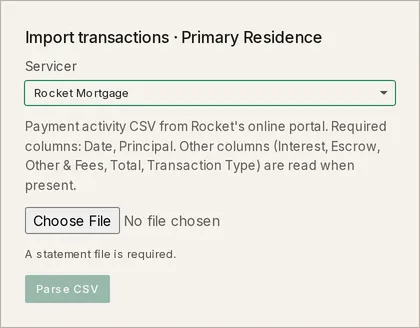
Pick a Servicer: Rocket Mortgage or OFX / QFX loan export. The line under it names the file each one reads.
-
Choose the file, then select Parse CSV or Parse OFX. The button stays greyed out with A statement file is required. until a file is chosen.
-
Review the preview: the row count and date range, the Principal paid, Interest and Escrow totals, and a table of each date’s Balance after, marked new or existing. To replace balances already recorded on those dates, tick Overwrite existing snapshots on these dates.
-
Select Apply, which names how many snapshots it writes. Taiga Finance reports what it imported and the date range of net-worth history it refreshed.
Two formats are read:
| Servicer | File | What it needs |
|---|---|---|
| Rocket Mortgage | The payment activity CSV from Rocket’s online portal | Date and Principal columns. Interest, Escrow, Other & Fees, Total and Transaction Type are read when present. |
| OFX / QFX loan export | An .ofx or .qfx loan-statement export |
A principal, interest and escrow breakdown on each payment. A deposit-account OFX file carries none. |
There is no PDF statement import. For a balance printed on a PDF or paper statement, + Add a balance beside Import statement… records one date and one figure by hand. Every known balance sits in the same ledger, each with its source — Origination, From your bank, You entered, Today’s balance or Computed — and only the ones you entered can be edited or deleted.
How do extra payments show?
Section titled “How do extra payments show?”A past extra principal payment is recorded on the property page, in the Extra monthly section under the planner, with a Date, an Amount and a Note; a recorded row links to its transaction when one matches. A recorded extra moves the loan’s curve and its payoff only when the balance is walked from the terms or a checkpoint. A loan whose balance is a live reading already holds every paid extra, so there the section is read-only — A live-synced loan measures extra principal from its balance. — and a recorded extra is refused. A standing extra you pay every month is the Extra monthly payment row in Loan terms; a future prepayment you are weighing is a move in Mortgage payoff, not a record.
How does a mortgage show among my debts?
Section titled “How does a mortgage show among my debts?”On Debt, the mortgage appears as a secured debt with a Mortgage mark, in the Not in payoff plan band until you opt it in.

The row’s /mo figure is the loan’s monthly P&I plus any standing extra. Editing it writes only the part above P&I as the extra; typing the P&I or less clears it. A loan with no P&I on file shows a ghost + add terms instead, which opens the drawer.
Selecting the row opens a drawer with the balance and its history. Its Loan terms band reads No loan terms with Add loan terms → until the account carries them. Its Payoff plan band holds the one control, In payoff plan. A mortgage starts outside the plan. Switched on, the plan counts it at its real rate and scheduled P&I, and the P&I joins the plan’s minimum floor. Its Mortgage detail band reads Amortization, extra payments, and escrow/PMI live on Real Estate., with Open in Real Estate below, and the owner’s Delete loan sits in the footer: Removes this loan and its recorded terms. A synced account and its transactions stay. See Debts for how the payoff plan runs.
A transaction an importer filed as a generic debt payment is moved to Housing › Mortgage when it matches a tracked mortgage’s payment, so budgets and reports read it as the mortgage. A category you set by hand, or a rule of yours, is never changed.
Troubleshooting
Section titled “Troubleshooting”A CSV import reads a “Missing required column(s)” error.
Section titled “A CSV import reads a “Missing required column(s)” error.”The file lacks a Date or Principal column, so it isn’t Rocket’s payment activity export. The message names the missing column. Download the payment activity CSV from Rocket’s online portal and import that file.
An OFX import reads “OFX file has no <LOANPMTINFO> payment breakdowns.”
Section titled “An OFX import reads “OFX file has no <LOANPMTINFO> payment breakdowns.””The file is a deposit-account export, with no principal, interest and escrow split on its payments. The import reads a loan-statement OFX or QFX export instead. If your servicer’s portal offers one, import that file.
The “In payoff plan” switch is greyed out for a mortgage.
Section titled “The “In payoff plan” switch is greyed out for a mortgage.”The mortgage is missing something the plan needs to simulate it, and the drawer names what. No P&I in force to simulate — no scheduled payment, or past an ARM’s reset, no rate after it. means Monthly P&I or the post-reset rate is empty. No trustworthy balance — link the account, or add the origination date so the balance can be positioned. means the balance can’t be placed. The scheduled payment wouldn’t cover interest after the rate reset, so a payoff date would be fiction. means the ARM’s payment after reset is too small. Fill in the named field in Loan terms.
The property page’s “Extra monthly” section is read-only.
Section titled “The property page’s “Extra monthly” section is read-only.”The loan’s balance is a live reading from a synced account, which already reflects every extra you paid, so Taiga Finance refuses a recorded extra there. Rows recorded before the feed stay. A standing extra goes in Loan terms as Extra monthly payment.
Can I track a mortgage without a property?
Section titled “Can I track a mortgage without a property?”Not from scratch. Every mortgage is added from a property. A loan becomes property-less when you select Unlink from property in Property settings, or delete its property. It then sits under Unlinked loans on Real estate, still counted in what you owe.
Does importing a statement add transactions?
Section titled “Does importing a statement add transactions?”No. An import writes the loan’s balance on each payment date and its per-payment principal, interest and escrow. Your transactions stay as they are.
What happens if I import the same statement twice?
Section titled “What happens if I import the same statement twice?”Balances already recorded are skipped. Tick Overwrite existing snapshots on these dates to replace them instead. Per-payment figures are rewritten from the newer file, so a servicer’s correction replaces the old numbers.
Does my partner see the loan’s terms?
Section titled “Does my partner see the loan’s terms?”Only if the account is shared. Sharing is set on the linked account, not the loan. A partner who can see the account’s balance but not its detail sees the loan card’s Terms row read Not shared, and the loan is not offered as a source in the payoff planner.