Using Taiga Finance
Split a transaction
Divide one transaction into several categories so each part counts where it belongs in Plan and reports.
Open the transaction, choose Split this transaction, give each part a category and an amount, and save. Taiga Finance balances the last part for you, so the pieces always add up to the original. Each part then counts toward its own category in Plan and reports, and the ledger shows one row per part.
What is a split?
Section titled “What is a split?”One transaction, several categories. A warehouse-store run is part groceries and part household supplies; a hotel bill is part lodging and part meals. Without a split, the whole amount lands in one category, and Plan and reports count it there. A split assigns each part of the amount to its own category, so each part counts where it belongs. The transaction itself stays one transaction: same merchant, date, account, and total.
How do I split a transaction?
Section titled “How do I split a transaction?”-
On Transactions, click the row you want to split. The transaction opens in the side panel.
-
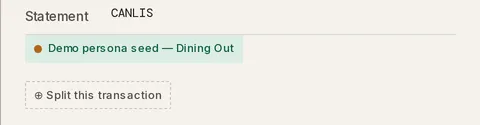
Below the Statement row, click ⊕ Split this transaction.
-
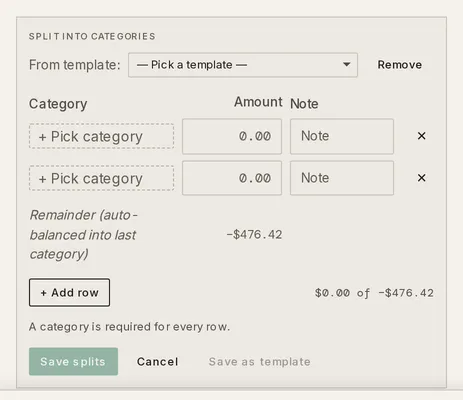
An editor opens with two empty rows and a Remainder line. Pick a category for each part and type its amount. Add a note if a part needs one.
-
Click + Add row for a third or later part, or × to drop a row you don’t need. The Remainder line shows what is still unassigned; that amount goes to the last row’s category when you save.
-
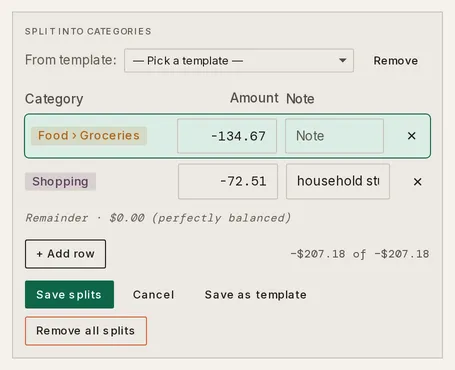
Click Save splits. The panel shows Splits saved, and the ledger replaces the original row with one row per part.
What does a split look like afterwards?
Section titled “What does a split look like afterwards?”The ledger shows one row per part. Each row carries its own category and a Split 1/2, Split 2/2 marker, so a filter or a search by category finds the part, not the whole purchase.

Clicking any part opens the whole transaction with that part highlighted in the Splits section.
How do I change or remove a split?
Section titled “How do I change or remove a split?”-
Click any part of the split in the ledger. The panel opens at the Splits section with the editor already showing every part.
-
Edit a category, amount, or note, or click × at the end of a row to drop that part. The Remainder line updates as you type.
-
Click Save splits to keep the change, or Remove all splits to return to a single transaction with its original category.
Can I reuse the same split?
Section titled “Can I reuse the same split?”Yes. With every row filled in, click Save as template and name it. The next time you split a transaction, a From template menu appears above the rows; choosing the template fills the parts in for you. Templates store each part as a fixed amount, with the last part taking whatever remains.
Troubleshooting
Section titled “Troubleshooting”Save splits is greyed out and the panel says “The splits exceed the parent amount.”
Section titled “Save splits is greyed out and the panel says “The splits exceed the parent amount.””The parts you typed add up to more than the original transaction. The Remainder line turns red and shows the overshoot. Lower one of the amounts until the Remainder is zero or positive.
Save splits is greyed out and the panel says “A category is required for every row.”
Section titled “Save splits is greyed out and the panel says “A category is required for every row.””One row has an amount but no category. Pick a category for it, or remove the row with ×.
The last part got a category I didn’t choose.
Section titled “The last part got a category I didn’t choose.”The Remainder always goes to the last row’s category. If you want a specific category for the leftover, make that category the last row.
I can’t find the Split this transaction chip.
Section titled “I can’t find the Split this transaction chip.”A transaction that already has parts shows Edit splits instead, which jumps to the Splits section. A transaction that is itself a part of a split opens its parent; edit the split there.
The parts don’t show in Plan.
Section titled “The parts don’t show in Plan.”Plan counts each part toward the category on that part. Check the category on each row in the Splits section; a part left on the original category still counts there.
Can I undo a split?
Section titled “Can I undo a split?”Yes. Click any part in the ledger, then Remove all splits in the Splits section. The transaction goes back to one row with its original category and amount; nothing else about it was changed by the split.
Can Taiga Finance split transactions from a merchant automatically?
Section titled “Can Taiga Finance split transactions from a merchant automatically?”Yes. A rule can carry a split action, so every matching transaction arrives already divided. Build it from a transaction’s Suggested rule strip with ⊕ split, or in the Rules section of Organize. See Create a category rule.
Can I split a transaction again, or split one of its parts?
Section titled “Can I split a transaction again, or split one of its parts?”Yes, as often as you like: open any part and edit the rows. A part can’t be split on its own, because clicking a part opens the whole transaction. To divide one part further, add a row to the split and move some of that part’s amount to it.
Can I split by percentage?
Section titled “Can I split by percentage?”No, not in the split editor, where each part is an amount. Percentages belong to rules: a rule’s split action can divide every matching transaction by % percent instead of a fixed $ amount.
Can I split income or a refund?
Section titled “Can I split income or a refund?”Yes. The editor works the same way for positive amounts; the parts carry the same sign as the original.