Accounts & connections
CSV & PDF importers
Which files Taiga Finance imports on the Import page, how each source is read, and what a re-import changes.
Import reads exports from other finance apps, banks, brokerages, and crypto exchanges, plus bank and card statements as PDF. Every file goes through a review step before anything is saved. Importing the same file twice skips the rows Taiga Finance already has. The page has six destination tabs. The tab decides what the file creates.
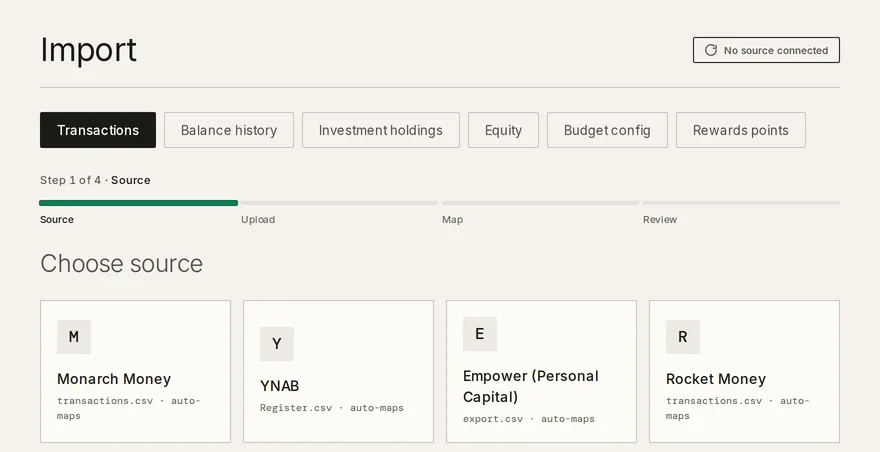
What can I import?
Section titled “What can I import?”| Tab | Creates | Accepts | Sources |
|---|---|---|---|
| Transactions | Ledger transactions | .csv · .pdf |
Monarch Money, YNAB, Empower (Personal Capital), Rocket Money, Bank CSV, PDF statement |
| Balance history | Account balances | .csv |
Balance history CSV |
| Investment holdings | Positions & cost basis | .csv · .ofx |
Fidelity, OFX / QFX, Coinbase, Kraken, Gemini |
| Equity | Grants, positions & exercise events | .csv · image · .pdf |
Carta exercises CSV, Screenshot / paste |
| Budget config | Budget envelopes | .csv |
YNAB Budget CSV |
| Rewards points | Points activity & balance readings | .png · .jpeg · .webp |
Activity screenshot |
Which transaction files does Taiga Finance read?
Section titled “Which transaction files does Taiga Finance read?”The four named sources recognize their app’s own columns and skip the column-mapping step. Bank CSV and PDF statement are the two catch-all sources.
Monarch Money
Section titled “Monarch Money”transactions.csv. Columns: Date, Merchant, Category, Account, Original Statement, Notes, Amount, Tags, Owner. Amounts are already signed the way Taiga Finance stores them, purchases negative.
Register.csv, one of the two files in YNAB’s Export Budget download. Columns: Account, Flag, Date, Payee, Category Group/Category, Category Group, Category, Memo, Outflow, Inflow, Cleared. Taiga Finance combines Outflow and Inflow into one signed amount. Categories map on the pair Category Group: Category, so your own groups survive. Dates are read as ISO first, then as MM/DD/YYYY. Cleared and Reconciled rows import as posted. Uncleared rows import as pending. Flag and Memo don’t affect the category.
Empower (Personal Capital)
Section titled “Empower (Personal Capital)”export.csv. Columns: Date, Account, Description, Category, Tags, Amount. Amounts are signed, outflows negative. The account column reads like Checking ( ) - Ending in 1234. Taiga Finance uses the trailing four digits to match the account. Both comma-separated and tab-separated exports are read.
Rocket Money
Section titled “Rocket Money”transactions.csv. Columns: Date, Original Date, Account Type, Account Name, Account Number, Institution Name, Name, Custom Name, Amount, Description, Category, Note, Ignored From, Tax Deductible, Transaction Tags. Rocket Money writes spending as positive. Taiga Finance flips the sign on import. A Custom Name wins over Name as the merchant. Note is appended to the description. A row marked Ignored From imports as cancelled.
Bank CSV
Section titled “Bank CSV”Any other bank, card, or tool. Taiga Finance reads the columns by their values rather than their headers. It needs a date, a description, and an amount, or a debit and a credit pair it folds into one amount. A Map your columns step shows what it found. You confirm the mapping and pick the account the file belongs to. On the next file with the same columns the panel says We’ve seen this shape before. and applies the saved mapping. A file with no header row is never remembered.
Sign is detected from the first rows: a card export that lists payments as negative is flipped so spending is negative. Exports from checking and savings accounts, and files with separate withdrawal and deposit columns, are never flipped. An optional status column maps to pending, posted, or cancelled after you review the values. Bank CSV files carry no categories into Taiga Finance. Every row is categorized by Taiga Finance’s rules.
PDF statement
Section titled “PDF statement”A bank or card statement as a PDF. AI reads it, so the tile is greyed out with Turn on AI in Settings while AI features are off. Taiga Finance reads each row’s date, description, and signed amount, plus the statement’s institution and the account’s last four digits. It reads no categories. Every row is categorized by Taiga Finance’s rules, like Bank CSV. The PDF itself is deleted as soon as the rows are read. PDF imports have a per-day limit.
What happens to categories on import?
Section titled “What happens to categories on import?”Sources that carry a category column, the four named apps, stop at Category review the first time each source category appears. Each row offers four decisions: Map to existing category, Create new, let Taiga Finance categorize each transaction, or Leave uncategorized. A row Taiga Finance guessed from statistics or AI shows a Suggested tag until you accept it. Once saved, a decision is sticky: the next import from that source applies it without asking. Rows with an empty or unusable category, or no merchant, go through Taiga Finance’s categorization rules instead of the file’s category.
How does Taiga Finance skip duplicates on re-import?
Section titled “How does Taiga Finance skip duplicates on re-import?”Every incoming row is checked twice against your existing transactions before the review table opens:
- By ID. Taiga Finance builds a transaction ID from each row’s account, date, amount, and description. A row whose ID already exists is skipped and shows as Dup · ID.
- By content. A row with the same amount as an existing transaction dated within three days of it, with a similar description, is skipped and shows as Dup · content. When the account’s last four digits are known, a match on the same account is preferred.
The match uses the date the transaction posted, so changing a transaction’s date in Taiga Finance doesn’t make a re-import create it again. Rows that overlap with a live bank connection are skipped the same way.
One case updates instead of skipping: an incoming row whose ID matches a pending transaction and carries a posted or cancelled status. It shows as Will update, and importing sets the existing transaction’s status without touching its category or merchant. A bank that changes the date when a charge posts produces a different ID, so that row imports as new rather than updating.
The finished card reads N transactions imported, with N skipped as duplicates and, when it applies, N updated from pending below it.
Which holdings files does Taiga Finance read?
Section titled “Which holdings files does Taiga Finance read?”Each source creates or updates a manual investment account and its holdings. Re-importing refreshes the same account rather than adding a second one.
Fidelity
Section titled “Fidelity”Positions.csv, from Accounts & Trade → Portfolio → Positions → Download. The download is named Portfolio_Positions_*.csv. One holding per row, with quantity, price, and cost basis from the file. Money-market positions with no share count are read. When Taiga Finance can’t tell an account’s type from its name, the review step asks you to pick one. Re-import matches accounts by name and updates holdings by symbol.
OFX / QFX
Section titled “OFX / QFX”An investment statement in the Quicken format most brokerages offer under account activity or statements. Each account in the file becomes an account, each position a holding, and each buy a lot. OFX files don’t record which lot a sale came from, so sales reduce the oldest lots first. When a statement’s sales exceed the buys it covers, Taiga Finance warns that the lot record is incomplete. Re-import matches on the broker and account ID and replaces every lot for a holding, so a longer statement doesn’t stack onto an older one.
Coinbase
Section titled “Coinbase”transactions.csv, from Profile → Statements → Transaction history, with all assets, all transaction types, and CSV format. The file is a journal of every buy, sell, send, receive, and convert. Taiga Finance replays it into one holding per asset. Quantity is inflows minus outflows. Cost basis is first-in, first-out. A receive adds quantity with an unknown cost. Rewards, Coinbase Earn and staking income take the value the file states at receipt, or an unknown cost when it states none. A convert reduces the source asset and adds the target at the converted value. Stablecoins count as crypto. Re-import updates a single Coinbase account.
Kraken
Section titled “Kraken”Two exports from History → Export on kraken.com. Kraken’s export queue can take up to a week.
- Balance — quantities only. One row per asset with its current quantity. Kraken’s older codes are normalized (XXBT to BTC, XETH to ETH, ZUSD to USD). Cost basis isn’t in this export, so a new holding has an unknown cost, and re-import keeps any cost basis you’ve entered. A USD column in the export sets the price. Without one a new holding has no reported value and reads —.
- Ledger — quantities plus cost basis. Every trade leg, deposit, withdrawal, and staking reward is replayed first-in, first-out. Deposits and staking rewards add quantity with an unknown cost. Transfer, rollover, margin, adjustment, and settlement rows are skipped and listed in the review.
Gemini
Section titled “Gemini”transactions.csv, from Account → Statements & History → Transaction History → Download as CSV. Trade rows name a pair like BTCUSD. Taiga Finance records the asset as BTC. Buys and credits add lots. Sells and debits consume them oldest first. A credit with no USD value, such as a deposit from an outside wallet, lands with an unknown cost. Re-import updates a single Gemini account. The ActiveTrader export isn’t supported.
What do the other tabs import?
Section titled “What do the other tabs import?”Balance history
Section titled “Balance history”Any CSV with a date column and a balance column, plus an account column when the file covers several accounts. You map the columns after upload. Monarch’s balance export (Date, Account, Balance) is recognized as is. A file with no account column is bound whole to one account you choose. The snapshots backfill the net-worth chart for dates before a live connection. A row with a date but a blank balance is a gap. Missing balances offers Skip or Fill forward. Skip imports only the values present. Fill forward repeats the last balance across the gap, between the file’s first and last date for that account. Taiga Finance never interpolates. On re-import, duplicate snapshots are skipped and a later real balance replaces a filled one.
Budget config
Section titled “Budget config”Budget.csv, the second file in YNAB’s Export Budget download. One row per month and category, with the assigned amount, activity, and end-of-month balance. Every category Taiga Finance finds is shown for review. You decide its name, its Taiga Finance category, and its rollover behavior. YNAB’s goals aren’t in the export, so imported lines have none.
Equity
Section titled “Equity”Two sources. Carta exercises CSV is the exercises table from Securities → Exercises, saved as CSV. Each exercise is matched to one of your grants in review. A company valuation found in the file is added to your 409A history without touching values you entered by hand. RSU and ESPP rows are rejected per row, since they aren’t exercises. A file whose headers don’t match fails with the expected and found columns rather than guessing. Screenshot / paste reads a Carta Options table with AI, as images, on-screen text, or a PDF. Grants and owned shares are written. Exercises and ESPP rows are recognized and pointed to the CSV source.
Rewards points
Section titled “Rewards points”One screenshot of a loyalty program’s activity list, as PNG, JPEG, or WebP. AI reads the dated earn and redeem rows and the balance shown. You confirm each row and the balance in review. A row it can’t read fully is flagged rather than dropped. A screenshot is treated as a window on the account, not the whole history.
What isn’t imported?
Section titled “What isn’t imported?”- Category rules, goals, and tags from another app. YNAB goals, Monarch tags, and YNAB flags don’t become Taiga Finance rules or budget goals.
- Categories from a Bank CSV or a PDF statement. Taiga Finance assigns them.
- A brokerage or holdings statement as PDF.
- Prices from any market-data service. Prices come from the file or from you.
- Kraken transfer, rollover, margin, adjustment, and settlement rows.
- Gemini ActiveTrader files.
- A second screenshot in one Rewards points import.
Troubleshooting
Section titled “Troubleshooting”The Map your columns step says “A date, a description, and an amount column are required.”
Section titled “The Map your columns step says “A date, a description, and an amount column are required.””Taiga Finance couldn’t find one of the three from the values in the file. Choose the column for each field yourself in the mapping table, then check the interpreted preview.
The PDF statement tile is greyed out with “Turn on AI in Settings”
Section titled “The PDF statement tile is greyed out with “Turn on AI in Settings””PDF import reads the statement with AI, which is off for your account. Turn on AI features in Settings › AI & Privacy, then reopen Import.
Upload fails with “Daily PDF-import limit reached — please try again tomorrow.”
Section titled “Upload fails with “Daily PDF-import limit reached — please try again tomorrow.””Each account has a per-day cap on PDF extractions. The count resets the next day. A CSV export of the same account imports without the cap.
Upload fails with “This file is too large — the limit is N MB.”
Section titled “Upload fails with “This file is too large — the limit is N MB.””The message names the limit for that file type. Export a shorter date range and import it in parts. The duplicate check keeps overlapping rows from importing twice.
Upload fails with “No rows found in this file.”
Section titled “Upload fails with “No rows found in this file.””The file parsed but held no transaction rows, usually an export of an empty date range or a header-only file. Export again with a range that has activity.
Continue is disabled with “Resolve all category mappings first”
Section titled “Continue is disabled with “Resolve all category mappings first””A source category in Category review still has no decision. Pick one of the four options for every row.
The page says “Upload not found — please re-upload.”
Section titled “The page says “Upload not found — please re-upload.””The staged upload expired or the page was reloaded mid-import. Start again from the source tile. Nothing was written.
A crypto upload fails with “All assets netted to zero quantity — nothing to import.”
Section titled “A crypto upload fails with “All assets netted to zero quantity — nothing to import.””After replaying the file, every asset’s inflows equal its outflows, so there’s no holding to create. Export a range that ends at the balance you hold.
Does re-importing the same file change transactions I edited?
Section titled “Does re-importing the same file change transactions I edited?”No. Rows Taiga Finance already has are skipped, not rewritten, so an edited category, merchant, or date stays. The one update a re-import makes is a pending transaction’s status, when the new file carries it as posted or cancelled.
Can I import from an app that isn’t listed?
Section titled “Can I import from an app that isn’t listed?”Yes, through Bank CSV. Mint shut down in 2024. A transaction export saved before it closed still imports. Tiller keeps data in a spreadsheet. Download its Transactions sheet as a CSV.
Does an import write anything before I review it?
Section titled “Does an import write anything before I review it?”No. Upload builds a preview. The review step is where you confirm accounts, categories, and which rows import. Closing the page during a review discards the staged file.
Which cost-basis method do the crypto importers use?
Section titled “Which cost-basis method do the crypto importers use?”First-in, first-out for Coinbase, Gemini, and Kraken Ledger: the oldest lots are consumed first by a sale, send, or convert. Kraken Balance has no cost basis. You enter it per holding.
Can I import a holdings statement as a PDF?
Section titled “Can I import a holdings statement as a PDF?”No. PDF statement under Transactions reads bank and card statements. Brokerage positions come in through Investment holdings as a Fidelity CSV or an OFX / QFX file.
Can I import when I’m in the demo?
Section titled “Can I import when I’m in the demo?”No. The upload button reads Not available in the demo. Imports write to the account, which the demo doesn’t allow.