Using Taiga Finance
Investments & crypto
Add brokerage, retirement and crypto holdings, then read them as one ledger or by portfolio.
Investments lists every holding across your brokerage, retirement, education, HSA and crypto accounts in one ledger. Holdings arrive from a connected institution, an uploaded file, or an account you enter by hand, all from the + Add menu. You can then group holdings into portfolios and give each portfolio a target mix.
What is a holding in Taiga Finance?
Section titled “What is a holding in Taiga Finance?”A holding is one position in one account: a fund, a stock, a coin. A household might hold two 401(k)s, a Roth IRA at another firm, a taxable brokerage, a 529 for each child and some Bitcoin on an exchange. Investments puts them in one ledger and sorts each into an asset class.
What does each page cover?
Section titled “What does each page cover?”- Portfolios — grouping holdings into a named portfolio, the starter portfolios, and changing or deleting one.
- Target mix — giving a portfolio a target by asset class and reading the gap between current and target.
- Edit a holding — the holding drawer: asset class, cost basis, lots, the portfolio pin and removing a manual holding.
- Crypto — how coins come in from an exchange export or a manual account, and where they show.
How do I add my investments?
Section titled “How do I add my investments?”-
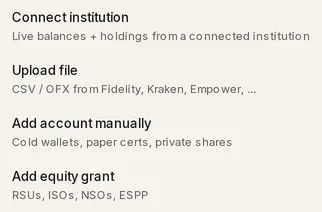
On Investments, click + Add. A menu opens with four sources. A page with no holdings yet shows Connect your first account and an Add an account button instead.
-
Choose where the holdings live.
| Source | What it does |
|---|---|
| Connect institution | Opens Accounts, where a connected brokerage syncs its balances and holdings. See Connect a bank. |
| Upload file | Opens Import at Investment holdings, which reads a Fidelity CSV, an OFX / QFX statement, or a Coinbase, Kraken or Gemini export. See CSV & PDF importers. |
| Add account manually | Creates a manual account. See How do I add a holding by hand?. |
| Add equity grant | Opens Equity Comp for stock grants, options and ESPP. See Equity. |
How do I add a holding by hand?
Section titled “How do I add a holding by hand?”-
On Investments, click + Add, then Add account manually.
-
Type an Account name, pick a Subtype such as Taxable Brokerage or Crypto, and pick an Owner. Institution is optional and reads Manual when left blank. Without a name the form reports Account name is required.
-
Click Create account →. The form moves on to the account’s first holding.
-
Fill in Symbol or label and Shares / units. Both are required. The label takes free text, so a holding with no ticker still fits. Price / share, Cost basis and Acquisition date are optional.
-
Click Add another to save the holding and enter one more, or Done → to save it and return to Investments.
What does the Investments page show?
Section titled “What does the Investments page show?”The ledger groups and totals your holdings by Portfolio, Account or Tax treatment, set by the control above it. Tax treatment sorts accounts into Retirement, HSA, Education (529), Taxable, Equity Comp and Crypto. Each group shows its holding count, a trend line, its change over 7d, 30d or 90d, and its total.
A holding’s row shows its ticker, the fund’s name, its value, and its weight within the group. Gain or loss for a single holding lives in its drawer, against its cost basis.
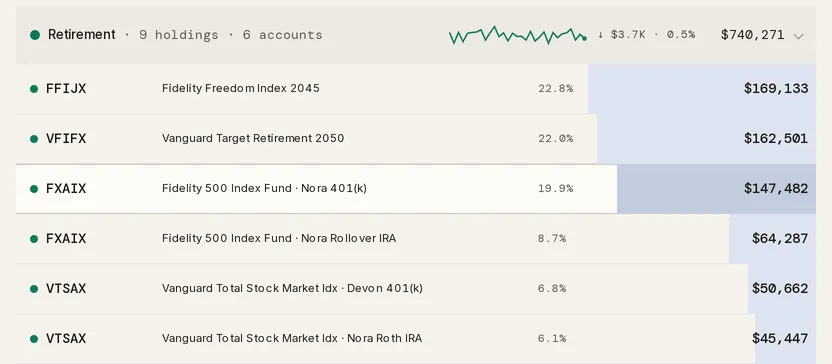
An account that syncs a balance but no positions appears as one Account balance row.
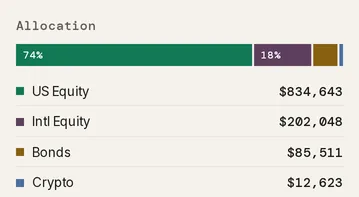
The Summary panel totals the page, with Allocation by asset class and Top holdings. On a narrow screen the panel folds away and opens from ≡ Summary. Clicking a row in Top holdings filters the ledger to that symbol.
Troubleshooting
Section titled “Troubleshooting”The header shows a chip reading “2 broken”.
Section titled “The header shows a chip reading “2 broken”.”A connected institution has stopped syncing. Hover the chip to see which, and click it to reconnect on Accounts. See Connection status.
The ledger reads “No open positions.”
Section titled “The ledger reads “No open positions.””The position filter is set to Open and every holding in view has a zero balance. Open the filter and choose Closed (zero) or All.
How often do prices update?
Section titled “How often do prices update?”Only when their source does. Taiga Finance pulls no market prices of its own. A connected account’s prices update each time it syncs. An imported holding keeps the price in its file until you import a newer one, and a manual holding keeps the price you typed. A holding whose source carried no price, or a manual holding added without one, shows — instead of a value.
Can I export my holdings?
Section titled “Can I export my holdings?”Yes. On Investments, open the ⋯ menu and click Export holdings for a CSV of current holdings with cost basis. See CSV exports & Google Sheets. There is no separate crypto export.
What does someone else in my household see?
Section titled “What does someone else in my household see?”It depends on each account’s sharing setting. A joint account shows its holdings in full, a balance-only account opens to a single line with no edits, and a separate account does not appear. See Couples & household visibility.