Using Taiga Finance
Build your own report
Build a report from a topic, a grouping, a time window, and a chart form, then save it to your Reports page.
Build your own report when the built-in reports don’t show what you want to see. On Reports, click + New report under Your charts. Pick a topic, choose how to group it and over what window, pick a chart form, and click Save. The report gets its own tile under Your charts and recalculates from your current data every time you open it.
What is a saved report?
Section titled “What is a saved report?”A saved report stores four choices: a topic, a grouping, a window, and a chart form. Dining spending by month over the last year is one example. The ten merchants you spend the most with is another. Taiga Finance redraws the chart from your current data each time the report opens.
How do I build a report?
Section titled “How do I build a report?”-
On Reports, under Your charts, click + New report. The builder opens with its controls showing.
-
Click the title to choose a Topic. Under Transactions, the topics are Spending, Income, and Net. Under Balances, they are Cash balance, Investments, Debt balance, and Position.
-
Set the numbered groups in the controls panel.
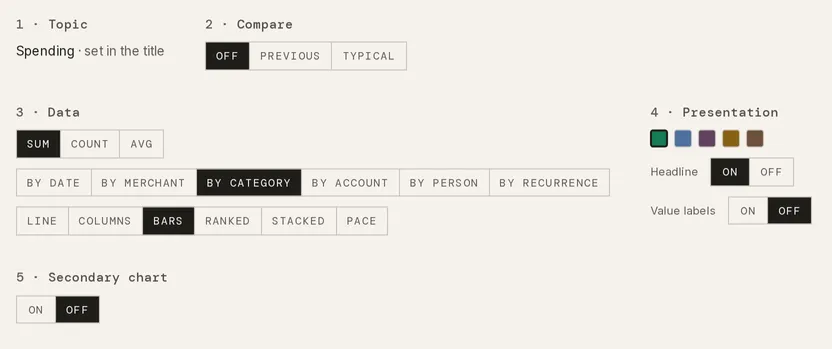
- Compare sets the chart against the Previous period or a Typical one, the average of your last 3, 6, or 12 completed months. Balances topics have no Compare and no Sum, Count, or Avg row.
- Data holds three rows. Sum, Count, or Avg sets how transactions are added up. The By row sets the grouping: date, merchant, category, account, recurrence, and in a household of two, person. The last row sets the chart form: Line, Columns, Bars, Ranked, Stacked, or Pace. A balances topic grouped by class adds Mirror.
- Presentation sets the color, and turns the Headline figure and Value labels on or off.
- Secondary chart adds a second chart under the first, with its own grouping and form.
-
Above the chart, pick the window: 7D, 30D, 3M, 1Y, All, MTD, or YTD. To narrow the report, Filters offers category group, subcategory, account, merchant, recurring or not, person, and a date range.
-
Click Save. A name field opens with a suggested name, such as Spending by category group.

-
Change the name if you like, then click Save again. The name field closes. If the save fails, the builder shows Couldn’t save — try again.
-
Click Done to leave the controls. The report is now a tile under Your charts.
An option that doesn’t fit your other choices is greyed out. Click it anyway and Taiga Finance says why, as in Line needs a time axis — pick By date. When a change makes the current chart form impossible, Taiga Finance switches the form and says so under the group for a few seconds.
Where do my saved reports live?
Section titled “Where do my saved reports live?”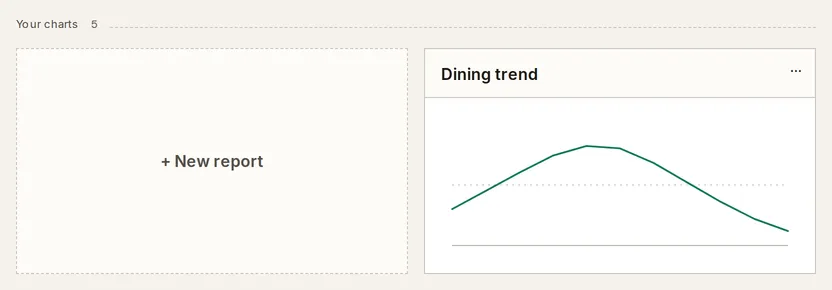
Each saved report is a tile under Your charts on Reports, and an entry under Reports in the sidebar. Click a tile to open the report.
How do I read a saved report?
Section titled “How do I read a saved report?”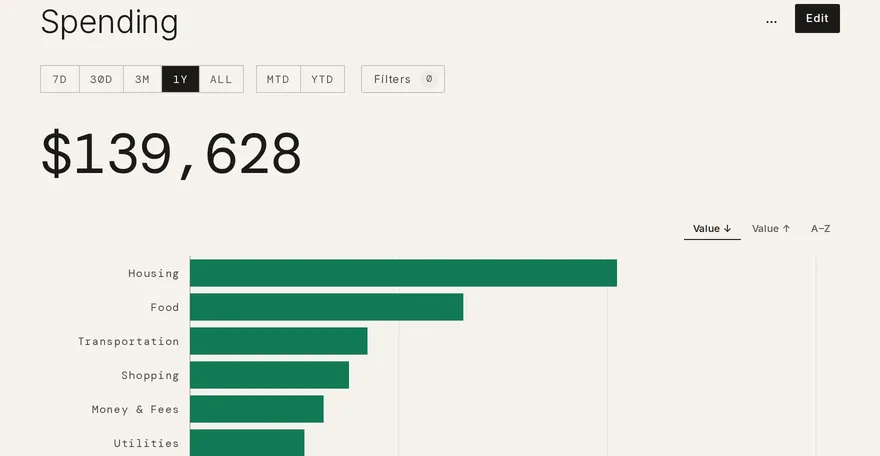
A saved report opens for reading. The title is the report’s topic, not its name. The name appears on its tile.
Without clicking Edit, you can change the window, open Filters, re-sort with Value ↓, Value ↑, or A–Z, or click a bar to filter the report to it. None of this is saved. The report opens as you saved it next time.
Under the charts, Recent activity lists the ten most recent transactions behind the report, and View in ledger → opens Transactions with the same window and filters.
How do I change a saved report?
Section titled “How do I change a saved report?”-
Open the report from Your charts and click Edit.
-
Change any control. An UNSAVED marker appears beside the title, with Revert and Save.
-
Click Save to update the report in place, or Revert to go back to the saved version. Click Done to leave the controls.
How do I duplicate or delete a report?
Section titled “How do I duplicate or delete a report?”-
On Reports, open the … menu on the report’s tile.
-
Choose Duplicate to make a copy named with (copy) at the end, or Delete to remove the report.
-
To bring a deleted report back, click Undo on the Deleted message. The message stays for a few seconds.
The same menu holds Show on Today, which adds the report to your Today page.
Troubleshooting
Section titled “Troubleshooting”Saving fails with “Couldn’t save — try again.”
Section titled “Saving fails with “Couldn’t save — try again.””The builder shows this for any failed save, including reaching the limit of 50 saved reports per person. Check Your charts. At 50, delete a report you no longer use, then save again.
Duplicate fails with “Saved-report limit reached (50). Delete one to save another.”
Section titled “Duplicate fails with “Saved-report limit reached (50). Delete one to save another.””You have 50 saved reports. Delete one from its tile’s … menu first.
The chart reads “No transactions in this window.”
Section titled “The chart reads “No transactions in this window.””Nothing matches the window and filters. Widen the window, or remove a filter chip.
A saved report opens with a card reading “can’t render.”
Section titled “A saved report opens with a card reading “can’t render.””The report uses an option that no longer exists in Taiga Finance. Remove report deletes it, and Start fresh opens a blank builder.
The page says “That saved report no longer exists.”
Section titled “The page says “That saved report no longer exists.””The report was deleted, and the link you followed is stale. Open Reports to see what is saved.
Can my partner see or edit my reports?
Section titled “Can my partner see or edit my reports?”No. Every report you save is private to you. Each chart also draws only the transactions the person viewing it can see.
Does a saved report update on its own?
Section titled “Does a saved report update on its own?”Yes. It recalculates from your current data each time it opens. A window such as 30D or MTD moves with the calendar.
Can I undo a delete?
Section titled “Can I undo a delete?”Yes, for a few seconds. The Deleted message carries Undo. Once it goes away, the report is gone.
Can I start from one of the built-in reports?
Section titled “Can I start from one of the built-in reports?”No. The five built-in reports are their own pages and don’t open in the builder. A built report can cover similar ground, such as Spending with a Pace chart.