Using Taiga Finance
Transactions & categories
How transactions reach Taiga Finance, how each one gets a category, and where to change one.
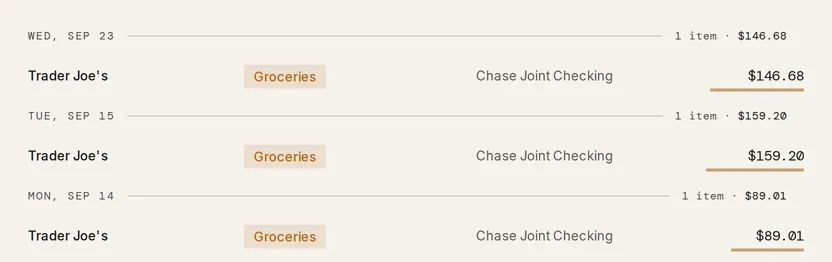
Every transaction Taiga Finance imports lands in the Transactions ledger, newest first and grouped by day, each with a merchant, a category, an account, and an amount. Taiga Finance categorizes each one as it arrives, and marks anything it can’t place Uncategorized. Click a row to open it and change the category by hand, select several rows and use Bulk edit to change them together, or add your own categories in Organize. Splitting one transaction across categories and teaching Taiga Finance a merchant with a rule each have their own guide.
What is the transactions ledger?
Section titled “What is the transactions ledger?”The ledger is every transaction across your connected banks, cards, and manual accounts, in one list. A household sees weeks of grocery runs, the mortgage, the utilities, and the occasional refund side by side. Each row carries the category that decides where its amount counts in Plan and reports. Most already have one when you open the ledger, and a few arrive marked Uncategorized.
How does a transaction get its category?
Section titled “How does a transaction get its category?”Taiga Finance assigns a category the moment a transaction arrives, and the first match wins. It checks your own rules first, so a rule always beats a guess. Next it checks its built-in keyword and bank-pattern lists, the ones that already know a grocery store from a pharmacy. After that it reuses what it has categorized for the same merchant before. A transaction that matches none of these stays Uncategorized until you pick a category or add a rule. One built-in match reads your other records: a debit filed under Debt Payments whose amount matches the payment on a mortgage you track lands in Housing › Mortgage, so an imported “Loan Payment” reads as housing rather than generic debt.
Taiga Finance can also label a merchant it has never seen. That step uses AI, and one setting controls it: Smart categorization & enrichment, under AI & Privacy in settings. With it off, a transaction that no rule or list matches stays Uncategorized rather than being labeled.
A category you set by hand is never overwritten. Once you or a bulk edit changes a category, later automatic passes leave that transaction alone.
How do I change a category?
Section titled “How do I change a category?”You can recategorize a single transaction two ways.
- In the ledger, click its Category cell and pick a new category from the list.
- Or click the row to open it, then change Category in the panel. Its Category · evidence band shows where the current category came from, so you can tell whether Taiga Finance guessed it or a rule set it, and dates each change on your own calendar day.
How do I recategorize several at once?
Section titled “How do I recategorize several at once?”-
On Transactions, click Bulk edit. The ledger turns on selection, and a checkbox appears at the start of every row.
-
Tick the rows you want, or use Select all on this page. The bar shows how many are selected.

-
Click Categorize and set one category for every selected row. The bar keeps your selection, so you can Tag them too before you leave.
-
Click Exit when you’re done, or Clear to drop the selection.
How do I find a transaction?
Section titled “How do I find a transaction?”Two tools sit above the ledger.
- Search matches a merchant name or the raw bank description; the box shows how many transactions it is searching.
- Filters narrow by Date range, Category, Account, Merchant, Tags, and Amount, and the tabs switch between All, Recurring, and Hidden.
The Amount filter matches the size of a transaction, so a range catches money in and money out alike. When a filter is one you’ll reach for again, click Save current filter, name it, and it joins the tabs as a saved view.
The Summary rail beside the ledger lists Top merchants for the range you have open. Hover a merchant for a preview of its total and its five most recent transactions; the preview reads Loading… while it fetches and Couldn’t load. when the read fails, so an empty merchant and a failed read never look alike.
How do I manage my categories?
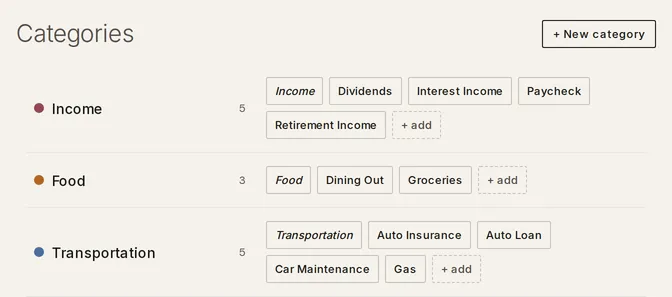
Section titled “How do I manage my categories?”Your categories live in Organize. Taiga Finance starts you with 15 built-in parent categories — Income, Food, Housing, and the rest — and you add your own parents and subcategories underneath.
-
Open Organize and go to the Categories section. Each parent lists its subcategories as chips beside a colored dot.
-
Click + New category to add a parent, or + add under a parent to add a subcategory.
-
Click a subcategory to rename or delete it, or click a parent’s dot to recolor it.
The 15 built-in parents are fixed.
What else can I do with a transaction?
Section titled “What else can I do with a transaction?”Two common tasks have their own guides:
- Split a transaction divides one transaction across several categories, so a warehouse-store run counts as part groceries and part household.
- Create a category rule teaches Taiga Finance to rename a merchant, set a category, or split a transaction the same way every time a matching one arrives.
Troubleshooting
Section titled “Troubleshooting”A transaction stays “Uncategorized” in the ledger
Section titled “A transaction stays “Uncategorized” in the ledger”No rule and none of Taiga Finance’s lists matched it, or Smart categorization & enrichment is off. Open the row and set a Category, or add a rule so transactions like it categorize themselves from now on.
The ledger has no checkboxes
Section titled “The ledger has no checkboxes”The ledger is checkbox-free until you turn on selection. Click Bulk edit first, and a checkbox appears at the start of every row.
Bulk edit selected only part of what I filtered
Section titled “Bulk edit selected only part of what I filtered”Select all on this page takes the current page only. To reach every transaction your filter matches, use the Select all … matching link in the bar, which selects the whole set across pages.
Does Taiga Finance recategorize transactions on its own?
Section titled “Does Taiga Finance recategorize transactions on its own?”Yes, but only ones you haven’t touched. Each sync runs the automatic passes over new transactions. A category you set by hand, or in a bulk edit, is never overwritten.
Can I turn category AI off?
Section titled “Can I turn category AI off?”Yes. Smart categorization & enrichment, under AI & Privacy in settings, controls it. With it off, transactions that no rule or keyword matches stay Uncategorized instead of being labeled. What Taiga Finance sends to AI covers what leaves your account.
What’s the difference between a category and a tag?
Section titled “What’s the difference between a category and a tag?”A category is the one bucket a transaction counts in for Plan and reports. A tag is a label that cuts across categories: a transaction keeps its category and can carry any number of tags. Tags are for slicing and searching, and they change no budget or report total.
Can I delete a built-in category?
Section titled “Can I delete a built-in category?”No. The 15 built-in parent categories are fixed. You can recolor them and add your own subcategories under them, and you can rename or delete the subcategories and any parent categories you add yourself.
Where does a category come from?
Section titled “Where does a category come from?”Open the transaction. The Category · evidence band names how the category was set — one of your rules, one of Taiga Finance’s lists, its categorizer, a built-in match such as the mortgage payment, or you — and when, on your calendar day. See where rules sit in that order for how a rule and a hand edit interact.