Using Taiga Finance
Equity compensation
Record stock options, RSUs, ESPP and shares you own at any number of companies, and read what is vested, exercised and owned.
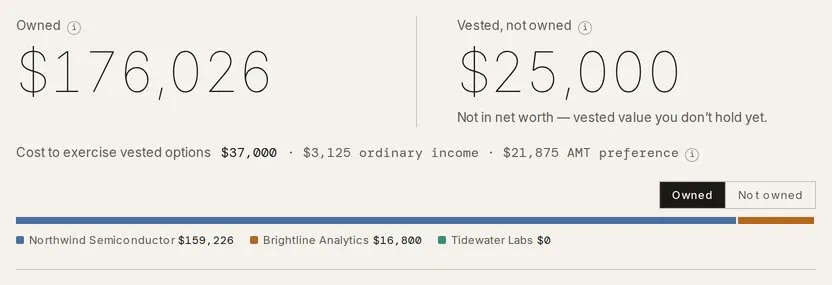
Equity Comp tracks ISOs, NSOs, RSUs, ESPP and shares you own outright, grant by grant, at any number of companies. The page opens on two figures. Owned is the value of shares you hold. Vested, not owned is the value of vested options and RSUs you don’t hold yet. Add a grant from + Add with its type, share count, grant date and schedule. Taiga Finance works out vesting from the schedule. Every share price is one you enter. Taiga Finance pulls no market prices and computes no AMT bill or other tax bill. Beside the cost of exercising, the page shows the spread and its tax character: ordinary income for an NSO, an AMT preference for an ISO, and a bare spread where the ISO’s yearly limit isn’t proven.
What is a grant in Taiga Finance?
Section titled “What is a grant in Taiga Finance?”A grant is one award from one company: a block of RSUs, an option grant with a strike price, or an ESPP offering. Someone might hold exercised options from a first employer, RSUs and ESPP shares from a second, and options still vesting at a third. Equity Comp keeps each company’s grants, price history and share counts together, and totals them into the two figures at the top. Shares bought outside any grant go in as a position.
How do I add a grant?
Section titled “How do I add a grant?”-
On Equity Comp, click + Add, then Grant. A page with no grants yet shows Add your first grant and an Add grant button instead.
-
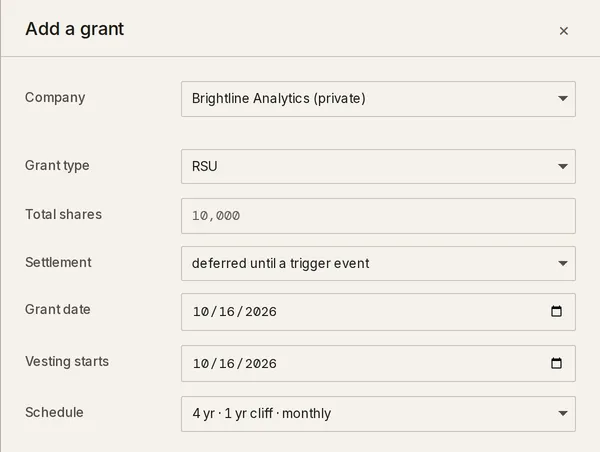
Pick the Company. New company… adds fields for Company name, Company type, and Share value today with an As of month. A public company also takes a Ticker. For a private company the field takes the latest 409A FMV per common share.
-
Pick the Grant type: RSU, ISO, NSO or ESPP.
-
Fill in Total shares and the Grant date, which defaults to today. Vesting starts follows the grant date until you change it. An ISO or NSO also needs Strike / sh. An ISO also has a $100,000 ISO limit field with two choices, not stated and issuer’s ISO portion — limit applied; the second says this row is the ISO half of a grant your issuer split at the yearly limit, and the rest is a separate NSO grant. An RSU takes a Settlement: shares settle at each vest, with a Withheld at settlement %, or deferred until a trigger event. Settlement defaults to each vest for a public company and to deferred for a private one.
-
Pick a Schedule. The presets are 4 yr · 1 yr cliff · monthly, 4 yr · 1 yr cliff · quarterly and 4 yr · no cliff · monthly. custom… adds Vesting years, Cliff months and a monthly or quarterly Cadence. per-tranche dates lets you enter the vests row by row, each with its own Date and Shares, so a schedule your paperwork states vest by vest, or an ISO/NSO split with its own timing, is entered as written; Total shares becomes their sum, and the drawer refuses a row with no date or no shares.
-
Click Add grant. The button stays disabled while something is missing, and the drawer says what, such as A strike price is required. The grant appears in its company’s card under Holdings.
An ESPP asks for Offering start, Offering period and Purchase every in months. It also asks for FMV at offering start / sh, Discount % and Lookback. Contribution / period is optional. Projected purchases use it. An ESPP has no share total of its own. Each purchase is logged as it happens, from Log purchase in the grant’s drawer.
In a household, the drawer also asks for an Owner and a Visibility. See Couples & household visibility.
How do I add shares I already own?
Section titled “How do I add shares I already own?”-
On Equity Comp, click + Add, then Position. The Add owned shares drawer opens.
-
Pick the Company and type the number of Shares. Acquired and Price paid / sh are optional. A blank price means unknown, and 0 is a recorded price.
-
Click Add position. The shares appear in the company’s card with a held tag.
What does the Equity Comp page show?
Section titled “What does the Equity Comp page show?”Owned counts shares you hold: exercised options, ESPP shares, shares settled from RSU vests, and positions, less recorded sales. Vested, not owned counts vested options you haven’t exercised and RSUs that haven’t settled. Cost to exercise vested options is the total strike to exercise every vested option. It appears only when you have some.
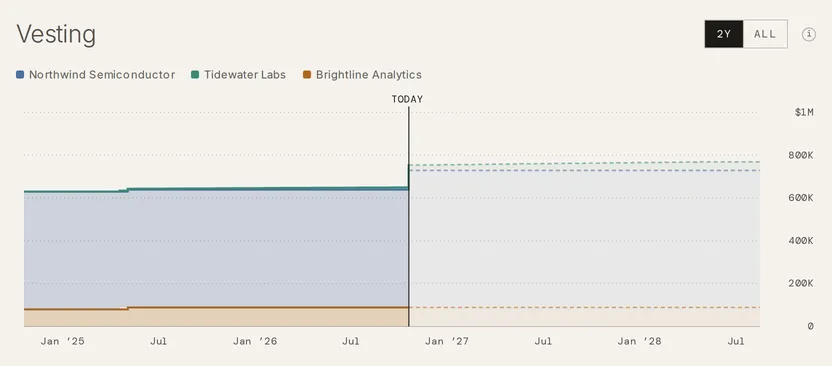
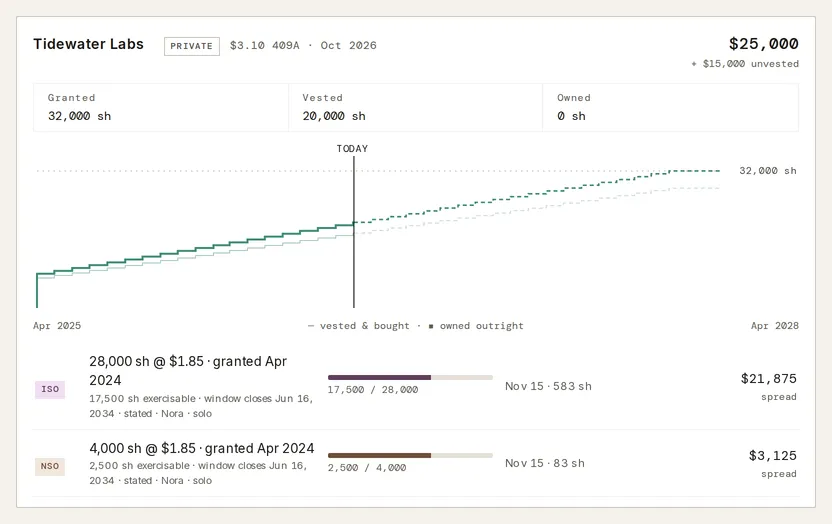
Vesting charts the value vested over time, one layer per company. Each past vest is valued at the price in force on its date. Vests scheduled after TODAY are valued at your latest price.
Holdings has one card per company. The header shows the company’s price with 409A or market and the month it was entered. Below it are share counts such as Granted, Vested and Owned. Only the counts that apply appear. Then come a chart of shares vested and shares owned, and one row per grant. A row that starts with ↳ shows shares the grant above it produced, such as an exercise.
This year so far leads with Ordinary equity comp. It sums RSUs vested, NSOs exercised, ESPP shares sold and disqualifying ISO sales, from what you’ve recorded. ISOs exercised is listed apart, and the lead figure reads excludes ISO spread.
The Summary panel lists the Next vest, or Fully vested. when nothing is left to vest, and the events Coming up: vests, cliffs, exercise-window ends, and a dated ISO treatment ends row for a terminated ISO with unexercised shares, after which an exercise reads NSO. On a narrow screen it opens from ≡ Summary. A company’s price history has one home, the History section of its drawer.
On Today, the Equity tile carries the headline and trends total equity as of each month-end, and the Vesting widget draws the value vested in the last twelve months and the twelve ahead as one step line across a TODAY seam, at your latest price. The widget reads No vests in the last or next 12 months when there are none.
How does Taiga Finance decide whether an option reads ISO?
Section titled “How does Taiga Finance decide whether an option reads ISO?”An ISO’s spread is an AMT preference item only while the grant stays inside the $100,000 yearly ISO limit, so Taiga Finance labels a spread AMT preference only when it can prove that. The proof comes from what you entered. The issuer’s stated split, the $100,000 ISO limit field, settles it outright. Otherwise Taiga Finance walks the schedule year by year: for each calendar year, it sums strike times shares first exercisable that year across your ISO grants at the same company, and the grant reads ISO for every year that stays at or under the limit. From the first year that goes over, the grant’s spread carries no character, and the hero’s ⓘ says so: the $100,000 yearly ISO limit isn’t proven from the strikes on record, so it may be either. A Termination date ends ISO treatment on its own clock, and the Coming up list dates it as ISO treatment ends. A character you state on an exercise, under Treated as, wins over every rule above.
What does a grant’s drawer show?
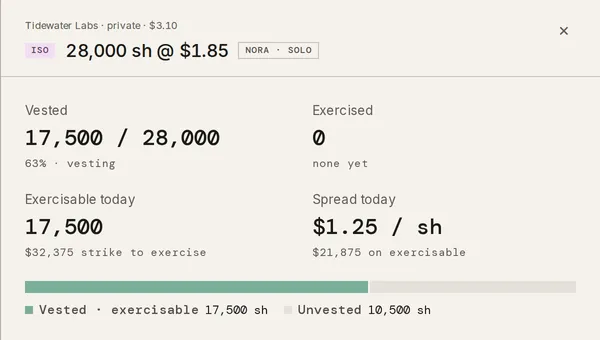
Section titled “What does a grant’s drawer show?”Click a grant’s row to open it. An option grant shows Exercisable today with the strike to exercise it, and Spread today per share and in total. An RSU shows Vested value, Still unvested and the Next vest. An ESPP shows Held, Value held, Discount captured and the Next purchase.
Edit on the Grant record changes the grant’s terms. It also sets a Termination date, which stops vesting after that date, and an Exercise window ends date on an option.
For an RSU, Edit also holds Settlement and Withheld at settlement %, the share of each vest withheld or sold for taxes. Taiga Finance uses it to estimate the shares you kept, and marks that count ≈. Broker held — this grant pins the count to a broker statement instead.
How do I log an exercise?
Section titled “How do I log an exercise?”-
On Equity Comp, click + Add, then Log exercise. The item is missing from the menu when no option grant has shares to exercise. Log exercise also sits beside Exercise history in an option grant’s drawer.
-
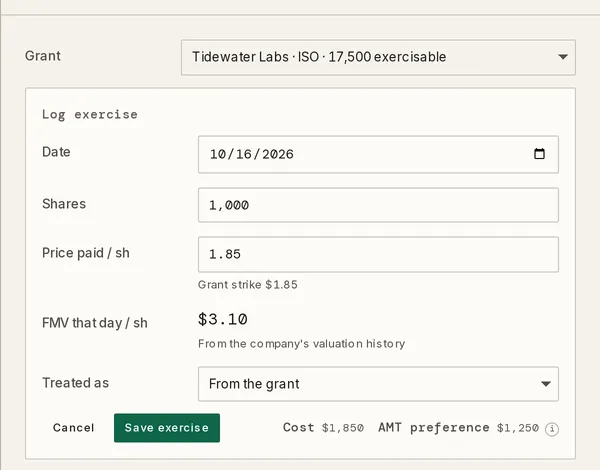
Pick the Grant, then set the Date and the number of Shares. Shares starts at 1,000 or the exercisable count, whichever is smaller, and can’t exceed what is exercisable.
-
Check Price paid / sh, which starts at the grant’s strike; the hint beneath reads Grant strike with the figure. FMV that day / sh is the company’s price in force on that date. When the company’s history has an entry on that day it is a read-only figure, From the company’s valuation history; otherwise it is a field whose hint reads In force with the price it would use, or No FMV recorded on or before this date, and a value you type there is added to the company’s history.
-
Leave Treated as on From the grant, or pick ISO or NSO to state the character yourself; a stated character wins over what Taiga Finance derives.
-
Check the Cost readout beside the button, and the spread beside it: Ordinary income for an NSO, AMT preference for an ISO, or a bare Spread when the ISO limit isn’t proven for that grant. An ISO’s readout also notes any ISO spread already recorded that year across the grants you can see. Then click Save exercise. The exercise joins Exercise history, and its shares move from exercisable to owned.
How do I record a sale?
Section titled “How do I record a sale?”-
Open the grant’s drawer.
-
Click Sell on the exercise or the ESPP purchase the shares came from. On an RSU whose Settlement is shares settle at each vest, click Record a sale under the Grant record.
-
Fill in Sale date, Shares and Sale price / sh. An RSU sale also takes Cost basis / sh and Acquired (vest) date.
-
Check Proceeds beside the button. For ISO and ESPP shares it reads Qualifying or Disqualifying for that sale date. Then click Record sale.
The sale appears under its exercise or purchase with its ordinary income and its gain or loss. An ESPP grant with held shares also has a Sale planner. It splits a sale at a date and price you choose into ordinary income and capital gain, lot by lot. Its figures are tagged estimate.
How do I update a share price?
Section titled “How do I update a share price?”-
On Equity Comp, click the company’s name at the top of its card. The company’s drawer opens.
-
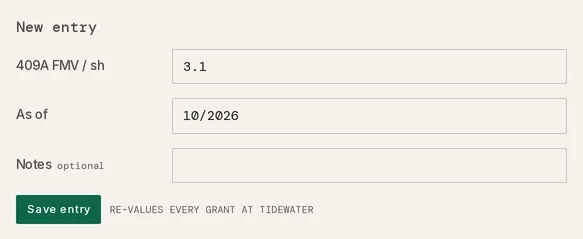
Under New entry, type the 409A FMV / sh for a private company or the Market price / sh for a public one, and set As of.
-
Click Save entry. Every grant at that company is valued at the new price.
A price holds until the next entry. History lists every entry, and each can be corrected or deleted.
What doesn’t Equity Comp do?
Section titled “What doesn’t Equity Comp do?”- No market prices. A public company’s price is the last one you entered, the same as a private company’s 409A. A ticker labels the company and fetches nothing.
- No tax bill. Taiga Finance does not compute your AMT, your withholding or what you owe. It has no record of your filing status, your other income or your deductions.
- The spread, not the tax. Beside Cost to exercise vested options, and in the Log exercise panel, Taiga Finance shows the spread an exercise would create and its tax character: ordinary income for an NSO, an AMT preference for an ISO, and a plain spread with no character where the ISO limit isn’t proven. The ⓘ beside it gives the arithmetic: share value minus price paid, times shares. The Log exercise figure appears when logging a new exercise, not when editing one.
- No recommendation. The page shows what is exercisable, its cost and the spread. It shows no recommendation on when to exercise or sell.
- No vest confirmations. Vested shares follow the schedule on the grant, or the vest rows you entered under per-tranche dates; nothing asks you to confirm a vest as it happens, and a Termination date is the only thing that stops one.
Troubleshooting
Section titled “Troubleshooting”There’s no Equity Comp in the sidebar.
Section titled “There’s no Equity Comp in the sidebar.”The module is hidden until you turn it on. Open Settings, find the Modules card, and turn on the Equity switch.
A figure reads “no share value recorded”.
Section titled “A figure reads “no share value recorded”.”The company has no price entry, so its grants can’t be valued. Open the company’s drawer and save a price under New entry. Until then the company’s shares are left out of the totals, and the page says how many.
The menu has no “Log exercise” row.
Section titled “The menu has no “Log exercise” row.”No option grant has vested shares left to exercise, or every such grant is past its Exercise window ends date. Check the grant’s Exercisable today figure in its drawer.
Deleting an exercise fails with “This exercise has recorded sales”.
Section titled “Deleting an exercise fails with “This exercise has recorded sales”.”An exercise that has sales under it can’t be deleted first. Delete each sale with its ×, then delete the exercise. An ESPP purchase with sales behaves the same way.
A position is tagged “matches grant”.
Section titled “A position is tagged “matches grant”.”The position’s share count equals shares a grant at the same company already produces. If they are the same shares, the position and the grant both count them. Delete the position, or click Acknowledge in its drawer when they are different shares.
Does equity count in my net worth?
Section titled “Does equity count in my net worth?”Only owned shares, and only when included. A grant or position counts when Include in portfolios is on. Count at (FMV %) sets how much of its value counts. It then appears in the Equity Comp group on Investments. Unexercised options and unvested shares never count.
Do I have to confirm each vest?
Section titled “Do I have to confirm each vest?”No. Taiga Finance works out vested shares from the grant’s schedule, or from the vest rows you entered, and today’s date. A Termination date on the Grant record stops vesting from that date on.
Can I import grants instead of typing them?
Section titled “Can I import grants instead of typing them?”Yes, from Carta. The ⋯ menu’s Import opens the Equity tab of Import. It reads Carta’s exercises CSV. With AI on, it also reads a screenshot, PDF or pasted copy of Carta’s Options table. See CSV & PDF importers and What we send to AI.
Can I undo a delete?
Section titled “Can I undo a delete?”Yes for an exercise, a purchase or a sale. Deleting one shows a notice with Undo. Deleting a whole grant or position asks for confirmation first and can’t be undone.
Can I export my grants?
Section titled “Can I export my grants?”Yes. The ⋯ menu has Export grants and Export vesting, each a CSV. See CSV exports & Google Sheets.