Your account & settings
Settings reference
Every band on the Settings page, each row in it, and what the control does.
Settings is one long page with a rail of section names down the side: Account, Security, Billing, Household, Preferences, AI & Privacy, Connections, Your data and Danger zone, plus Partner for an affiliate partner. This page lists every row in every band and says what each control does, so you can find a setting by its name. The how-to for each lives on its own page, linked from the band. A demo session can’t open Settings at all; the page reads Settings belong to a real account.
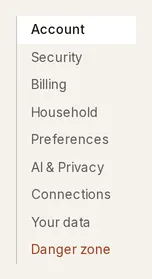
What is a Settings band?
Section titled “What is a Settings band?”A band is one section of the page, named in the rail and headed on the page, holding a few rows. Most rows show their current value and open on a click, so the page stays short while nothing is being changed. A row that writes something sensitive, such as your email or a bank connection, asks you to confirm it’s you first when you signed in a while ago. Nothing on the page has a save button for the whole form: each row saves on its own.
What is in the Account band?
Section titled “What is in the Account band?”| Row | What it does |
|---|---|
| Display name | The name your household sees everywhere. Leave it blank to use the part of your email before the @ sign. |
| Birth year | Shown to your household. Fills in ages in the Retirement savings planner. Clear removes it. |
| The address Taiga Finance signs you in with. A change sends a code to the new address and a lock link to the old one. While a change is pending the row reads Pending: with Enter code and Cancel. Sign in & security walks it through. |
What is in the Security band?
Section titled “What is in the Security band?”| Row | What it does |
|---|---|
| Sign-in methods | Lists Email link and, when connected, Google. Connect Google adds Google; Disconnect removes it. The last method can’t be removed. |
| Sessions | Sign out ends this session. Sign out everywhere ends every session, this one included. |
| Lock Taiga Finance on this device | A switch for the device lock: face, fingerprint or passcode before the app opens on this device. Auto-lock after picks Immediately, 1 min, 5 min or 15 min. Devices that enrolled a passkey are listed below it, each with Remove. |
| Recent account activity | Opens to the account’s security events: sign-ins, confirmations, bank connections linked or removed, sign-in methods added or removed, email changes, and household changes. |
| Support access | Every window in which you let a maintainer open the account read-only, with the reason and the dates. Reads Never opened until you grant one from a problem report. |
Sign in & security covers this band.
What is in the Billing band?
Section titled “What is in the Billing band?”The band appears once billing is set up on the install. It shows the household’s plan as a record with a Status pill (Trial, Active, Canceling, Past due, Paused or Incomplete), Next payment, Scheduled change when a plan switch is waiting, and Payment method, with Manage billing beside it. A household with no subscription sees the plan cards and Start 14-day trial instead. A member who is not the admin sees the plan and Managed by the household admin. Plans & billing covers this band.
What is in the Partner band?
Section titled “What is in the Partner band?”The band appears only for an affiliate partner.
| Row | What it does |
|---|---|
| Partner access | Full access while you’re on the partner roster · no subscription needed. Shows your referral link, Copy link, and a Results link to your partner page. |
| Sample data | Loads a made-up dataset into an empty account for screenshots and tours. It refuses an account with data (Available on an empty account. Wipe my data empties this one.) and an account with other household members. |
What is in the Household band?
Section titled “What is in the Household band?”| Row | What it does |
|---|---|
| Members | Each member with Admin or Member. The admin sees Make admin and Remove beside the other member; a pending invite shows Invited with Revoke. |
| Invite member | The admin types an email and sends an invite. A step headed Invite [address] states the household terms and sends on Agree and invite. |
| Household name | The name shown on shared surfaces. |
Removing a member deletes their sign-in and the data they did not share with the household, including accounts shown only as a balance, and ends their bank connections. The confirmation asks you to type REMOVE MEMBER. Couples & household visibility covers who sees what.
What is in the Preferences band?
Section titled “What is in the Preferences band?”| Row | What it does |
|---|---|
| Theme | Light, Dark or System. Follows you across devices. |
| Notifications | A device-scoped switch for push notifications, then one switch per kind. On an iPhone the line reads Add Taiga Finance to your Home Screen to turn on notifications on iPhone. A browser that blocks them says so. |
| Modules | A switch per module that can be hidden: Real Estate, Equity, Points. Hide the parts of the app you don’t use — the data stays, the pages leave the rail. |
What is in the AI & Privacy band?
Section titled “What is in the AI & Privacy band?”| Row | What it does |
|---|---|
| Smart categorization & enrichment | Sends a merchant name and account type to Anthropic to clean up labels and assign categories — never amounts or dates. Off, your rules, Taiga Finance’s built-in merchant patterns, and cached answers still categorize what they recognize; the rest stays Uncategorized. |
| AI chat assistant | Answers questions about your finances in plain English. Sends transactions, balances and budgets to Anthropic. Unavailable while Smart categorization is off. |
When the other member of your household turned AI off, a notice at the top of the band says so, and your own preference waits until it’s back on. AI & your data covers both switches.
What is in the Connections band?
Section titled “What is in the Connections band?”The band lists every bank connection, one row per institution with a status pill (Healthy, Needs attention, Expiring, Failed, Disabled, Disconnected, Access revoked) and the accounts it brought in. Connect a bank opens Plaid. Each row opens to Enable, Disable and Disconnect. Managing accounts and Connection status cover the controls and the pills.
What is in the Your data band?
Section titled “What is in the Your data band?”| Row | What it does |
|---|---|
| Export my data | ↓ Full archive (.zip) downloads every dataset as CSV, ↓ Complete data (.json) downloads every row you own, and CSV… opens the eleven datasets one by one. Limit: 10 downloads per 24 hours. |
| Google Sheets | Connect authorizes a spreadsheet Taiga Finance creates in your Drive and pushes after every sync. Once connected, the row opens to the Tabs switches, Push now, Disconnect and Open in Google Sheets ↗. |
CSV exports & Google Sheets covers both rows.
What is in the Danger zone band?
Section titled “What is in the Danger zone band?”| Row | What it does |
|---|---|
| Wipe my data | Empties every account, transaction, budget, and recurring row; you stay signed in and keep your plan. Asks you to type WIPE MY DATA. |
| Delete my account | Deletes your sign-in and your data, then signs you out for good. ↓ Download my data first sits beside it. Asks you to type DELETE MY ACCOUNT, or DELETE EVERYTHING when you delete a shared account whole. |
Deleting your data covers both, including the two doors a shared household offers.
Where is the sign-out button?
Section titled “Where is the sign-out button?”Settings › Security › Sessions, and the account menu at the bottom of the left rail, which also has Sign out.
Where do I switch between light and dark?
Section titled “Where do I switch between light and dark?”Settings › Preferences › Theme, or the account menu’s Dark mode / Light mode row. The Settings choice follows you across devices.
Why don’t I see Billing?
Section titled “Why don’t I see Billing?”Billing is set up per install. The band and its rail entry appear only where a subscription can be bought. A member who is not the admin still sees the band, with Managed by the household admin.
Why can’t I open Settings in the demo?
Section titled “Why can’t I open Settings in the demo?”A demo session has no account to change. Every band writes to a real account, so the page shows one notice, Settings belong to a real account., with the sign-up door. Theme is set from the account menu instead.
Can my household member change my settings?
Section titled “Can my household member change my settings?”No. Every band except Household is per person. The admin manages members and invites; everything else, from theme to AI switches to bank connections, is yours alone.