Using Taiga Finance
Track points and miles
Where airline miles, hotel points, card rewards and card sign-up bonuses live in Taiga Finance, and how to keep each program current.
Open Points in the sidebar, click + Add, then Program, and give it a name and a current balance. The program joins a ledger grouped by category, with its balance and freshness on one row. Keep a balance current by clicking it and saving a snapshot. Record what you spent with Log redemption. A card sign-up bonus you are working toward sits under its program’s row, counting the card’s purchases against the spend target. Every balance stays in native points or miles — Taiga Finance never converts a program to a dollar value.
What is the Points module?
Section titled “What is the Points module?”Points is a ledger of your loyalty programs — airline miles, hotel points, credit-card rewards — beside the rest of your accounts. A program is a balance you hold in one program’s currency, like 55,300 United miles or 148,400 Chase points. Loyalty balances don’t sync from a bank, so you keep them current by hand; a program shows the last date you touched it, and Taiga Finance marks one stale when it passes its nudge cadence. Balances read as counts, not money: there is no dollar value, cents-per-point, or net-worth figure on this page.
Do I need to turn it on?
Section titled “Do I need to turn it on?”Points is on by default — you don’t turn it on. It sits in the left sidebar as Points. If you don’t collect points, hide it: open Settings, find the Modules card, and turn off the Points switch — the page leaves the sidebar and every program you saved stays. Turn the switch back on to bring it back. On first run, the A bit about you step lists I collect points or miles among the things you track, which does the same thing.
How do I add a program?
Section titled “How do I add a program?”-
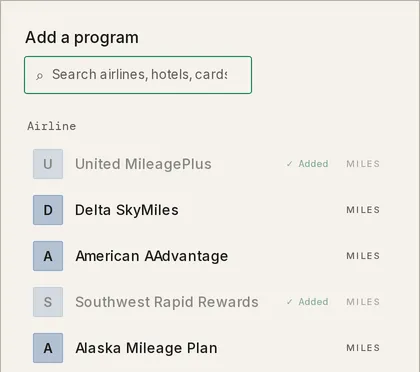
On Points, click + Add, then Program. A search box opens above a catalog of common airline, hotel, card, rail, retail, and car programs.
-
Click a program in the list to fill in its category and unit for you. A program you already track is greyed out with ✓ Added. If yours isn’t listed, click + Add a program that isn’t listed to enter it by hand — there you pick the Category (Travel, Credit Card, or Other) and Unit (Miles or Points).
-
Enter the Current balance — a plain count like
45,000, no dollar sign. Program name and Current balance are the only required fields. In a household, pick who holds it under Owner. Add a Note if you want one.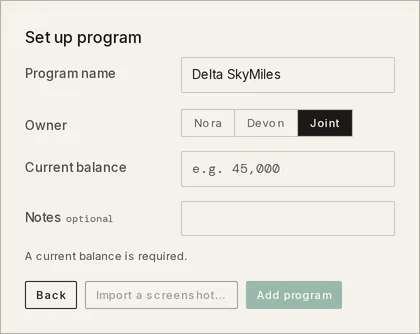
-
Click Add program. The program opens in its detail drawer, and its row appears in the ledger under its category.
What does the ledger show?
Section titled “What does the ledger show?”Programs are grouped into Travel, Credit Card, and Other. Each row carries a freshness dot (green when current, amber when stale), the program name, a sparkline of its balance over time, the change since the last reading, and the current balance in its unit. Above the rows, a hero shows one currency’s total and how much you’ve redeemed; miles and points are never added together. Filter pills narrow the ledger by Stale or, in a household, by who holds each program. A program with a sign-up bonus in progress carries a line under its row: the card’s name, or its last four digits once the card has synced them, a meter of counted spend against the target, and a readout such as $4,791 of $8,000 · 109 days left.
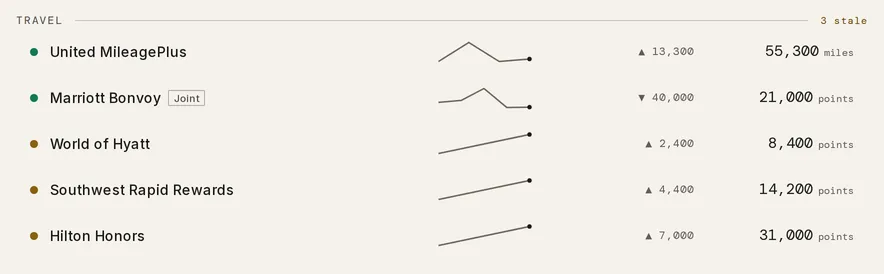
In a household, a program a partner keeps private shows only as a hidden from you count at the foot of the ledger — never its name or balance. See Couples & household visibility.
The Summary rail beside the ledger reads Freshness, Earned & used · 12 mo per unit, Recent redemptions and By category. When a card in your accounts carries an annual fee, the rail adds Card annual fees: the next twelve months as columns, each card’s fee in the month it bills. The fee date is set on the card’s row on Recurring, and the chart is absent while no card has a fee.
How do I keep a balance current?
Section titled “How do I keep a balance current?”-
On the row, click the balance. It turns into a field, and a New snapshot strip drops below the row asking Confirm this balance?

-
Type the reading. If the new number is lower than the old one, a Redeemed field appears so you can say how much of the drop you spent. Add a Note if you want one — the reading is dated Today.
-
Click Save snapshot. The dot flips green and the new balance shows on the row.
On a touchscreen the balance is a read-only figure. Tap the row to open the drawer and use Add snapshot there, where the reading also carries an editable As of date.
How do I record a redemption?
Section titled “How do I record a redemption?”-
Open the program’s drawer from its row, then click Log redemption under Record. From the page’s ⋯ menu, Log redemption opens the same form with a program picker.
-
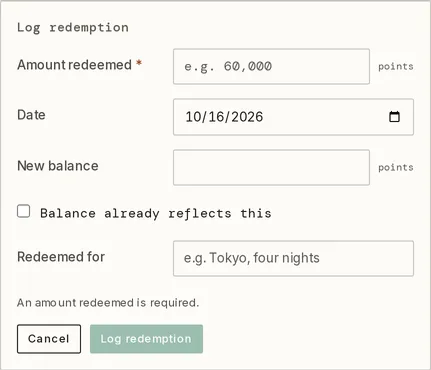
Enter the Amount redeemed and, in Redeemed for, what it bought. Taiga Finance fills New balance with the current balance minus the amount and shows the subtraction below it. Edit it if your reading differs.
-
If the spend is already in your latest reading, tick Balance already reflects this and Taiga Finance records the redemption without changing the balance.
-
Click Log redemption. It joins the program’s history as a redemption, and the balance drops to the new figure.
How do I track a card sign-up bonus?
Section titled “How do I track a card sign-up bonus?”A sign-up bonus is an offer on a new card: spend a target amount by a deadline and the program pays a bonus. Taiga Finance counts the card’s synced transactions toward the target and shows how far along you are. It never judges whether you will make it.
-
On Points, click + Add, then Sign-up bonus. The Track a sign-up bonus sheet opens. From a program’s drawer, + Add sign-up bonus in its Sign-up bonuses section opens the same sheet with the program fixed.
-
Pick the Card. The list offers your connected cards, with Already tracking a bonus for the ones that have one, and Card isn’t connected yet when the card hasn’t synced. Picking a card fills Program with the program Taiga Finance matched to it, and Counting from with the card’s first transaction. Change either if the offer says otherwise.
-
Enter the Deadline, the Spend target, and the Bonus in the program’s unit. The deadline is the one on your offer; Taiga Finance never works it out from a number of months. Track bonus stays disabled until every field is filled, and the sheet names what is missing, such as The deadline must be after the counting-from date.
-
Click Track bonus. The line appears under the program’s row.

The line’s dollar figure opens the working behind it, headed with the card and the window’s dates. Purchases, posted and Purchases, pending count; Refunds come off; each row carries its transaction count. Not counted lists what was left out with its amount, showing only the buckets that have rows: Payments & transfers, Fees, interest & cash advances, Income credits and Uncategorized credits, which count once categorized as a refund. The counted total sits above Target, which shows the Spend target, the Remaining, and Even pace by today, which is also the tick on the line’s meter. See all N transactions → opens them on Transactions.
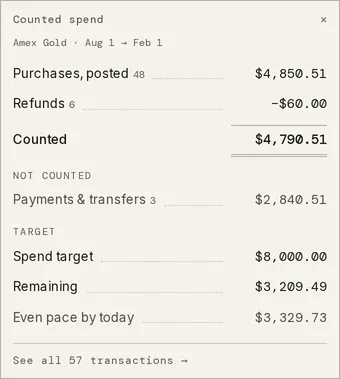 The note under the ledger states the rule in one sentence: Sign-up bonus spend is counted from the card’s synced transactions you can see between the dates you entered: purchases, including pending, minus refunds. Your card issuer’s own count decides the bonus.
A line reads opens with the counting-from date before the window starts, N days left while it runs, ✓ Reached with the date once the counted spend meets the target, and Window closed with the deadline when it didn’t. A finished line gains a ✕ to dismiss it, and a reached one offers Log bonus, which records a snapshot of the balance plus the bonus and retires the line in one step. A line with no card reads No card linked.
Edit or remove a bonus in its program’s drawer. The Sign-up bonuses section lists each one with its pace chart and the same working, then editable Card, Counting from, Deadline, Spend target and Bonus cells that save as you leave them. Remove confirms first with Its line leaves /points. The card’s transactions are untouched. Dismissed lines are listed under the ⋯ menu’s Not in your main view group as Dismissed bonuses.
What’s in a program’s detail?
Section titled “What’s in a program’s detail?”Clicking a row opens the program drawer: the balance and freshness at the top, then Record (Add snapshot, Log redemption, Import activity), a Details section, Sign-up bonuses, the full History of readings and redemptions, and Manage.
Rename a program by clicking its title. In Details you can change the Category, the Unit, the Nudge cadence (how many days before a program reads as stale — 30, 60, or 90), the Notes, and, in a household, its Visibility. Under Manage, Archive retires a closed program while keeping its history.
Troubleshooting
Section titled “Troubleshooting”The Add program button stays disabled with “A program name is required.” or “A current balance is required.”
Section titled “The Add program button stays disabled with “A program name is required.” or “A current balance is required.””The form needs both a name and a starting balance. Type a name and a count, then Add program turns on.
Log redemption stays disabled with “A new balance is required, unless it already reflects this redemption.”
Section titled “Log redemption stays disabled with “A new balance is required, unless it already reflects this redemption.””The redemption needs to leave the balance somewhere. Enter the New balance after the spend, or tick Balance already reflects this if the drop is already in your latest reading.
There’s no Points in the sidebar.
Section titled “There’s no Points in the sidebar.”Points is hidden. Open Settings, find Modules, and turn the Points switch back on. Your programs are still there.
The sign-up bonus line counts less than I’ve spent on the card.
Section titled “The sign-up bonus line counts less than I’ve spent on the card.”The working behind the dollar figure says what was left out. Only purchases on that card, posted or pending, between the Counting from date and the Deadline count, less refunds. A payment, a fee, interest or a cash advance never counts, and a credit the ledger hasn’t categorized counts once it is categorized as a refund. A purchase that hasn’t synced yet isn’t there to count.
A row at the bottom reads “hidden from you.”
Section titled “A row at the bottom reads “hidden from you.””That’s a program a household partner keeps private. Taiga Finance shows the count so the ledger is honest, but never the name or balance. Only its owner can see or change it.
Can I delete a program?
Section titled “Can I delete a program?”Yes, in two steps. Open the drawer and click Archive to retire it while keeping its history; the row leaves the ledger. Permanently deleting a program lives on the archived-programs view, reached from the ⋯ menu, so an archive is always recoverable first.
Does Taiga Finance turn my points into a dollar value?
Section titled “Does Taiga Finance turn my points into a dollar value?”No. Balances stay in native points and miles this phase — no cents-per-point, no estimated cash value, and points don’t roll into net worth. The page’s totals are counts and motion, not money.
Can Taiga Finance update my balances automatically?
Section titled “Can Taiga Finance update my balances automatically?”No. Loyalty programs don’t sync, so every balance is one you enter. Each program’s Nudge cadence marks it stale after 30, 60, or 90 days as a reminder to update it; nothing changes a balance on its own.
Does a sign-up bonus add points to my balance?
Section titled “Does a sign-up bonus add points to my balance?”Not on its own. The line tracks spend against the target. Once it reads ✓ Reached, Log bonus records a snapshot of the current balance plus the bonus and retires the line; the snapshot’s note names the card. Without it, your next reading carries the bonus in the ordinary way.
Can I load my history instead of typing each reading?
Section titled “Can I load my history instead of typing each reading?”Yes. From a screenshot of the program’s activity list, Taiga Finance reads the earned and redeemed rows and rebuilds the balance history. See Import points history from a screenshot.
How do points work in a household?
Section titled “How do points work in a household?”Each program has an owner. A shared or joint program is visible to both partners and tagged with who holds it; a program set to Private shows to its owner only, and appears to the other partner as a hidden from you count. Set this under Visibility in the drawer.