Using Taiga Finance
Savings funds
Where money set aside for one thing lives in Taiga Finance, and what moves it.
A savings fund is how Taiga Finance tracks money set aside for one thing — a trip, a roof, a car — inside an account you already have. Funds live on Savings. Each fund claims a slice of one real account, and its balance is that claim minus the spending you have drawn from it. A fund never moves money. The dollars stay spendable in the account, and the fund is the record of which of them are spoken for.
What is a savings fund?
Section titled “What is a savings fund?”One savings account can hold money for several different plans at once — a 529 top-up, a family trip, a reserve for a rental property. A fund is a name and a target attached to part of that balance, so each plan has its own number instead of one lump sum. Every fund names the account it sits in, its balance, and a status chip.
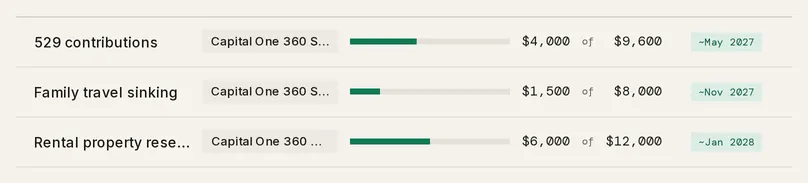
The chip is the fund’s state at a glance. Funded means the balance has reached the target. A fund with a target and a monthly contribution shows the month the contribution reaches the target, like ~Mar 2027. When the fund also has a target month and the projected month falls after it, the chip adds · after date, as in ~Jul 2034 · after date. A fund with a target month but no monthly contribution shows that month, like By Jun 2027, and projects nothing. No date means there is no target, or a target with neither a month nor a monthly contribution. Overspent means spending has taken the fund below zero.
How is a fund different from the account it sits in?
Section titled “How is a fund different from the account it sits in?”The account is real money. The fund is a claim on part of it. An account holds funds once its Holds savings funds setting is on, which makes it a fund account. Several funds can share one fund account.
The claims are separate from the balance, so the two can differ. The rail on Savings reconciles them across every fund account: Earmarked is the sum of the claims, Free to allocate is what no fund has spoken for.
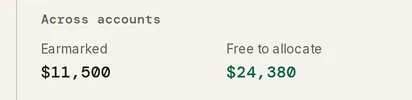
When the claims add up to more than the account holds, the figure reads Over-allocated instead.
Which accounts can hold a fund?
Section titled “Which accounts can hold a fund?”Cash and investment accounts. The Type picker in an account’s drawer sorts every type into six groups, and those groups are what the fund-account picker filters on — the account’s type, not whether the word “savings” is in its name.
| Group | Types | Can hold a fund |
|---|---|---|
| Cash | Checking, Savings, Cash | Yes |
| Credit | Credit Card | No |
| Loans | Loan | No |
| Investments | Taxable Brokerage, Traditional IRA, Roth IRA, 401(k), 403(b), 457(b), HSA, 529 Education, Crypto | Yes |
| Real Estate | Mortgage, HELOC, Property | No |
| Other | Other | No |
So a checking account can hold a fund and a Savings account has no special standing — both are Cash. A brokerage, an HSA and a 529 are eligible too, and appear below the cash accounts in the picker. A credit card, a loan, a mortgage and anything left as Other are not offered.
Changing an account’s Type moves it between these groups, and an eligible account then appears in the picker: see changing an account’s type.
How do I create a fund?
Section titled “How do I create a fund?”-
On Savings, click + New fund and give it a Name.
-
Enter a Monthly contribution ($), or leave it empty. An amount here creates a savings line in your Plan.
-
Pick a Fund account. This is required — a fund is always backed by a real account. If none is marked yet, the picker offers to mark one.
-
Under Allocation, choose a Basis, or leave it on Not now. The fund then starts at $0 and you set its share later.
-
Click Create fund. The fund joins the list on Savings. While anything is missing the button stays off and names the reason — A name is required, A fund account is required, A fixed allocation needs an amount above $0, or A percentage from 1% to 100% is required.
How does a fund get its money?
Section titled “How does a fund get its money?”By allocation, not by transfer, and not by the monthly contribution on its Plan line. A fund’s claim changes only when you change it, or when its basis derives it:
- Fixed — a dollar amount you set. Raise or lower it from the fund account’s drawer, or use Add to a fund → on the free-cash row to move part of the unallocated balance in.
- Percentage — a share of the account’s live balance, so the claim tracks the balance up and down.
- Whole account — the remainder after every other fund. Interest and leftovers land here on their own, and the account rests at $0 free.
Moving a claim between two funds on the same account is Move money. It sits in the fund drawer’s Allocation band on a Fixed fund, and in the fund account’s drawer under its funds. Pick From and To (a swap button flips them), type the Amount, which is capped at the source fund’s balance, and read After this move, which shows both funds before and after. The move is one transfer; the done line reads Moved $X from A to B with an Undo. When the account holds no other fixed fund the form says so: No other fund on this account to move between. Cover →, which appears on a fund that has gone below zero, opens the fund account’s allocation drawer so you can raise the overspent fund’s claim.
How do transactions count for or against a fund?
Section titled “How do transactions count for or against a fund?”A transaction counts against a fund when it carries that fund in Funded by. Open the transaction, click Funded by, and pick the fund — the ledger then shows a ⤳ marker next to the amount. A rule can do the same to every matching transaction through its Attribute to fund action.
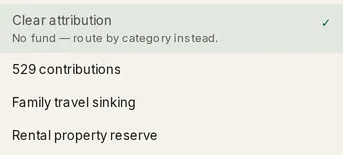
A tagged outflow lowers the fund balance the moment it posts. The fund drawer shows the arithmetic:
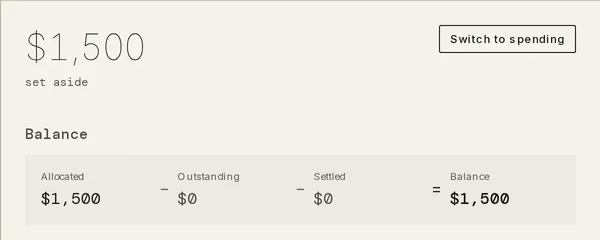
Outstanding is tagged spending you have not matched to a real transfer yet. When the money actually leaves the fund account, record it under Funded spends with Settle a transfer and those spends move to Settled. The balance does not change — settling is bookkeeping, not a second withdrawal. A cancelled transaction drops out of both totals. A row in the band, All funded spends since the first one, totals every purchase tagged to the fund, whatever its category, and its in Transactions → link opens exactly those rows on Transactions; the total equals Outstanding plus Settled.
Nothing counts toward a fund automatically. Deposits and transfers move the account balance, which is why the Free to allocate figure grows. Turning that into fund balance is an allocation.
How does a fund link to my Plan?
Section titled “How does a fund link to my Plan?”A savings line on Plan and a fund are one thing with two records. The link is the FUND chip on the line’s name row, which carries the fund’s name. Click the chip to open its menu. Open on Savings ↗ opens the fund’s drawer. Change fund… offers the funds no other line holds. Detach fund separates the two. The line keeps its amount, its chip reads + link a fund, and the fund stays on Savings with its balance, target and account.
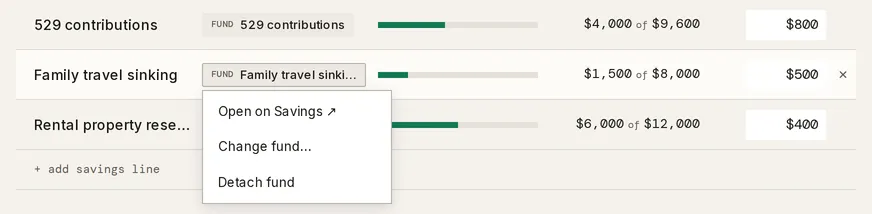
The line carries the monthly amount and routes Funded by spending. The fund carries the balance, the target, the account and the history. A savings line shows the fund’s balance against its goal, as a meter and a balance of goal figure. It does not show the month’s spending, because savings is not verified month to month. A fund with no target, or one in spending mode, shows neither. Projected months on Savings come from those planned contributions and your targets, held constant.
Creating a fund with a monthly contribution makes the line for you. A line added with + add savings line starts with no fund, and its chip reads + link a fund. The chip opens a picker of the funds no other line holds, with + Create a fund at the end to make one on an account you pick.
What changes when I switch to spending?
Section titled “What changes when I switch to spending?”A fund has two modes. Saving mode measures the balance against the target. Spending mode freezes the balance at that moment as a budget and measures what is left of it — Budget at start − Spent = Remaining — for the event the fund was saved for. When the event is over, Close out archives the fund and offers to move whatever is left into another fund or back to the account as free cash.
The switch, the shortcut on the Savings row, what the fund shows while spending, switching back and closing out are on Switch a fund to spending.
Troubleshooting
Section titled “Troubleshooting”A fund reads “Overspent” with a negative balance.
Section titled “A fund reads “Overspent” with a negative balance.”Spending tagged to the fund has passed its allocation. Either raise the allocation from the fund account’s drawer, or use Cover → on the row to move the shortfall from another fund.
The rail reads an “Over-allocated” total instead of a free figure.
Section titled “The rail reads an “Over-allocated” total instead of a free figure.”The funds sharing that account claim more than it holds. Lower a claim from the fund account’s drawer.
The ✕ on a Plan savings line is disabled.
Section titled “The ✕ on a Plan savings line is disabled.”The line is the fund’s last active one and the fund still needs it. Removing it is refused with This line records a fund’s spending — removing it would leave that spending untracked. Archive the fund itself from its drawer instead.
“No eligible transfer found” when settling funded spends.
Section titled ““No eligible transfer found” when settling funded spends.”Settling looks for a transaction on the fund’s own account that is excluded from spending and net worth — a Transfers row or a hidden one. A transfer on a different account, or one still categorized as spending, is not offered.
Can Taiga Finance tag spending to a fund automatically?
Section titled “Can Taiga Finance tag spending to a fund automatically?”Yes. A rule’s Attribute to fund action tags every matching transaction. See Create a category rule. Everything else is per transaction, from the drawer or the bulk toolbar.
Does a monthly contribution move money into the fund?
Section titled “Does a monthly contribution move money into the fund?”No. It sets the plan and nothing else. The fund balance changes only when you change its allocation, or when a derived basis follows the account balance.
What happens when I archive a fund?
Section titled “What happens when I archive a fund?”It is hidden, and the money is released. Archiving hides the fund and its goal, and its allocation returns to the account as free cash. Archived funds stay readable under More actions › Archived funds on Savings, and closing out a spent-down fund archives it the same way.
Does my partner see my funds?
Section titled “Does my partner see my funds?”Only the shared ones. A fund marked private is visible to its owner alone. A partner sees a row reading N private funds · hidden from you, with no name and no balance. See Couples & household visibility.