Using Taiga Finance
Default categories
Every category a new account starts with, which ones Taiga Finance fills on its own, and what happens when you add your own.
Taiga Finance ships with 15 parent categories and 47 subcategories, and every transaction counts in exactly one of them, or in one you add. The parent decides whether that amount reads as spending, as income, or as neither in Plan and reports. The full set is listed below in the order the Categories section of Organize shows it. The 15 parents are fixed. Your own subcategories sit beside the built-in ones, and your own parents after them.
What is the default taxonomy?
Section titled “What is the default taxonomy?”Every category is a pair: a parent and a subcategory under it. Each parent’s first subcategory carries the parent’s own name and is its catch-all. Food › Food is where a food transaction goes when no narrower subcategory fits. The picker shows that pair as plain Food. A solo account with a paycheck, a brokerage, and a few cards touches a handful of these pairs in a month. In Organize, each parent is a row with a colored dot, a count, and one chip per subcategory, the catch-all first in italics.
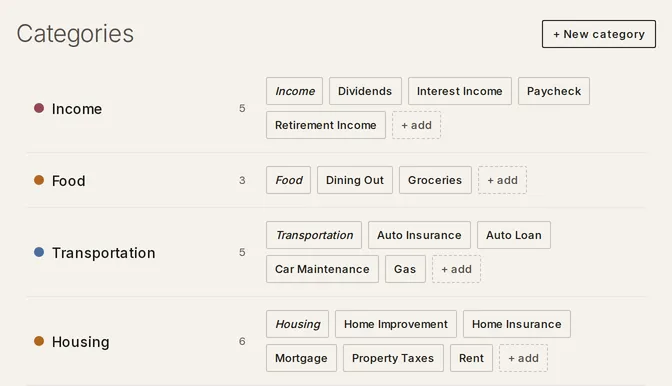
Which categories does Taiga Finance ship with?
Section titled “Which categories does Taiga Finance ship with?”| Parent | Subcategories | Counts as |
|---|---|---|
| Income | Income, Dividends, Interest Income, Paycheck, Retirement Income | Income |
| Food | Food, Dining Out, Groceries | Spending |
| Transportation | Transportation, Auto Insurance, Auto Loan, Car Maintenance, Gas | Spending |
| Housing | Housing, Home Improvement, Home Insurance, Mortgage, Property Taxes, Rent | Spending |
| Utilities | Utilities, Gas & Electric, Phone & Internet | Spending |
| Shopping | Shopping, Clothing, Entertainment & Recreation | Spending |
| Health | Health, Fitness, Medical | Spending |
| Travel | Travel | Spending |
| Education | Education | Spending |
| Children | Children, Child Care | Spending |
| Giving | Giving, Donations | Spending |
| Money & Fees | Money & Fees, Cash & ATM, Debt Payments, Taxes | Spending |
| Transfers | Transfers, Buy, Credit Card Payment, Investment Activity, Loan Payment, Sell | Neither |
| Pets | Pets | Spending |
| Miscellaneous | Miscellaneous, Uncategorized | Spending |
Organize lists the first six parents and folds the rest behind + 9 more parents · expand all. The picker on a transaction lists every pair, sorted by parent and then by subcategory, with the catch-all first.
How does the parent decide where an amount counts?
Section titled “How does the parent decide where an amount counts?”The parent, not the subcategory, sets how a transaction flows through Plan, cash flow, and reports.
- Income is the one parent whose transactions count as income.
- Transfers counts as neither spending nor income anywhere. Money moving between your own accounts, a card payment, or a brokerage’s own buys and sells would otherwise double-count.
- Every other parent counts as spending.
Plan leaves Transfers and Income out of its spending lines. The rule works by parent, so a subcategory you add under Transfers is left out the same way.
Which categories does Taiga Finance assign on its own?
Section titled “Which categories does Taiga Finance assign on its own?”Taiga Finance fills four subcategories on its own. You can pick any of them by hand, but transactions arrive in them without a rule or a keyword match.
- Miscellaneous › Uncategorized is where a transaction lands when no rule, keyword list, or earlier decision matches it. It is a pair like any other, so you can filter on it and budget it. The ledger marks the row Uncategorized and counts it as spending until you change it. How a transaction gets its category covers the order Taiga Finance tries.
- Transfers › Investment Activity takes a brokerage or retirement account’s own transactions: buys, sells, sweeps, and fund income.
- Transfers › Loan Payment takes the receiving leg of a payment on a mortgage, HELOC, or loan account. The paying account’s side of that payment keeps its own category and counts as spending.
- Transfers › Credit Card Payment takes the payment as it lands on a card account, when the description reads as a payment rather than a refund, reward, or interest.
What are the rules for a category you add?
Section titled “What are the rules for a category you add?”Your own categories join the same list. A new parent is stored as its own catch-all, so Hobbies arrives as Hobbies › Hobbies. Taiga Finance refuses a new name in four cases.
- The pair already exists, built-in or yours.
- The name differs from a built-in parent only by case, so food can’t shadow Food.
- The name is reserved for a new parent: Uncategorized, Personal, Duplicate, Balance Adjustments, or Hide from Budgets & Trends.
- The name is longer than 64 characters.
The steps for adding, renaming, and deleting are in Transactions & categories.
Troubleshooting
Section titled “Troubleshooting”Adding a subcategory fails with “already exists”
Section titled “Adding a subcategory fails with “already exists””The parent and name you typed are already a pair, either one of the 47 built-in ones or one you added earlier. The line under the panel names the pair. Pick a different name, or use the existing chip.
Creating a parent fails with “a category named like … already exists”
Section titled “Creating a parent fails with “a category named like … already exists””The new name matches a built-in parent except for its capitalization. Add your subcategory under the existing parent instead, with + add on its row.
Creating a parent fails with “is reserved”
Section titled “Creating a parent fails with “is reserved””The name is one of the five reserved ones listed above. Choose a different name.
Deleting a subcategory fails with “Can’t delete — used by rule(s)”
Section titled “Deleting a subcategory fails with “Can’t delete — used by rule(s)””A rule still sets that category, and the message names up to three of them. Open Rules in Organize, change or delete those rules, then delete the subcategory.
Organize shows “Needs attention · N orphaned categories still tagging transactions”
Section titled “Organize shows “Needs attention · N orphaned categories still tagging transactions””A subcategory was deleted with its transactions left as they were, so they still carry a category that no longer exists. Each row in the band offers Move to a live category, which moves those transactions to the pair you pick.
Does a refund count as income?
Section titled “Does a refund count as income?”No. Only transactions under the Income parent count as income. A positive amount under a spending parent reduces that category’s spending for the period, so a returned purchase nets out of the category it came from.
Do categories imported from Monarch or YNAB become new categories?
Section titled “Do categories imported from Monarch or YNAB become new categories?”Not on their own. At Category review, each source category maps onto one of these pairs or one you already have. Create new adds a subcategory of your own for it. CSV & PDF importers covers the review step.
Can I rename a built-in subcategory or move it under another parent?
Section titled “Can I rename a built-in subcategory or move it under another parent?”No. The 47 built-in pairs keep their names and parents. A rule can send every matching transaction to a category of your own, and Rename / merge on one of your subcategories can fold it into any pair, built-in or yours.
Do my own subcategories count in Plan and reports like the built-in ones?
Section titled “Do my own subcategories count in Plan and reports like the built-in ones?”Yes. A category you add is a pair like any other, and its parent decides how it counts. A subcategory under Food is spending, one under Income is income, and one under Transfers counts as neither.